 ETW

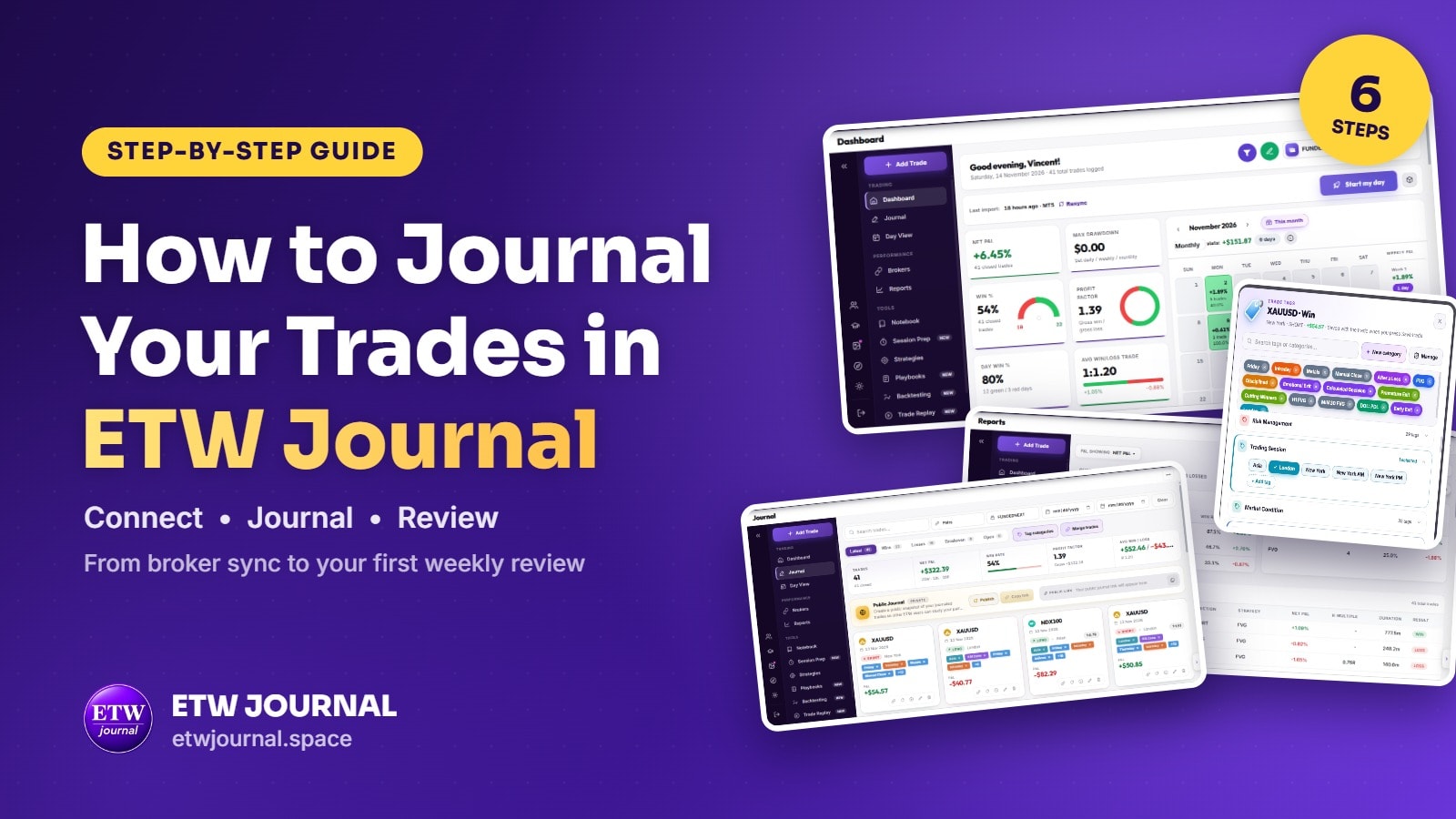
A trading journal only works if you actually keep it. Most traders quit because logging every trade by hand takes too long, or they log the numbers and skip the part that teaches them anything: why they took the trade and how they felt.
ETW Journal splits the work in two. Your broker sends the numbers automatically. You add the story. This guide walks you through the whole routine in six steps, from connecting your account to reviewing your week, with screenshots of every screen you'll use.
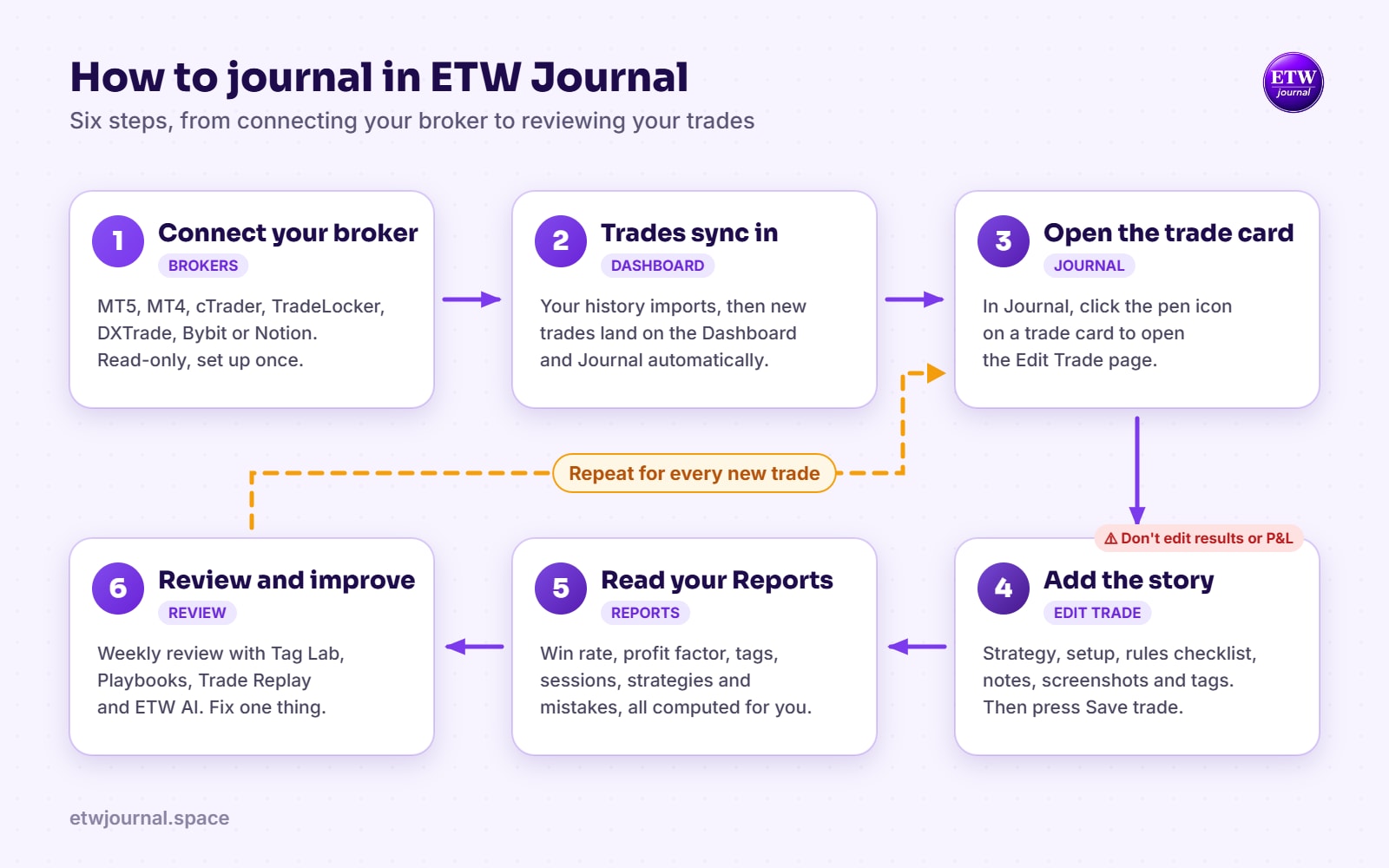
The short version: connect your broker in Brokers, let your trades sync to the Dashboard, open each trade from the Journal with the pen icon, add your strategy, rules, notes, screenshots and tags, then press Save trade. Reports calculates everything for you, and a short weekly review turns it into lessons.
The 6-step routine at a glance
Here's the full loop on one page. Steps 1 and 2 happen once. Steps 3 to 6 are what you repeat for every trade and every week.
Step 1: Connect your broker or prop firm
Open Brokers from the left menu. You'll see the Connect Broker / Prop Firm panel with every platform ETW Journal can sync from: MT5, MT4, cTrader, TradeLocker, DXTrade, Bybit and Notion. It works the same for a personal broker account or a prop firm account.
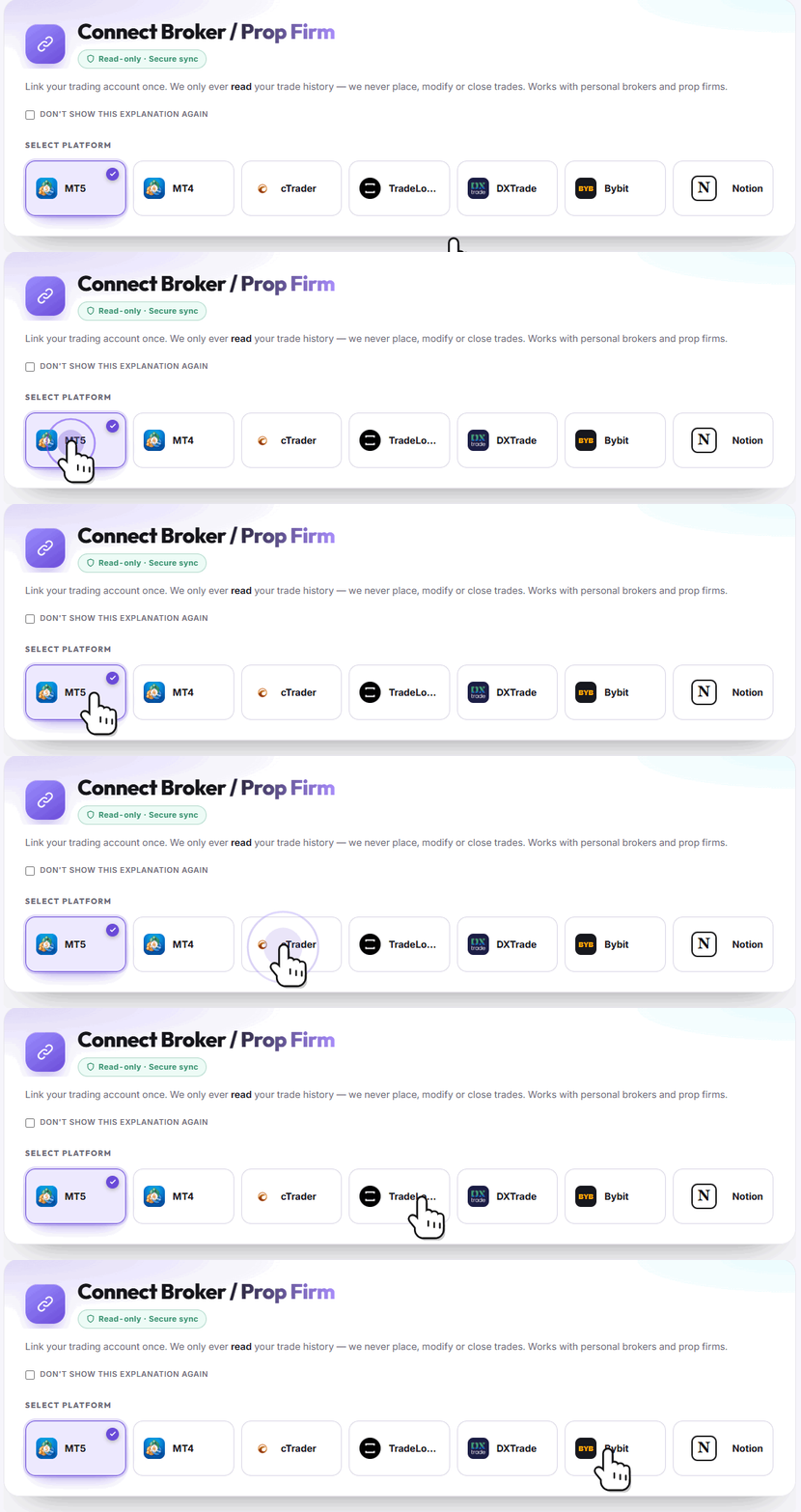
Pick your platform and follow the steps for it:
MT5 and MT4
Enter your account number, your investor password and your server (for example FundedNext-Server), then click Connect MT5. ETW Journal imports your history first, then keeps new trades coming in through the trading day.
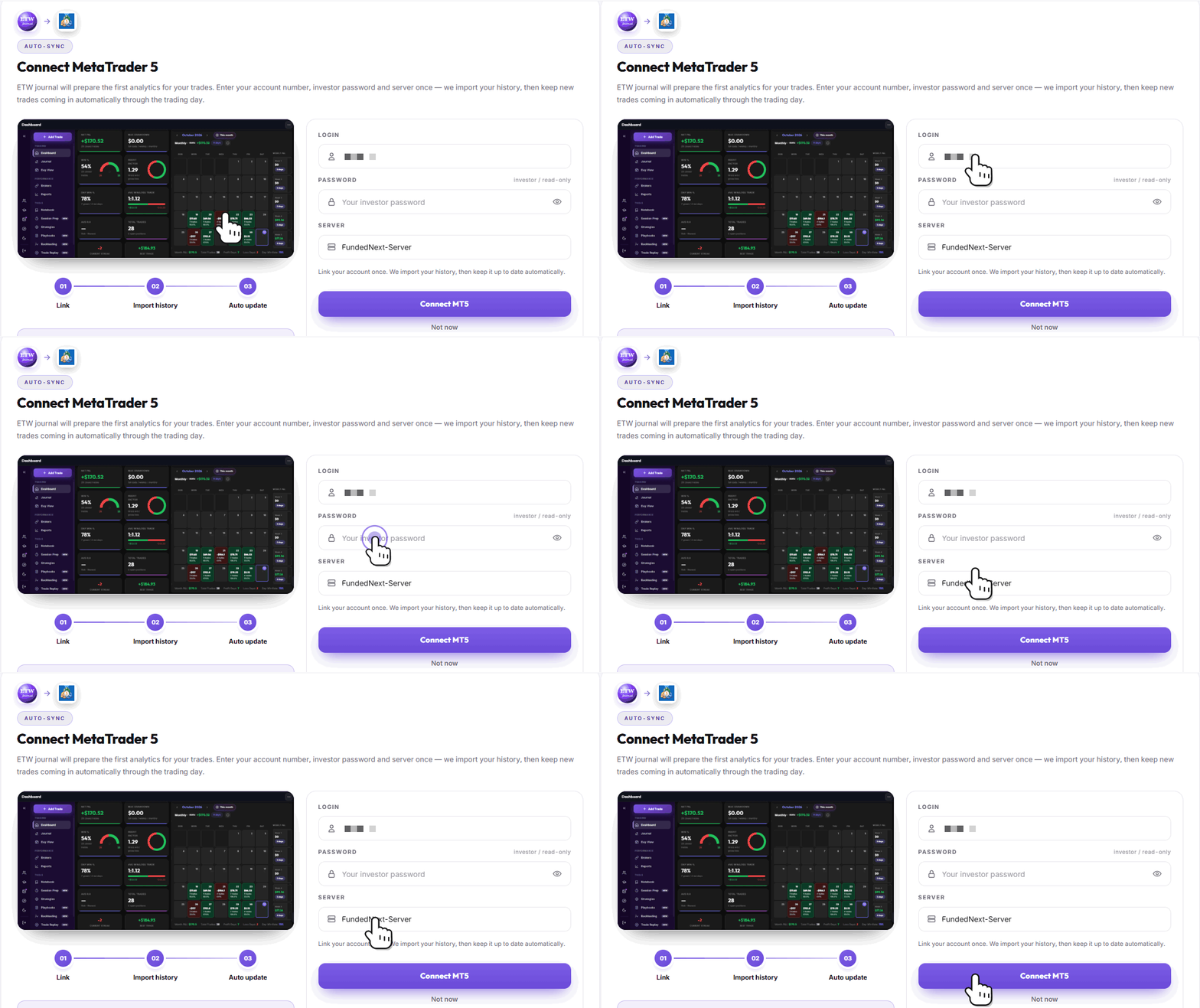
Use the investor password. It's the read-only password your broker or prop firm gives you. It lets ETW Journal see your trades but can't place or change anything. Direct MT5 and MT4 connect is part of the Pro plan. On Essential, use the free MT5 EA Sync instead, or import your MT5 history file.
cTrader
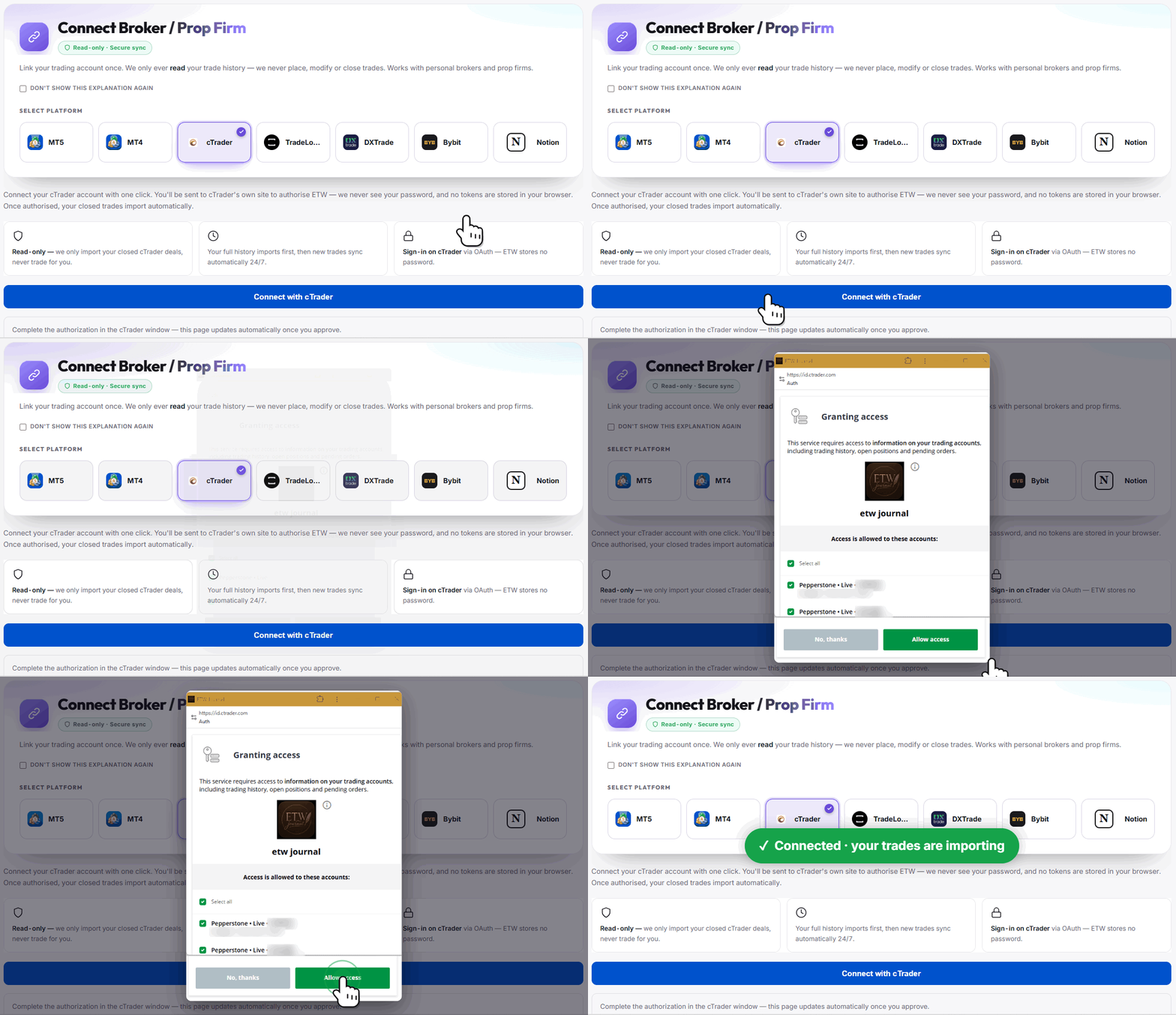
Click Connect with cTrader. A cTrader window opens on cTrader's own site, so we never see your password. Tick the accounts you want ETW Journal to read and press Allow access. Your full history imports first and new closed trades sync automatically, 24/7.
Bybit
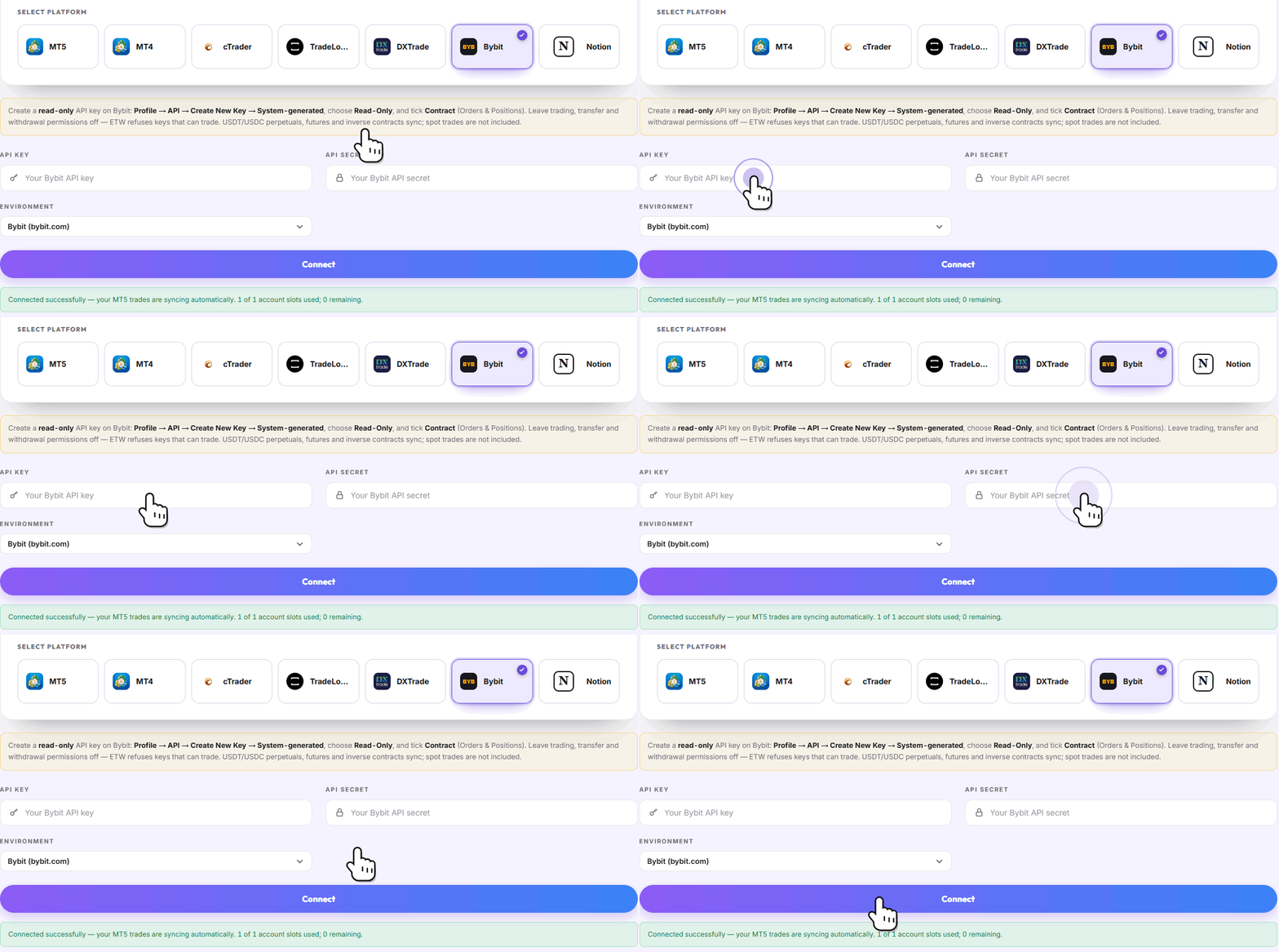
On Bybit, create a read-only API key: Profile → API → Create New Key → System-generated, choose Read-Only and tick Contract (Orders & Positions). Leave trading, transfer and withdrawal permissions off. Paste the API key and secret into ETW Journal, pick the environment and click Connect.
TradeLocker, DXTrade and Notion
Select the tile and follow the instructions on screen. If you've kept a journal in Notion for years, our Notion import guide shows how to bring every trade, note and screenshot across in one go.
Read-only, always. ETW Journal only ever reads your trade history. It never places, modifies or closes a trade, so connecting a prop firm account doesn't break any of its rules.
Step 2: Let your trades sync to the Dashboard
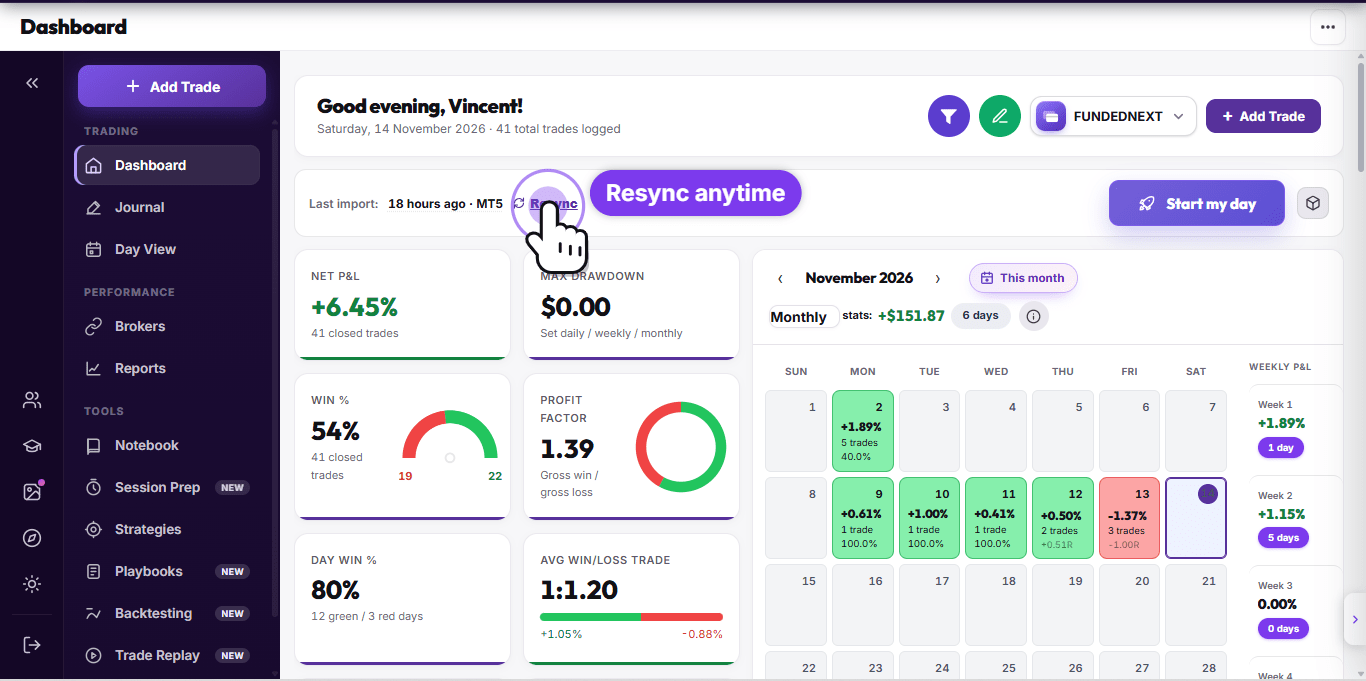
As soon as the connection succeeds, your trade history is pulled in and your Dashboard fills itself: net P&L, win rate, profit factor, day win rate, average win and loss, and your P&L calendar with every day colored green or red.
A few things worth knowing on this screen:
- Last import shows when your trades last synced. Click Resync if you want to pull the latest trades right now.
- The account switcher (top right, FUNDEDNEXT in our example) lets you jump between accounts if you've connected more than one.
- The calendar is clickable. Click any day to see the trades behind it.
Step 3: Open the trade from your Journal
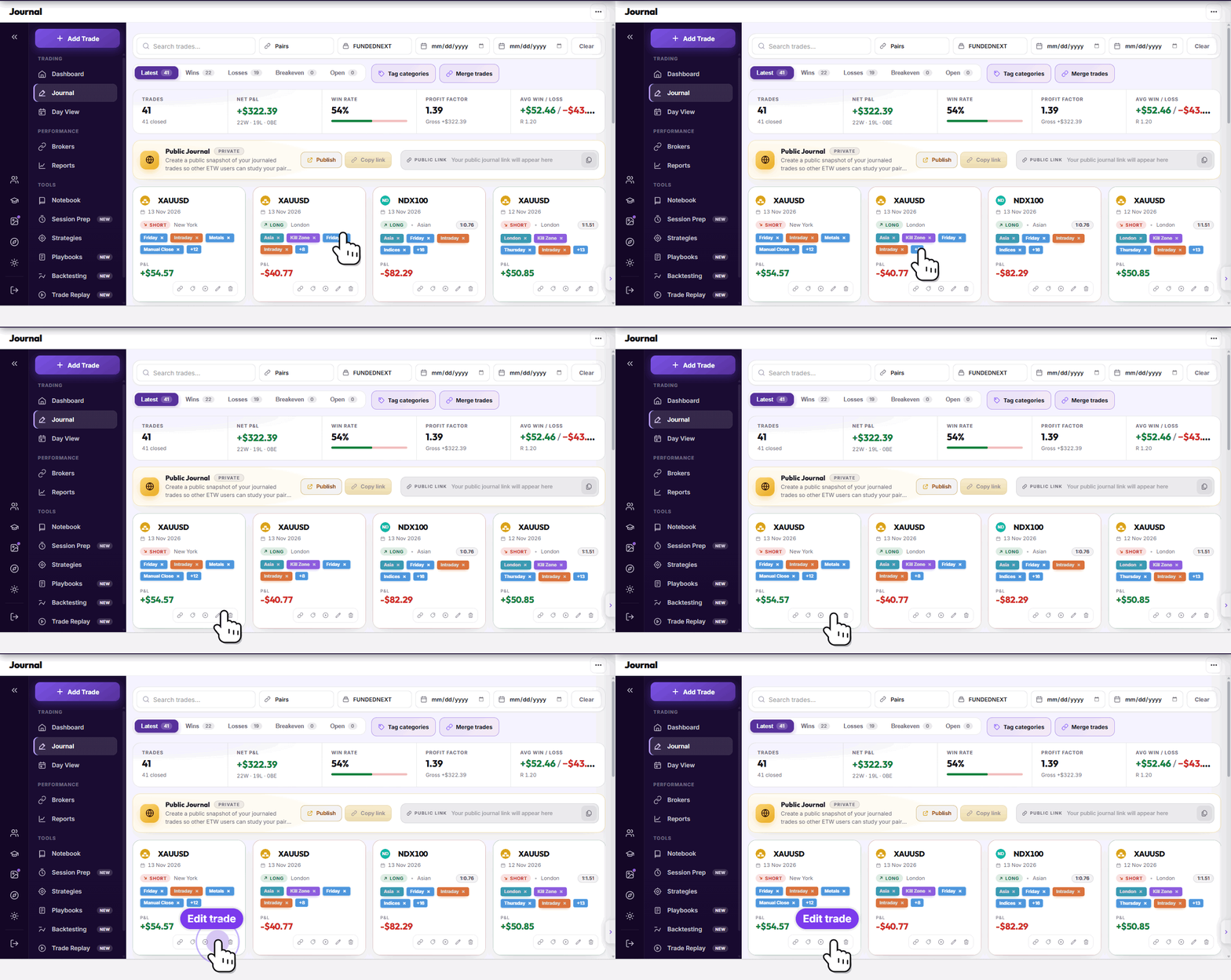
Go to Journal in the left menu. Every synced trade has its own card with the instrument, date, direction, session, tags and P&L. You can search, filter by pair, account and dates, or switch between Latest, Wins, Losses, Breakeven and Open.
At the bottom of each card is a row of small icons. Click the pen icon to open that trade in the Edit Trade page.
Step 4: Add the story behind the trade
This is where your journal becomes useful. The numbers are already in. Now you add what the broker can't know: why you took the trade, which rules you followed and how you felt. The sections menu on the left takes you straight to each part, and the Journal completeness meter tells you what's still missing.
Don't edit the results. Leave the outcome fields alone: entry and exit, size, P&L and the win/loss result. They came straight from your broker, and changing them makes your Reports wrong. Only add context.
Setup & context
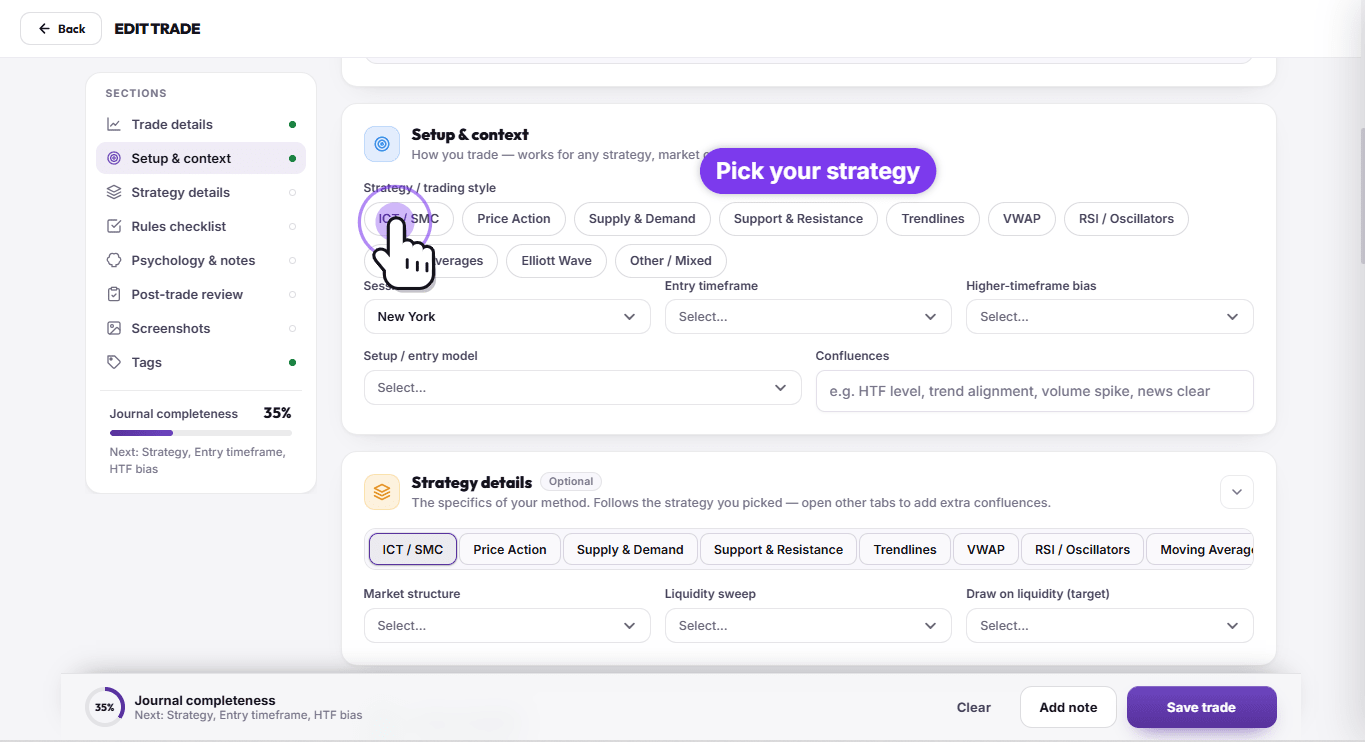
Pick your strategy or trading style (ICT / SMC, Price Action, Supply & Demand, Support & Resistance, Trendlines, VWAP and more), then the session, entry timeframe, higher-timeframe bias, setup / entry model and your confluences.
Below it, Strategy details asks the questions that matter for the method you picked. For ICT / SMC that's market structure, the liquidity sweep and the draw on liquidity.
Rules checklist
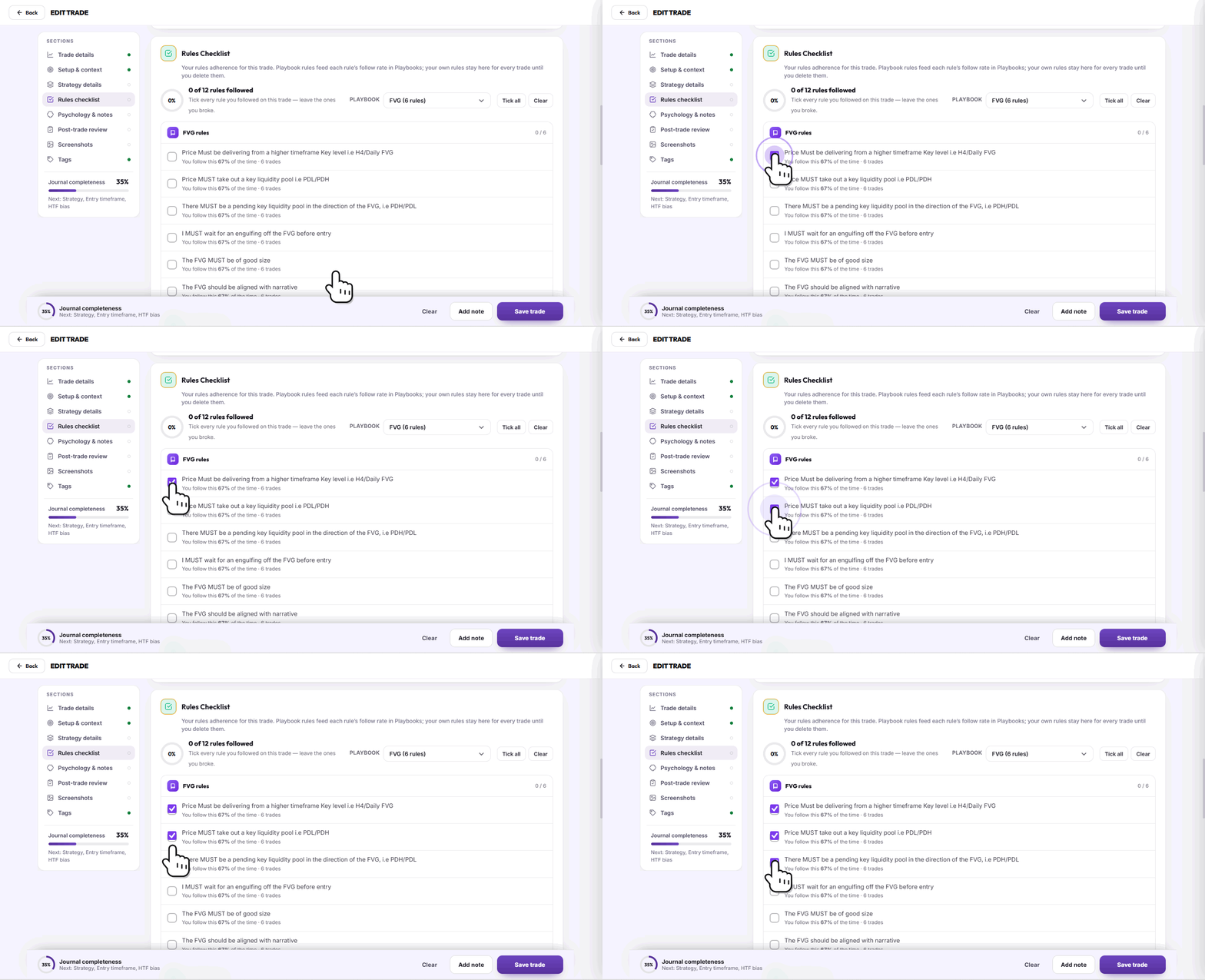
Choose your playbook and tick every rule you actually followed on this trade. Leave the ones you broke unticked. ETW Journal shows how often you follow each rule across all your trades, so you can see which rules you keep breaking.
No playbook yet? Our guide on linking imported trades to your playbook shows how to set one up.
Psychology & notes
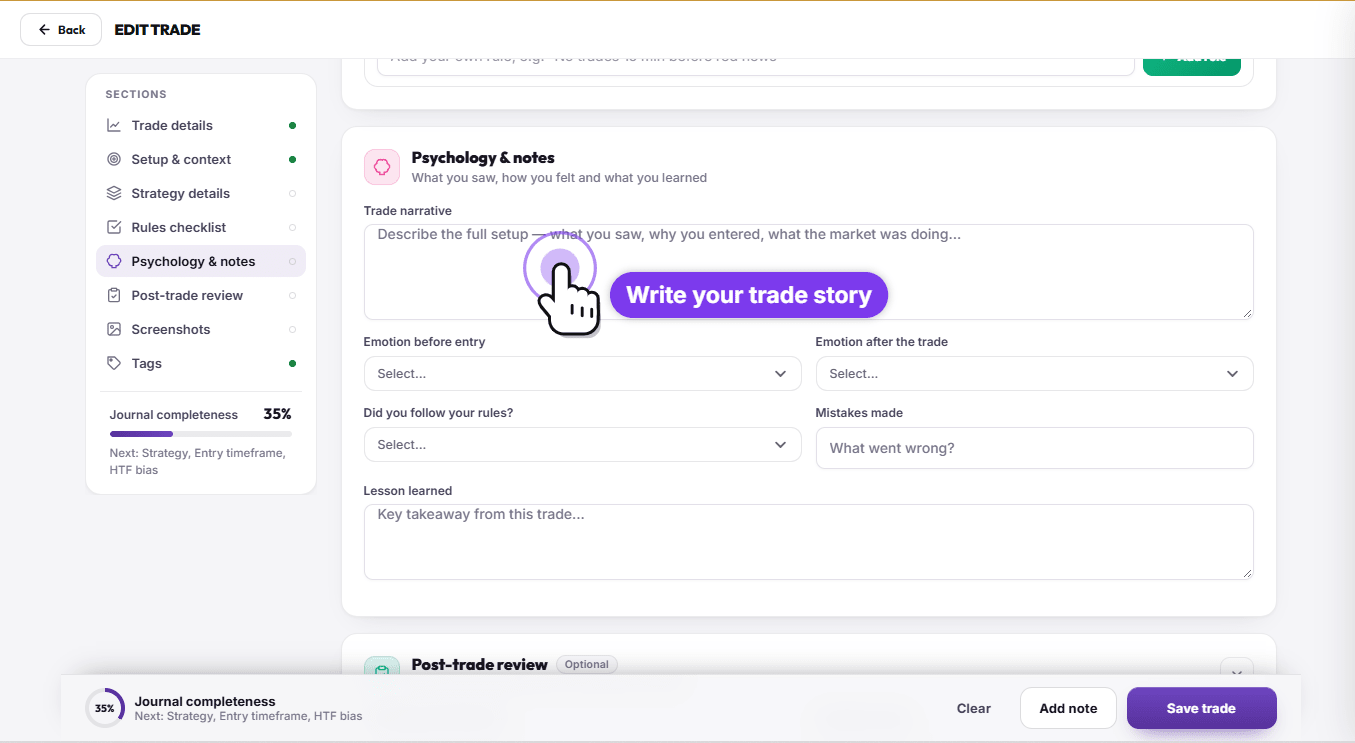
Write a short trade narrative: what you saw, why you entered and what the market was doing. Then pick your emotion before entry and after the trade, say whether you followed your rules, note any mistakes and write one lesson learned.
Screenshots and tags
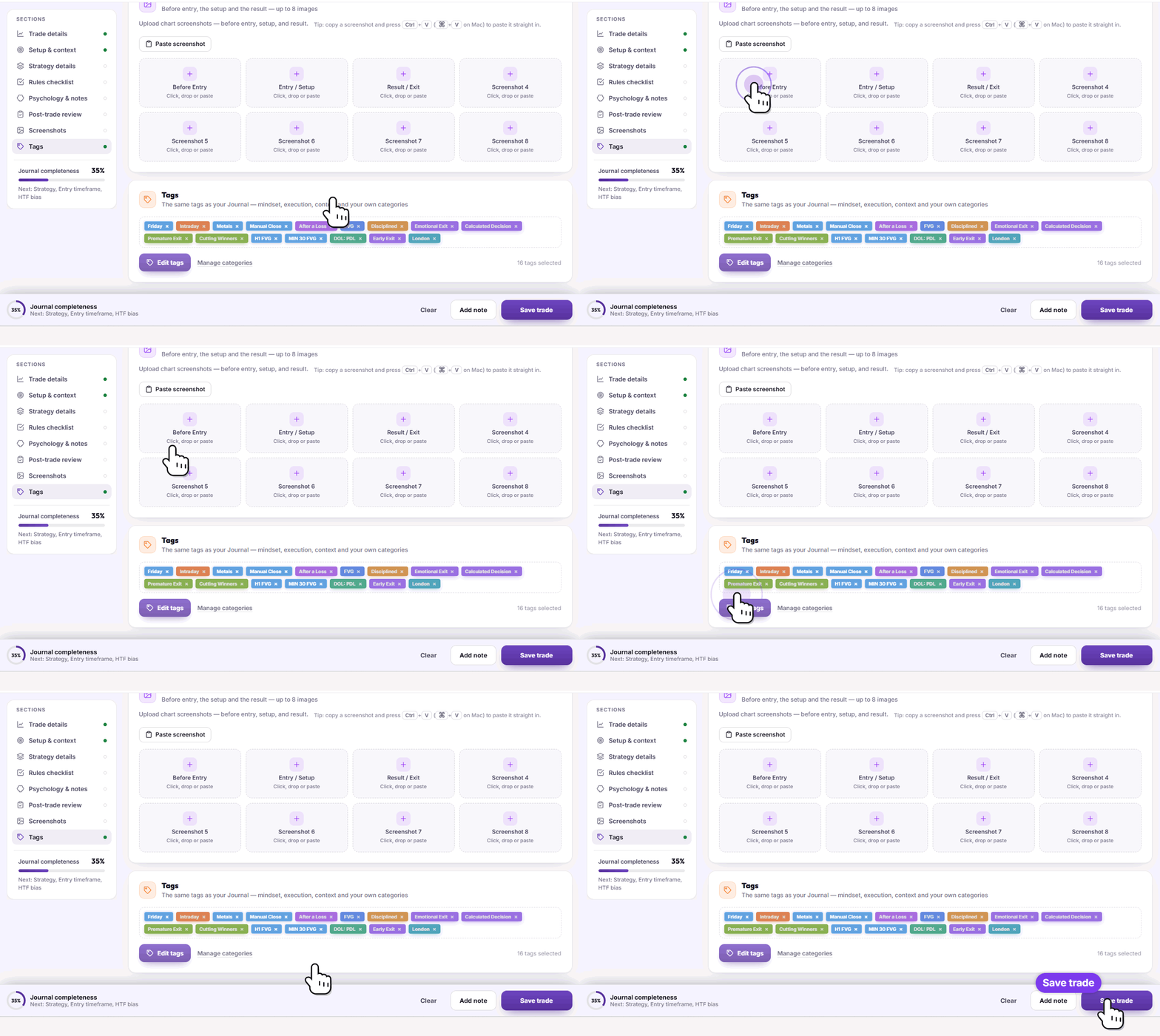
Add up to eight chart screenshots: Before Entry, Entry / Setup and Result / Exit, plus five extra slots. You can click, drag or paste a screenshot straight in with Ctrl+V (⌘+V on Mac).
Then tag the trade. Click Edit tags to open the tag picker, where tags are grouped into categories like Risk Management, Trading Session, Market Condition and Strategies. You can create your own categories too.
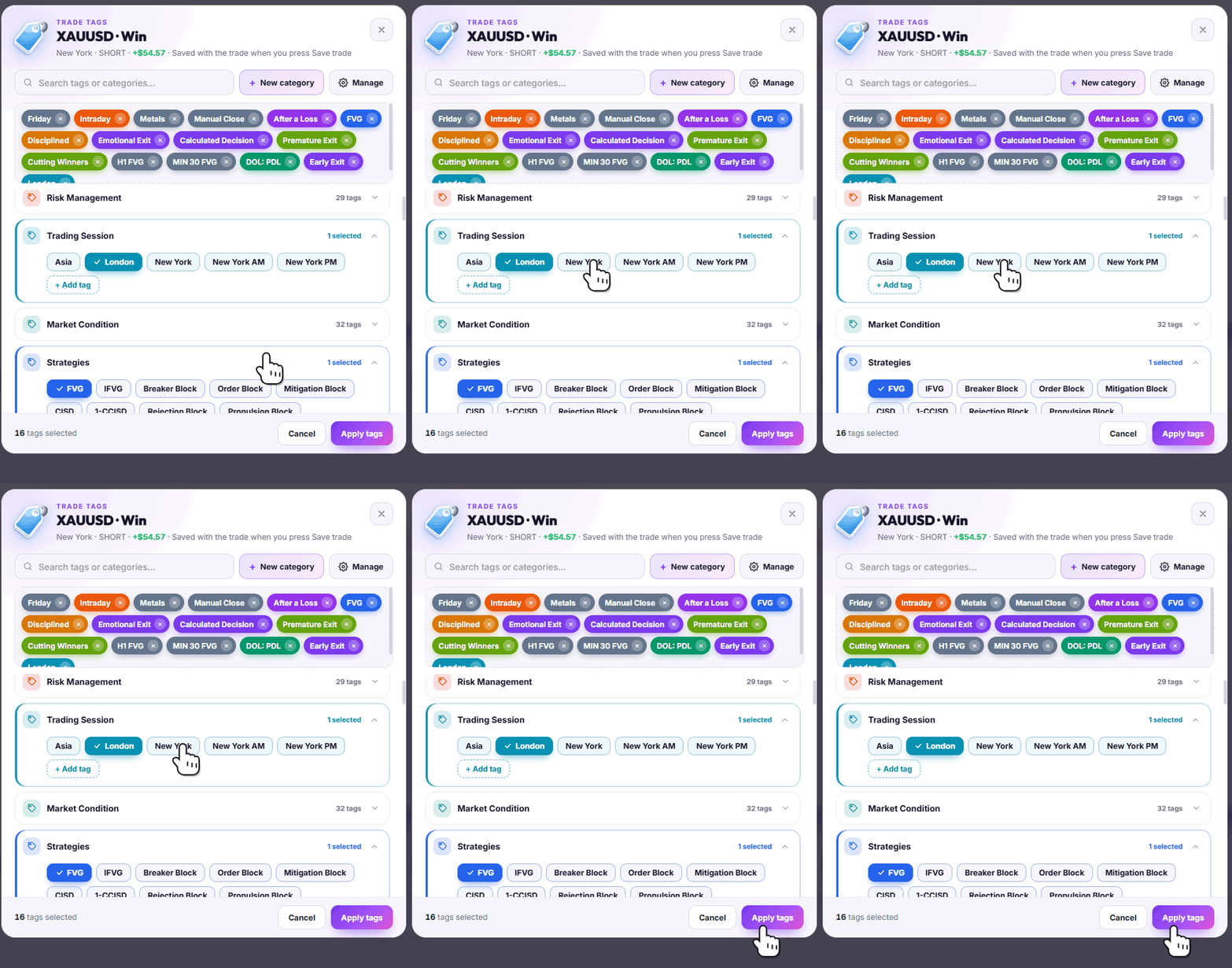
Tags are what make your Reports smart, so be consistent. For a deeper dive, read how to use tags in ETW Journal.
When you're done, press Save trade at the bottom of the page. That's it for this trade.
Step 5: Read your Reports
Open Reports. Everything here is calculated automatically from your synced trades and the details you added. You don't need a spreadsheet or a single formula.
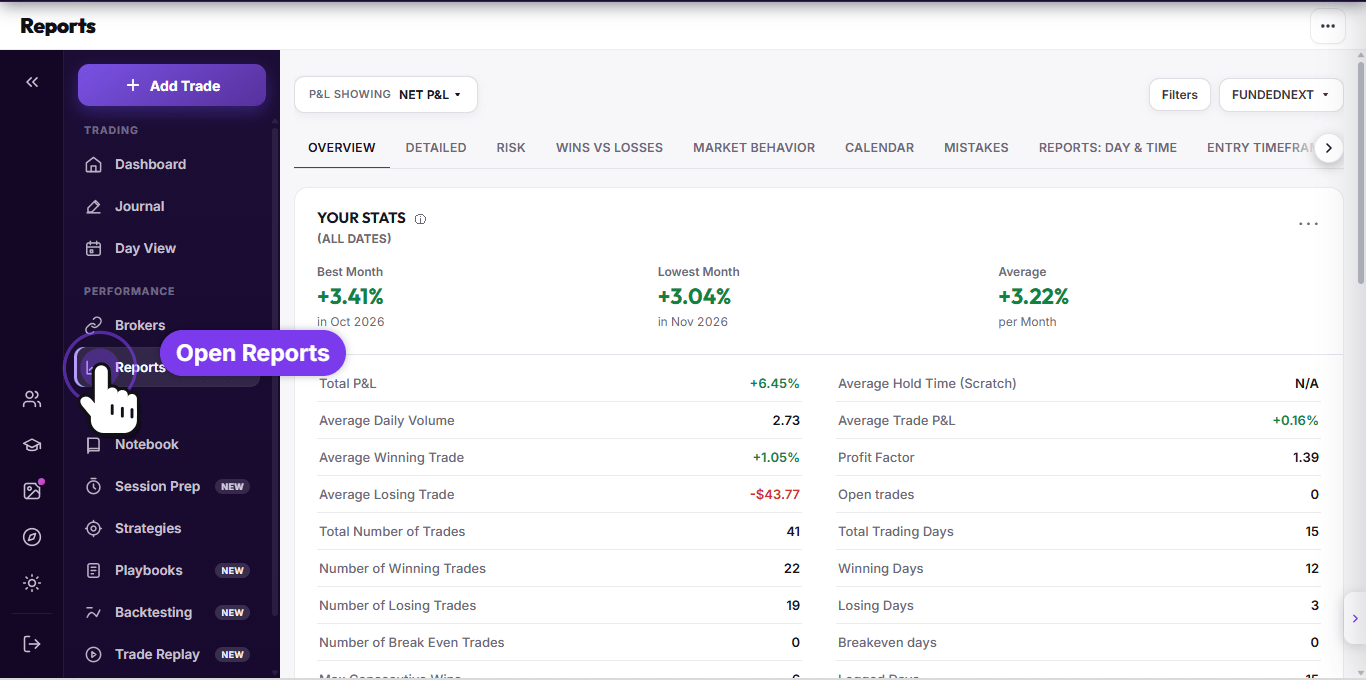
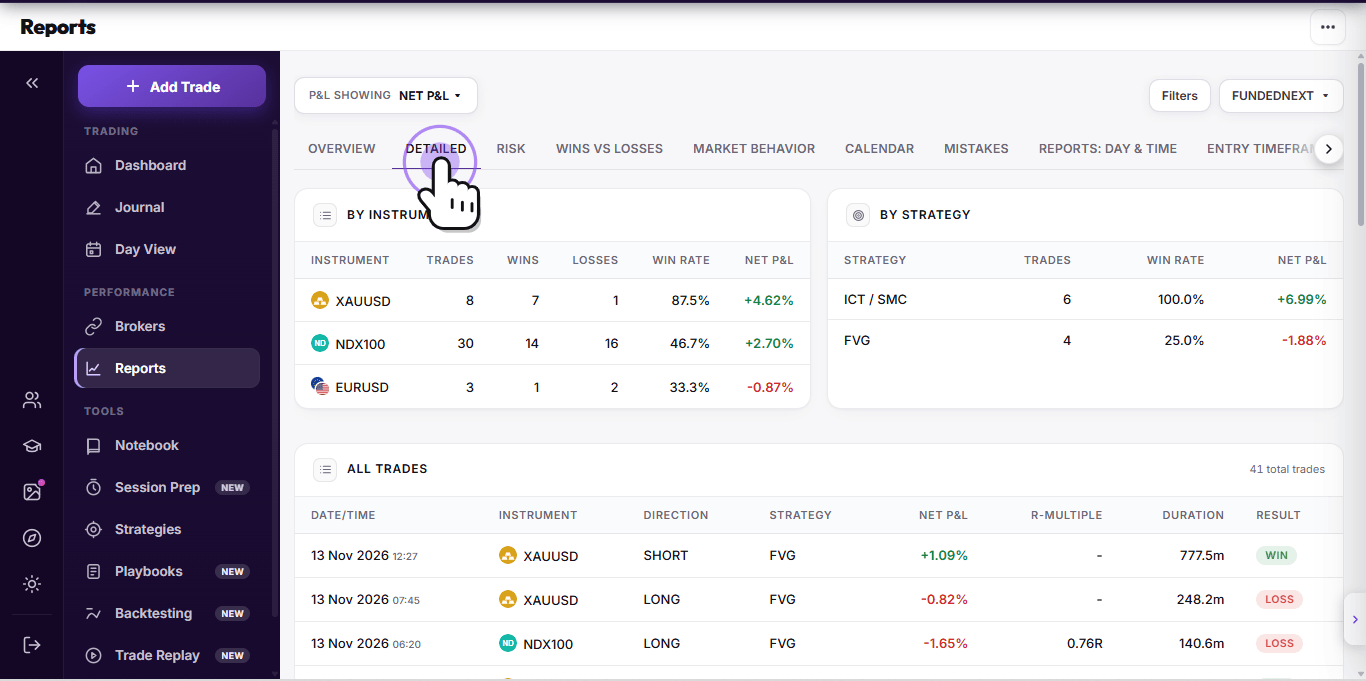
The tabs across the top break your trading down from every angle: Detailed, Risk, Wins vs Losses, Market Behavior, Calendar, Mistakes, Day & Time, Entry Timeframe, Deep Analysis, Tags, Tag Lab and ICT & Liquidity.
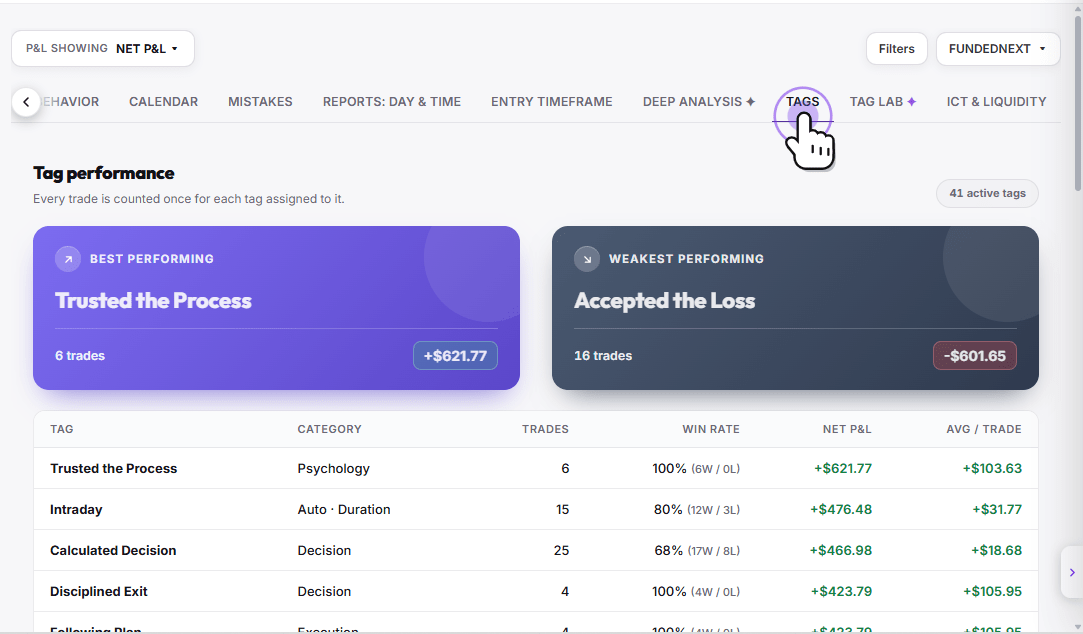
The Tags tab is where your journaling pays off. Every tag gets its own trades, win rate, net P&L and average per trade, so you can see your best and weakest habits in seconds.
Step 6: Review your trades and improve
Journaling without reviewing is just record keeping. Set aside time once a week (Friday evening or the weekend works well) and use these tools:
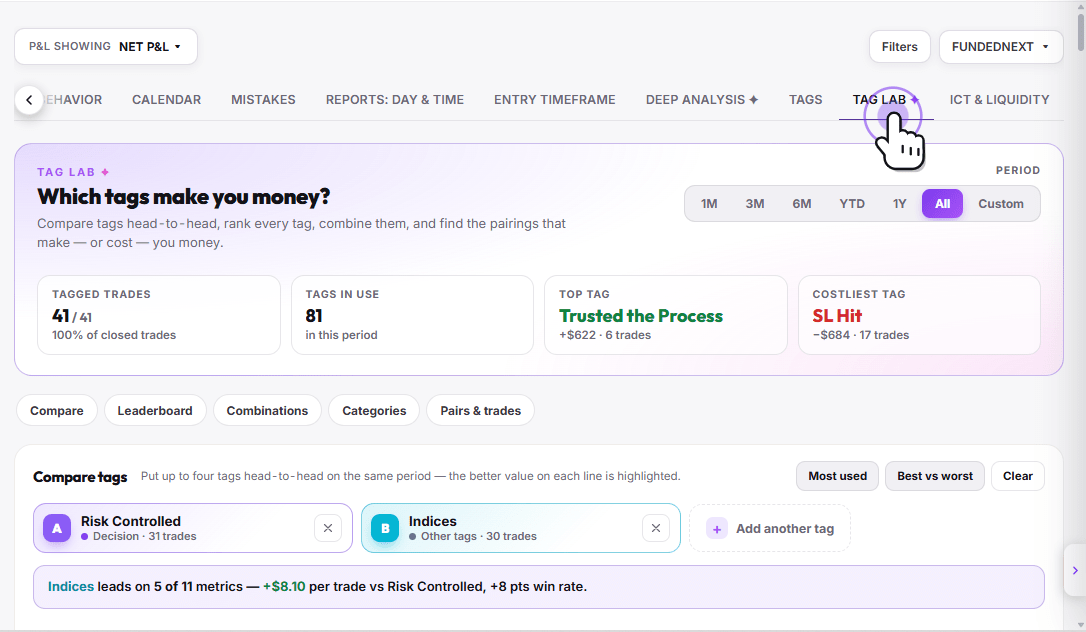
- Tag Lab: compare tags head to head, rank them, and find the tag pairings that make or cost you money.
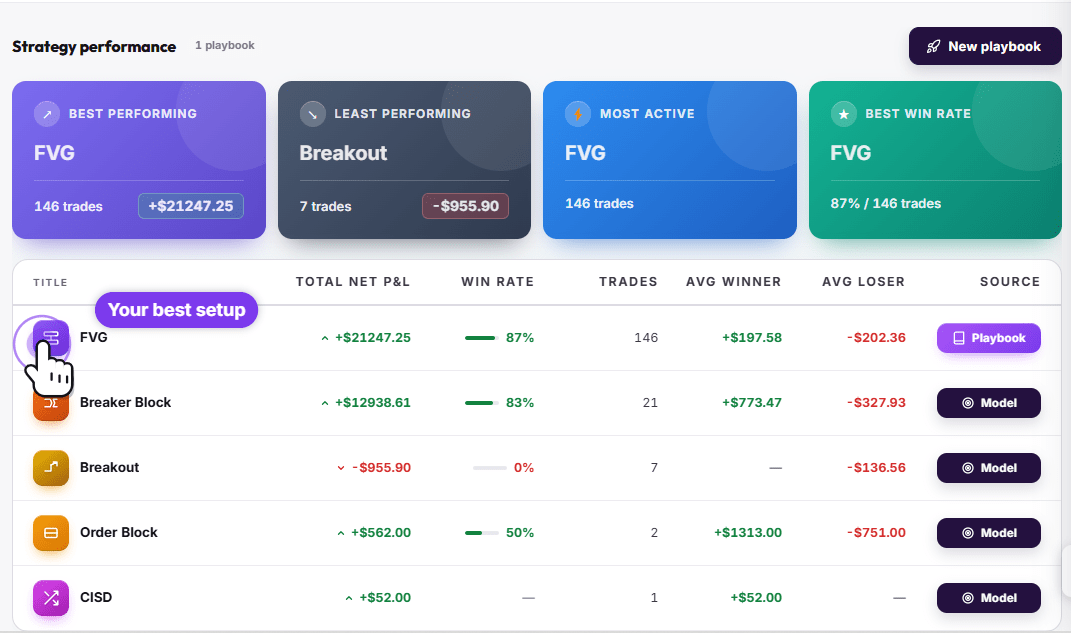
- Strategies and Playbooks: see which setups have the best win rate and P&L, and which ones you should stop trading.
- Trade Replay: replay a trade candle by candle to see what you could have done better. Here's how Trade Replay works.
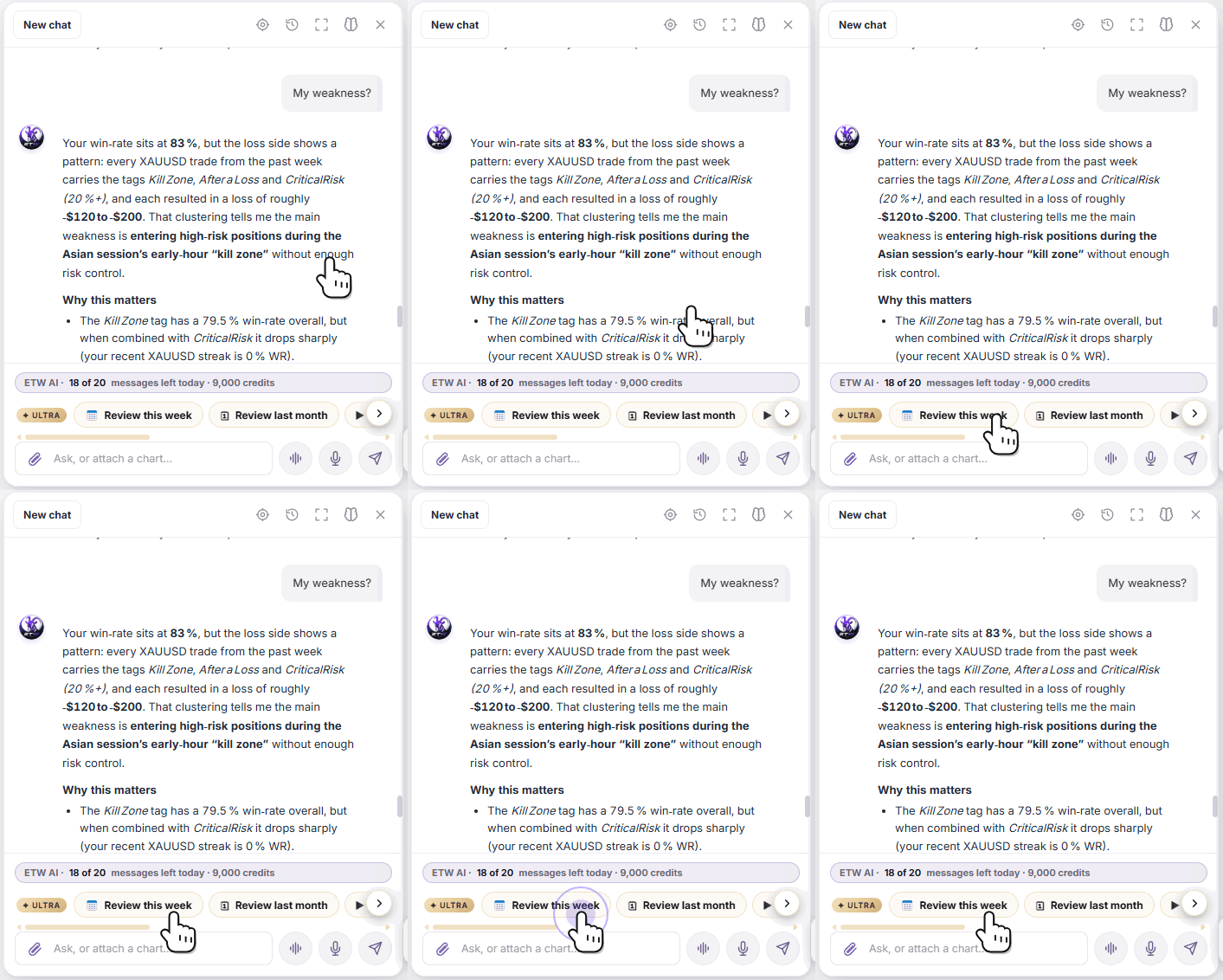
- ETW AI: ask questions about your own trades, like "What's my weakness?" or "Review this week".
End every review by picking one thing to fix next week. One clear change you actually stick to beats ten you forget. For a complete routine, follow our 11-step weekly review guide.
Your journaling routine in one table
| When | What to do | Where |
|---|---|---|
| Once | Connect your broker or prop firm account | Brokers |
| After every trade | Click the pen icon, add setup, rules, notes, screenshots and tags, then save | Journal → Edit Trade |
| End of each day | Check your P&L calendar and make sure every trade is journaled | Dashboard |
| Once a week | Review tags, strategies and mistakes, and pick one thing to fix | Reports, Tag Lab, ETW AI |
Start journaling today
Connect your account, open your last trade and give it two minutes. Do the same for every trade this week, then sit down on the weekend and look at your Reports. You'll learn more about your trading from that one review than from a month of trading without a journal.
Got a question or stuck on a step? Message us on X at @ETvtrades_Group and we'll help you out.
Trading carries a real risk of loss. ETW Journal is a journaling and analytics tool: it doesn't place trades or guarantee results. It helps you see your trading clearly so you can make better decisions.