 ETW

Last updated: October 12, 2026
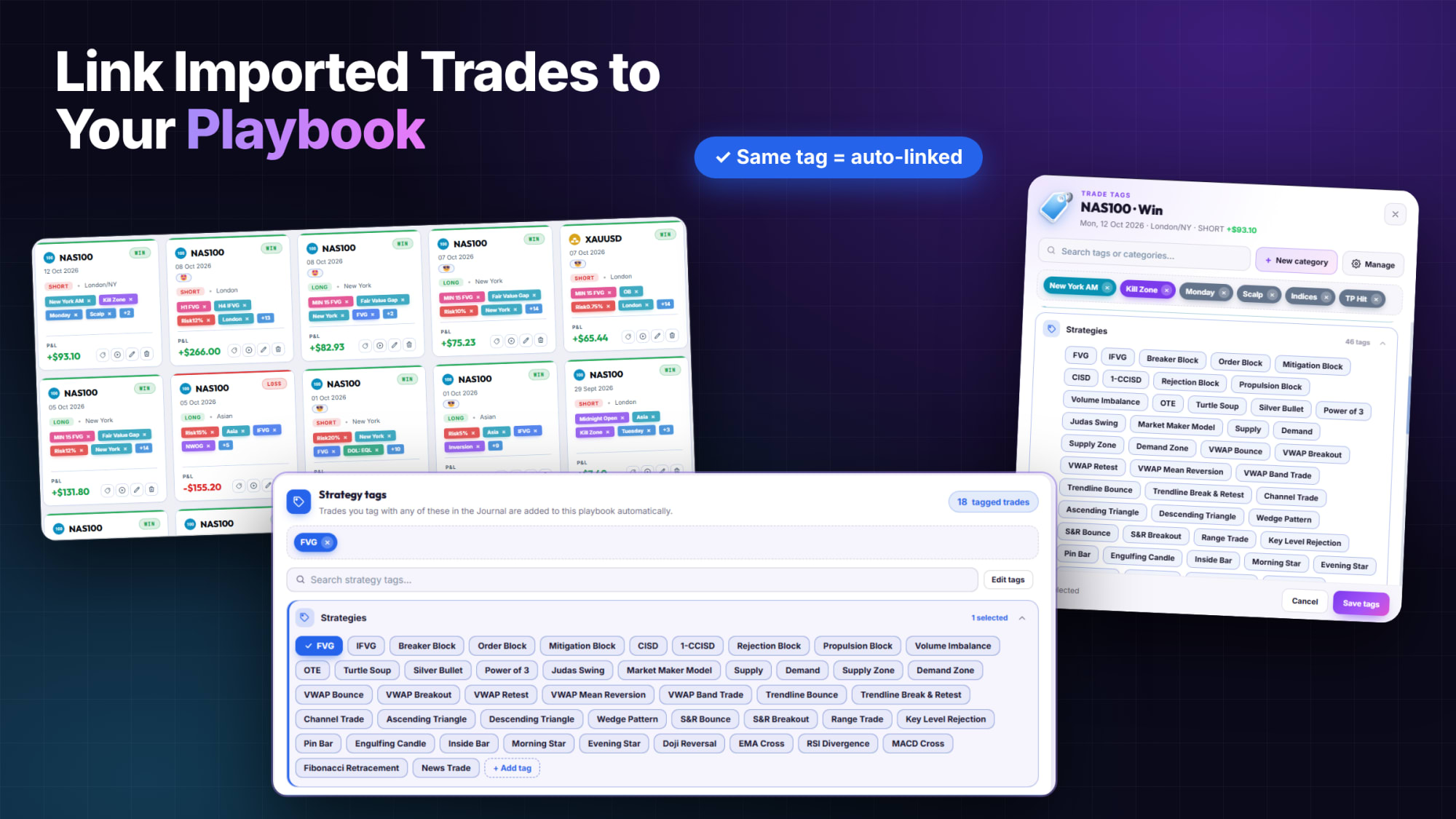
Your trades sync into ETW Journal automatically, but a raw list of trades can't tell you which strategy is making you money. That's what playbooks are for. The link between the two is simple: a strategy tag. Put one tag on your playbook, put the same tag on every trade that followed that playbook, and ETW Journal connects them for you.
This guide shows you the exact order to do it in, so every newly imported trade lands in the right playbook.
The short version: build the playbook first, give it one strategy tag (for example FVG), then add that exact same tag under Strategies on every imported trade that met your playbook rules.
Prefer to watch? This short video walks through the whole process, from building the playbook to tagging your imported trades.
How the Link Works
Every playbook has a Strategy tags section. As the app puts it, trades you tag with any of these in the Journal are added to the playbook automatically. There's no manual "add to playbook" step for each trade. The tag does the work.
- Playbook side: you choose the tag that represents the setup (e.g. FVG).
- Journal side: you add that same tag to each trade that qualifies.
- Result: the trade shows up in the playbook, and its stats (win rate, profit factor, net P&L, average winner and loser) update with it.
Step 1: Build Your Playbook First
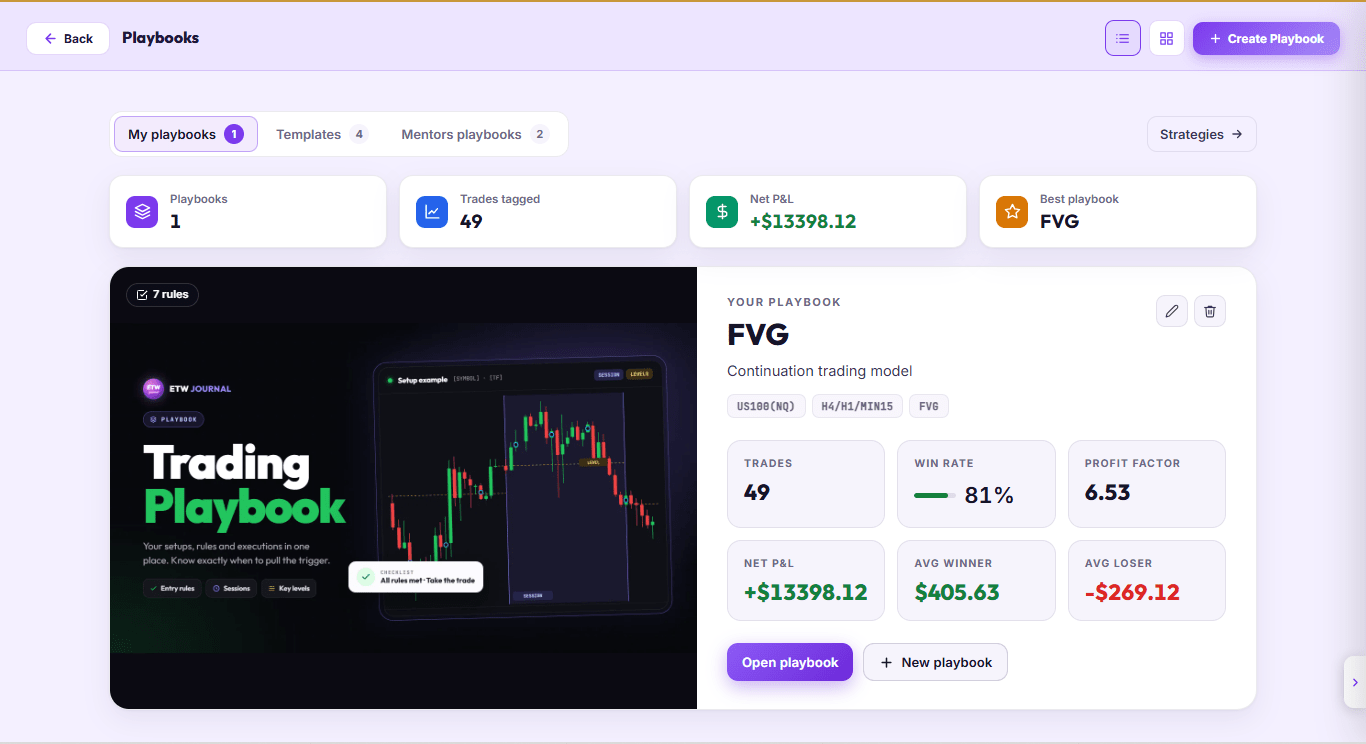
Start in Playbooks and click Create Playbook. Give it a clear name, a short description (e.g. Continuation trading model), the markets and timeframes you trade it on, and the rules a trade must meet before you take it.
Doing this first matters. The rules are what you'll check each imported trade against, so you need them written down before you start tagging.
Step 2: Add One Strategy Tag to the Playbook
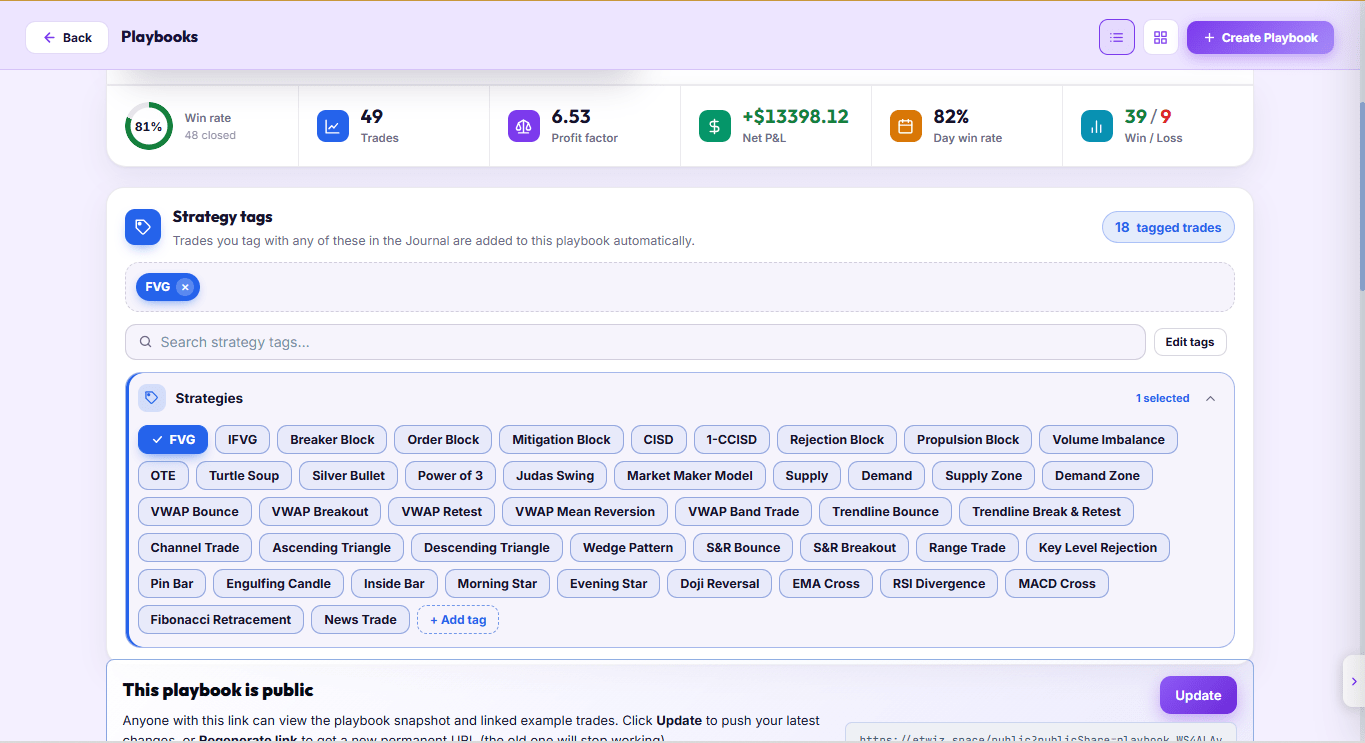
Open the playbook and scroll to Strategy tags. Under the Strategies category, select the tag that represents this setup. In the example below, the FVG playbook uses the FVG tag, and the counter on the right shows how many trades are already linked.
Stick to one strategy tag per playbook. One tag means one clear definition, so there's never any doubt about which playbook a trade belongs to. If your setup isn't in the list, click + Add tag to create it.
Step 3: Let Your New Trades Import
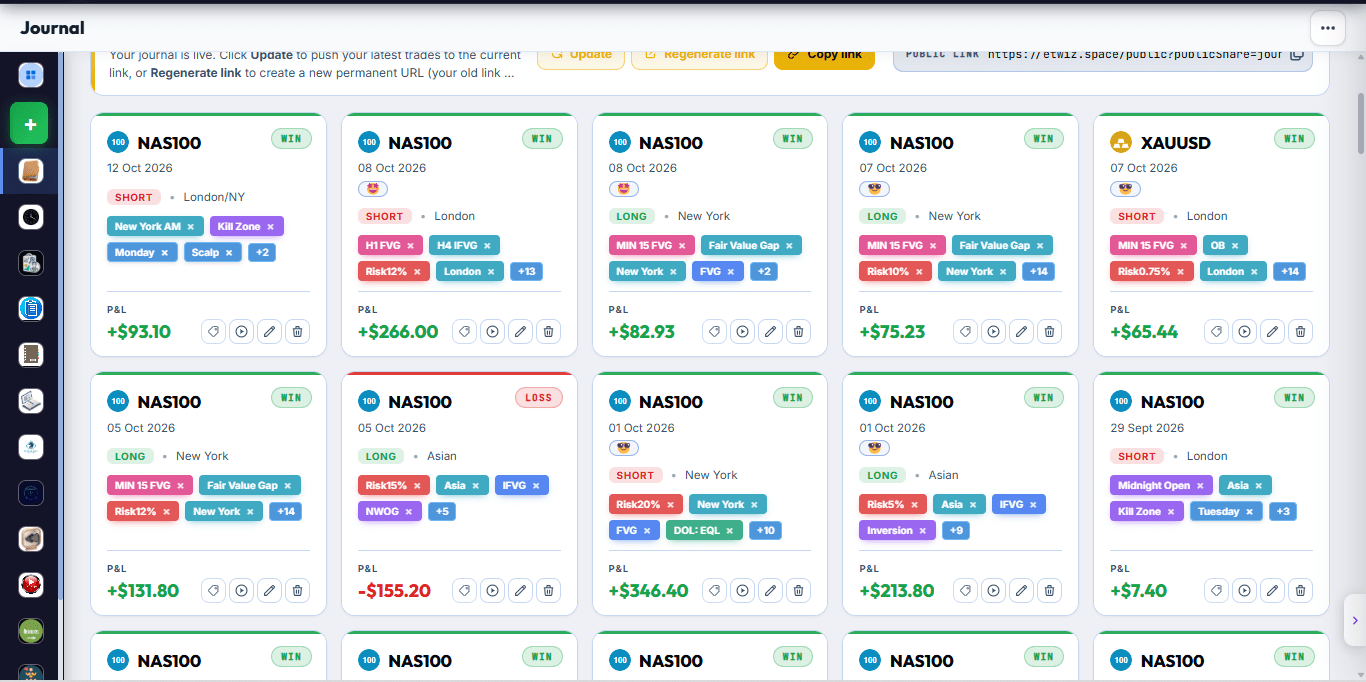
Once your account is connected (MT5, MT4, cTrader, TradeLocker or DXtrade), new trades appear in the Journal section as cards showing the instrument, date, direction, session, tags and P&L. Each card has a tag button, so you can review and tag trades straight from this view.
Step 4: Check the Trade Against Your Playbook Rules
Before you tag anything, ask one question: did this trade meet my playbook's requirements? Go through the rules you wrote in Step 1. Right setup, right session, right confirmation, right risk.
- Yes, it met the rules: it gets the playbook's strategy tag.
- No, it didn't: leave the strategy tag off. Tag it with what actually happened (a mistake tag, "forced", etc.) instead.
Don't tag a trade with the playbook tag just because it won. Only tag trades that followed the rules. Otherwise your playbook stats will look better (or worse) than the strategy really is.
Step 5: Add the Same Tag Under Strategies
Click the tag button on the trade card to open Trade Tags. Find the Strategies category, select the same tag your playbook uses (here, FVG), then click Save tags. The trade is now linked to the playbook.
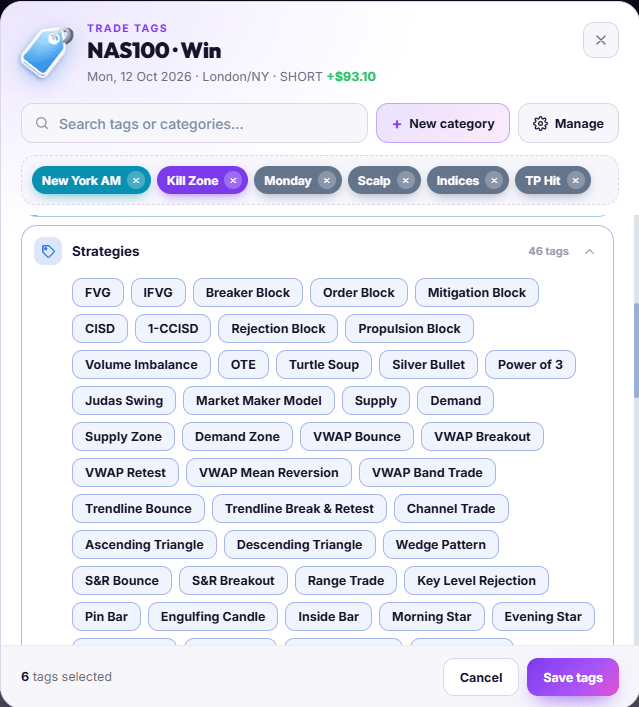
You can also type your own tag in the search box instead of picking it from the list. That works, as long as it matches the playbook tag exactly. Use the same spelling, spacing and capitalisation to be safe: FVG on the playbook needs FVG on the trade, not Fvg, FVG setup or F.V.G.
Picking the tag from the Strategies list is the easiest way to guarantee an exact match and avoid typos.
Step 6: Check the Playbook and Read Its Stats
Once you've tagged your trades, open the playbook from Playbooks. This is where all your tagging pays off: every trade carrying the playbook's strategy tag is pulled in, and the numbers at the top are calculated only from those trades. Nothing else in your account affects them.
The playbook header
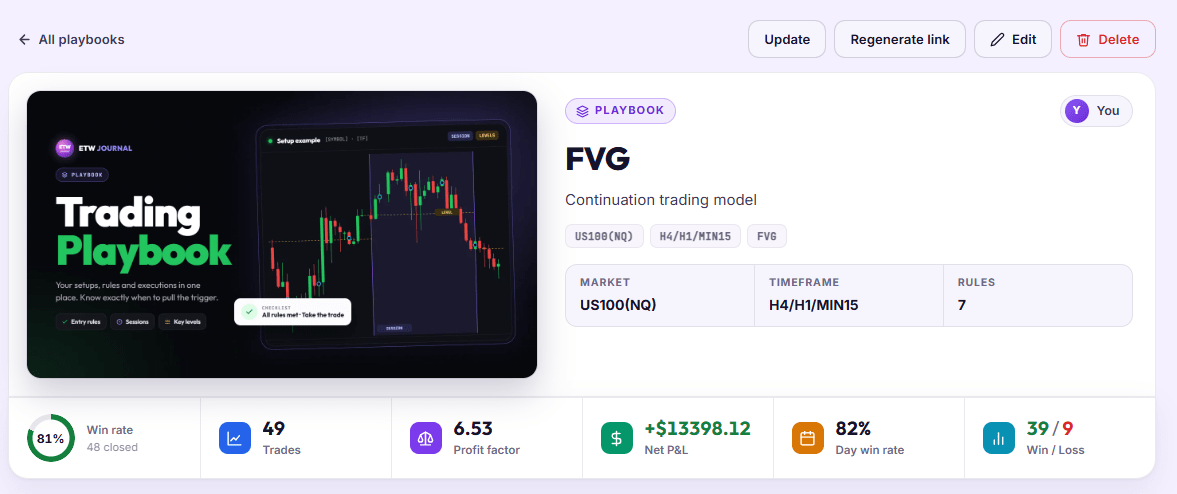
The top of the page summarises the playbook itself: its name, description, the market and timeframes you trade it on, its strategy tag, and how many rules it has. Use this as a quick reminder of what a trade must look like before it earns the tag.
The stats bar, explained
Directly under the header is a row of stats built from the linked trades. Here's what each one tells you, using the FVG playbook above as the example:
| Stat | Example | What it means |
|---|---|---|
| Win rate | 81% (48 closed) | The share of closed trades in this playbook that were winners. Open trades aren't counted until they close. |
| Trades | 49 | Every trade linked by the strategy tag, open or closed. That's why it can be one higher than the closed count. |
| Profit factor | 6.53 | Gross profit divided by gross loss. Above 1 means the strategy makes more than it loses; the higher, the stronger. |
| Net P&L | +$13,398.12 | Total profit or loss from the linked trades only. |
| Day win rate | 82% | The share of trading days on this playbook that finished green. |
| Win / Loss | 39 / 9 | The raw count of winning and losing trades behind the win rate. |
Read these numbers together, not one at a time. A high win rate with a low profit factor can mean your losers are much bigger than your winners. A strong profit factor on only a handful of trades isn't proof yet. Keep tagging until the sample is big enough to trust.
The Trades tab: see exactly what's linked
Further down, the playbook has five tabs: Stats, Rules, Trades, Backtesting and Notes. Open Trades to see every trade the strategy tag has linked, with its date, pair, direction, result, P&L and R:R. Click the arrow on any row to open that trade.
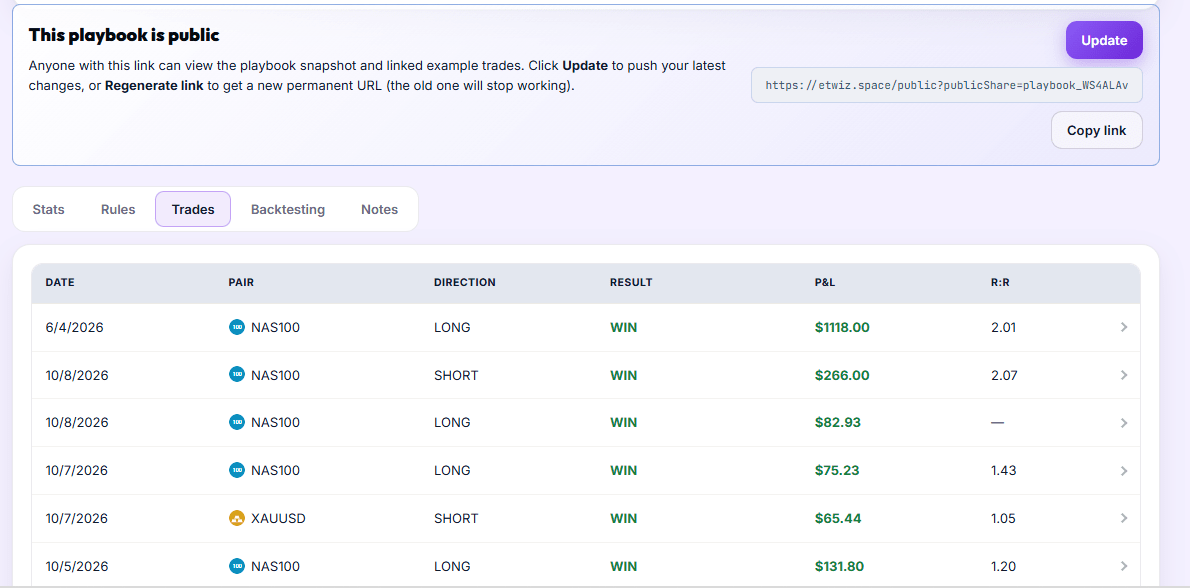
Make this tab part of your weekly review. It's the fastest way to confirm a trade you tagged today actually landed in the playbook. It's also how you audit the playbook: if you spot a trade that doesn't fit, for example a different market from the one the playbook is built for, or a trade that broke a rule, go back to the Journal and remove the strategy tag. It drops out of the playbook and the stats correct themselves.
Sharing the playbook
If you've made the playbook public, the share panel shows its link. Anyone with the link sees a snapshot of the playbook and its linked example trades. The snapshot doesn't change on its own: after you tag new trades, click Update to push your latest changes to the same link. Regenerate link creates a new permanent URL and the old one stops working, so only use it when you want to revoke access.
What to do with the numbers
- Strong and consistent: keep trading the playbook as written and stop second-guessing it.
- Weak profit factor or falling win rate: look at the losing trades in the Trades tab and check them against the Rules tab. Were they real playbook trades, or should they never have been tagged?
- Not enough trades yet: keep going. Tag every qualifying trade and let the sample grow before you change the rules.
Do this for every new trade and your playbook becomes a live, honest record of how that strategy actually performs.
Common Mistakes
| Mistake | What happens | Fix |
|---|---|---|
| Tagging trades before building the playbook | Nothing to link to, and no rules to check against | Build the playbook and pick its tag first |
| Typing a slightly different tag | The trade doesn't appear in the playbook | Match the playbook tag exactly, or pick it from the Strategies list |
| Using several strategy tags on one playbook | Unclear which trades really belong | One playbook, one strategy tag |
| Tagging trades that broke the rules | Playbook stats stop reflecting the real strategy | Only tag trades that met every requirement |
Frequently Asked Questions
Do I have to tag trades one by one?
Yes, and that's deliberate. Tagging is the moment you decide whether a trade followed your plan. It only takes a few seconds per trade from the Journal cards.
Can I create my own strategy tag?
Yes. Click + Add tag in the Strategies category or type it in the tag search. Just make sure the playbook and the trades use exactly the same tag.
What if a trade fits two playbooks?
Give it each playbook's tag only if it fully met the rules for both. In most cases it's cleaner to decide which setup you actually traded.
What about trades I imported before building the playbook?
Open them in the Journal and add the playbook's strategy tag to the ones that met your rules. They're linked the same way as new trades.
Ready to try it? Open Playbooks, create your first playbook with one strategy tag, then tag today's imported trades that met the rules.