 ETW

Last updated: October 12, 2026
A screenshot shows you where a trade ended. It doesn't show you what you saw when you clicked buy or sell, how long you hesitated, or the moment you should have taken profit. That's why so many traders review their trades and still repeat the same mistakes.
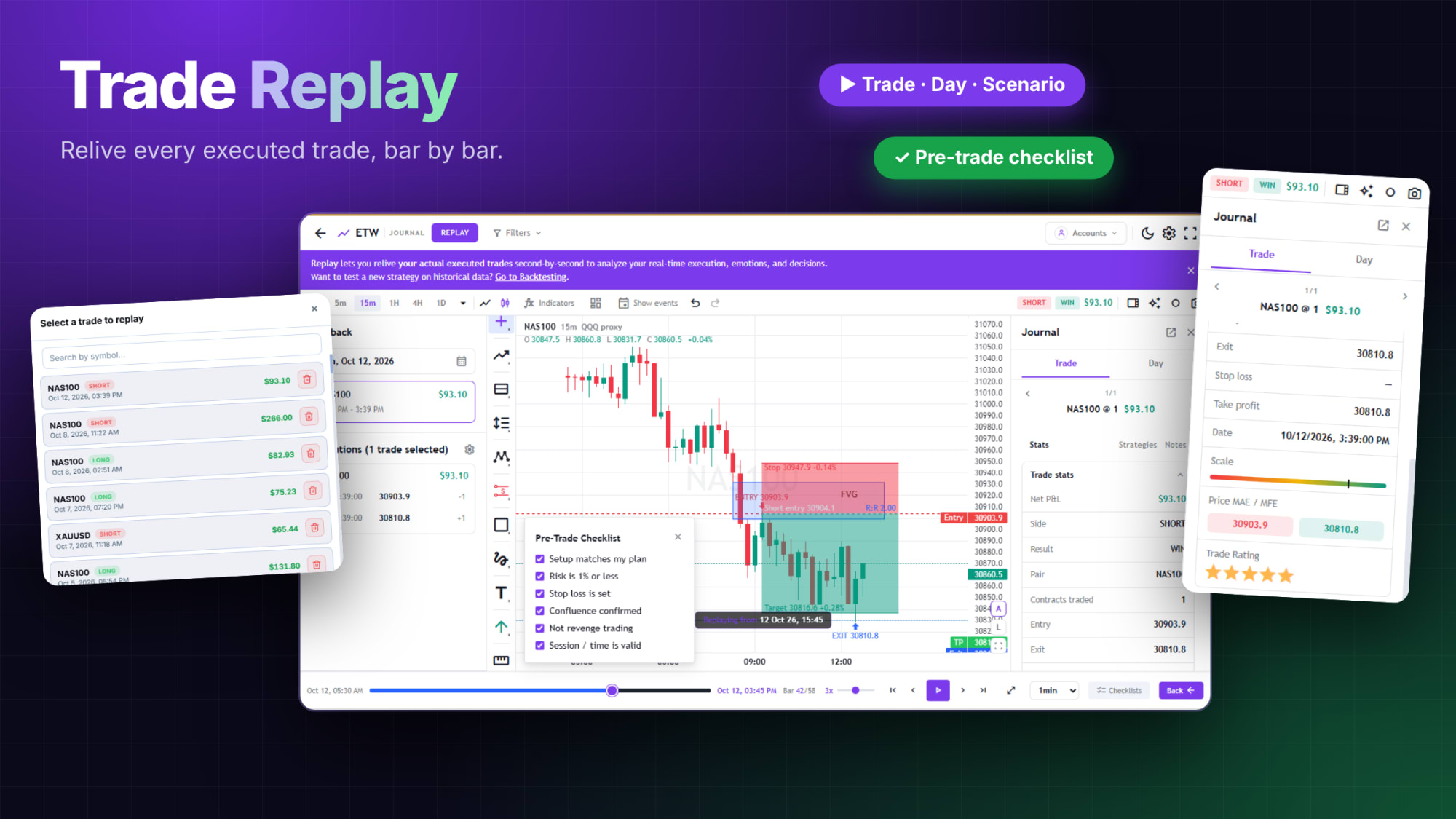
Trade Replay in ETW Journal fixes that. It lets you relive your actual executed trades bar by bar, on the real chart, with your real entry, exit, stop and target, so you can analyse your execution, emotions and decisions exactly as they happened.
The short version: open Replay, pick a trade (or a full day), press play, and watch the chart rebuild candle by candle up to your entry and exit. Mark it up, tick your pre-trade checklist, measure the risk-to-reward, then rate the trade in the journal panel.
▶ Video walkthrough
Watch Trade Replay in action
Prefer to watch first? In under two minutes you'll see the whole flow: pick a trade, press play, and watch the chart rebuild bar by bar up to your entry and exit. Then follow the steps below at your own pace.
What Is Trade Replay?
Trade Replay is a chart playback tool built on your own trade history. Instead of starting from a finished chart, it rewinds the market to before your trade and plays it forward, so you experience the setup the way you did live. Open it from the sidebar and you'll see three ways to replay.
- Trade Replay: relive one specific trade second by second.
- Day Replay: watch your whole trading day unfold from start to finish.
- Scenario Replay: build custom what-if scenarios for practice.
Use the Filters, Date range and All accounts menus at the top to narrow down which trades you can choose from.
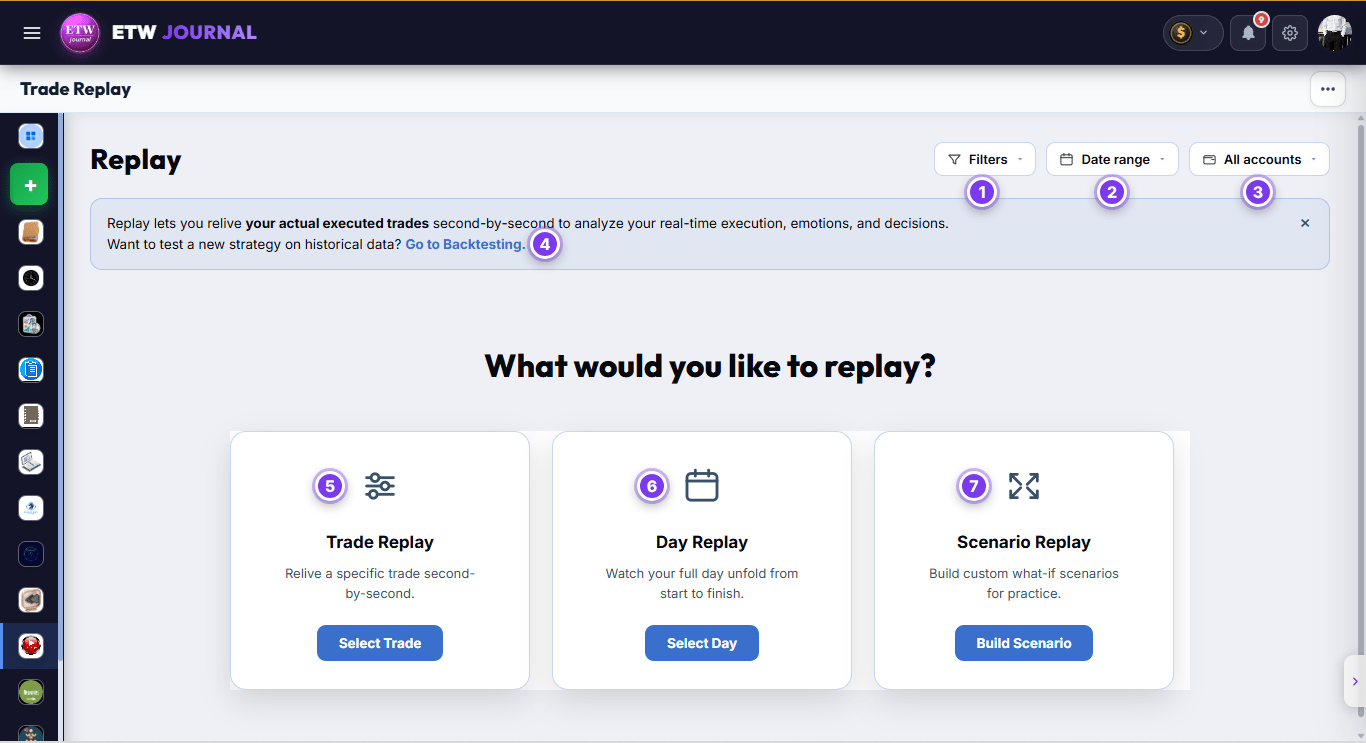
Replay vs Backtesting: Replay is for trades you've already taken. Want to test a new strategy on historical data instead? Use the Go to Backtesting link in the banner.
Step 1: Choose the Trade You Want to Replay
Click Select Trade on the Trade Replay card. A list of your synced trades opens, newest first, with the symbol, side (long or short), date and time, and P&L of each one. Type in the search box to find a symbol quickly, then click a trade to load it.
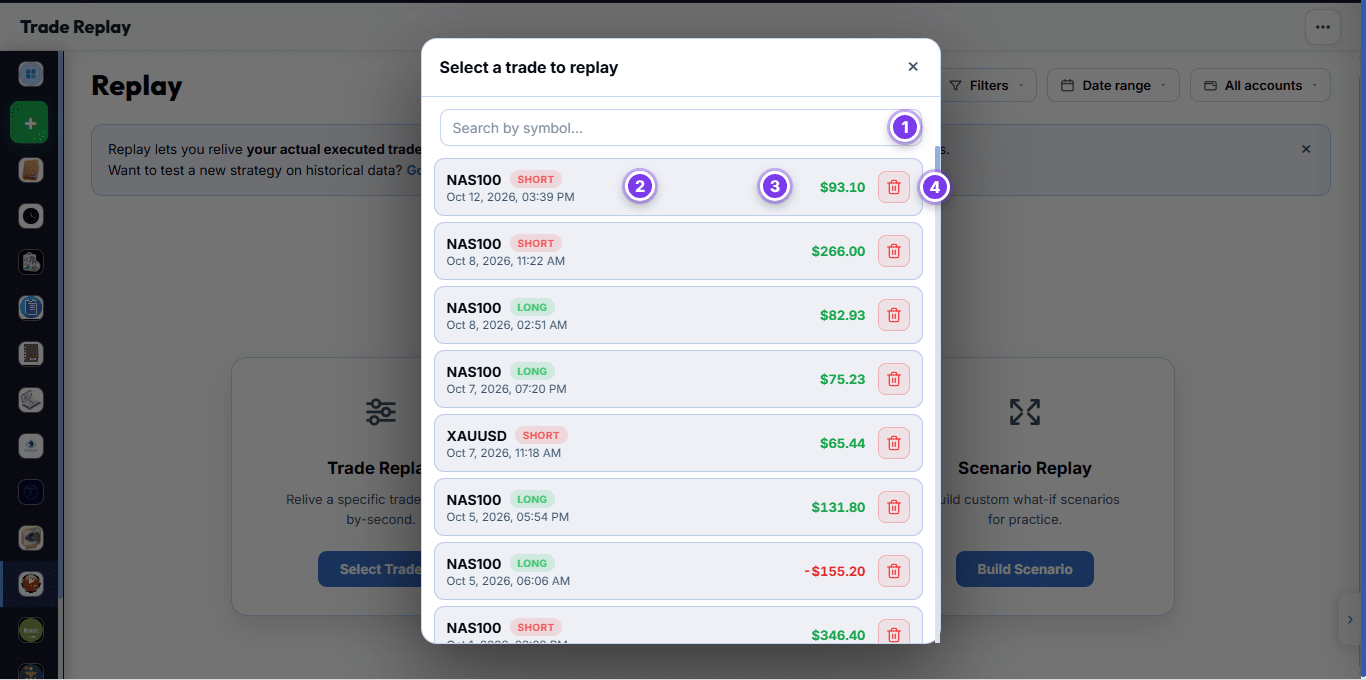
Not sure where to start? Replay your biggest loss of the week first, then your best winner. Comparing the two is often where the real lessons are.
Step 2: Get to Know the Replay Workspace
The replay workspace puts everything you need for a review on one screen. The numbers below match the numbered markers in the screenshot.
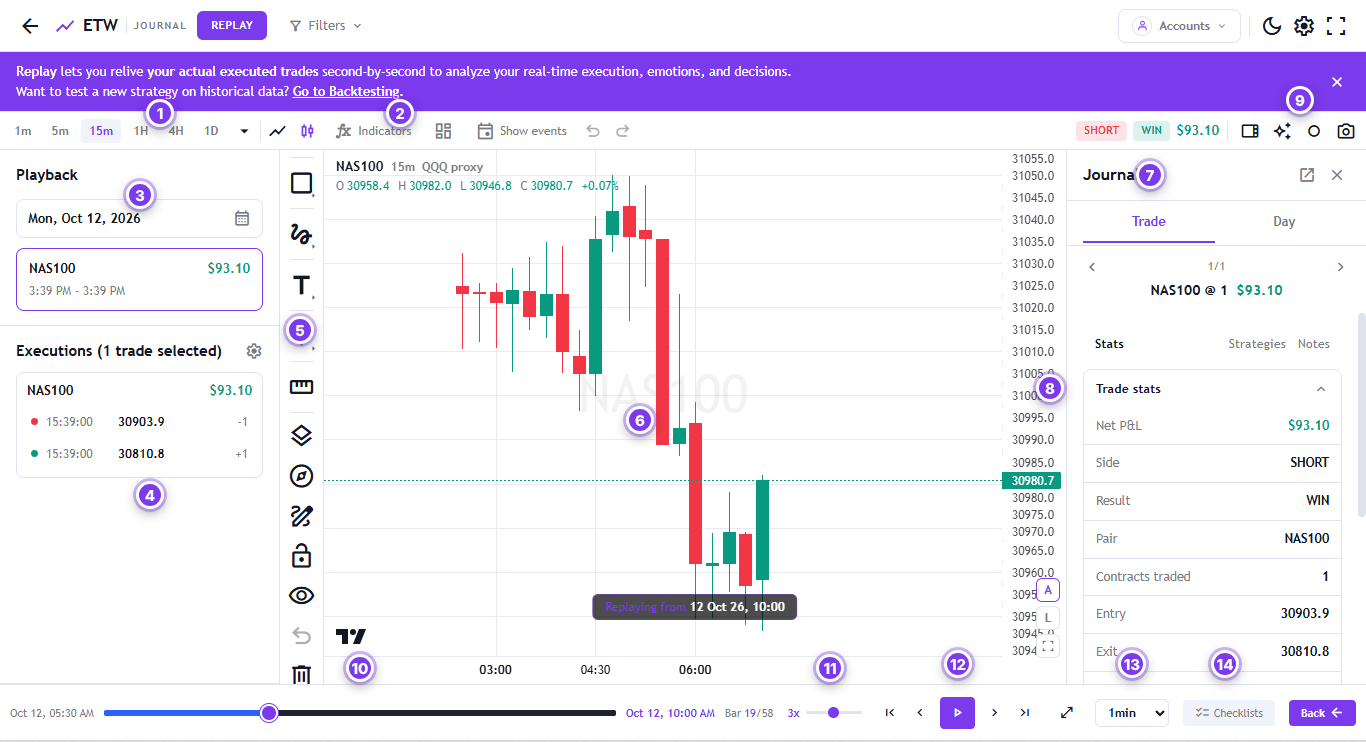
- Timeframes: switch between 1m, 5m, 15m, 1H, 4H and 1D, or open the dropdown for more.
- Indicators and Show events: add indicators and show economic events on the chart, so you can see whether news moved price around your trade.
- Playback panel: the date you're replaying and the trade loaded, with its time and P&L.
- Executions: every fill in the trade, with time, price and size. A short trade shows the sell (−1) then the buy back (+1).
- Drawing tools: boxes, lines, text, arrows, a ruler, long/short position tools and more.
- Chart: the market rebuilding candle by candle. The label at the bottom shows the time you're replaying from.
- Journal panel: your trade's stats, strategies and notes, with a Day tab for the whole session.
- Trade stats: net P&L, side, result, pair, contracts, entry and exit.
- Trade badges and tools: side, result and P&L at a glance, plus panel, AI, and screenshot buttons.
- Timeline: drag the slider to jump anywhere in the session. The bar counter shows where you are, e.g. bar 19 of 58.
- Speed: set playback speed (e.g. 3x).
- Playback controls: jump to start, step back, play/pause, step forward and jump to end.
- Step size: how far each step moves the chart, e.g. 1 minute.
- Checklists: open your pre-trade checklist while the trade plays.
Step 3: Play the Trade Back, Bar by Bar
Press play and the chart starts building forward from before your trade. Don't skip straight to the entry. Watch the lead-up and ask yourself what you were looking at and why.
- Slow down near the entry. Pause a few bars before your fill and use step forward one candle at a time.
- Drop to a lower timeframe to see exactly how price behaved around your entry and exit.
- Speed up the dull parts. Raise the playback speed while price drifts, then slow down again when it matters.
Step 4: Mark Up the Chart and Run Your Pre-Trade Checklist
As the trade plays, draw the setup you were trading. In the example, the trader marked the FVG (fair value gap) they shorted from. The chart shows your actual entry and exit markers with their prices, plus labels on the price scale for the entry, take profit and exit.
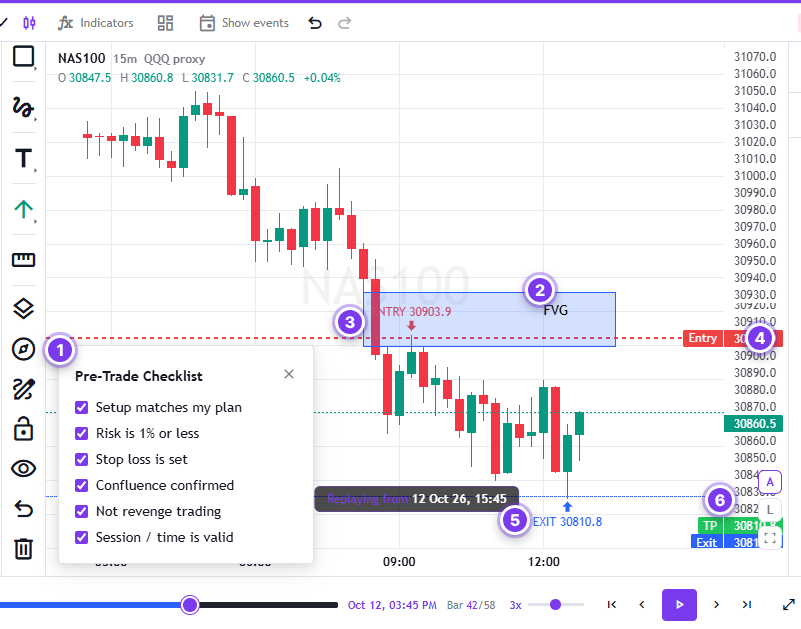
Click Checklists to open your Pre-Trade Checklist and tick off each item honestly, as if you were about to take the trade again:
- Setup matches my plan
- Risk is 1% or less
- Stop loss is set
- Confluence confirmed
- Not revenge trading
- Session / time is valid
Any box you can't tick is a lesson. A winning trade that broke your checklist is still a mistake. It just happened to pay this time.
Step 5: Measure Risk-to-Reward With the Position Tool
Use the long or short position tool to draw your stop and target onto the replay. The red zone shows the stop and its distance, the green zone shows the target, and the tool works out your R:R automatically. In the example, the short from the FVG had a 2.00 R:R.
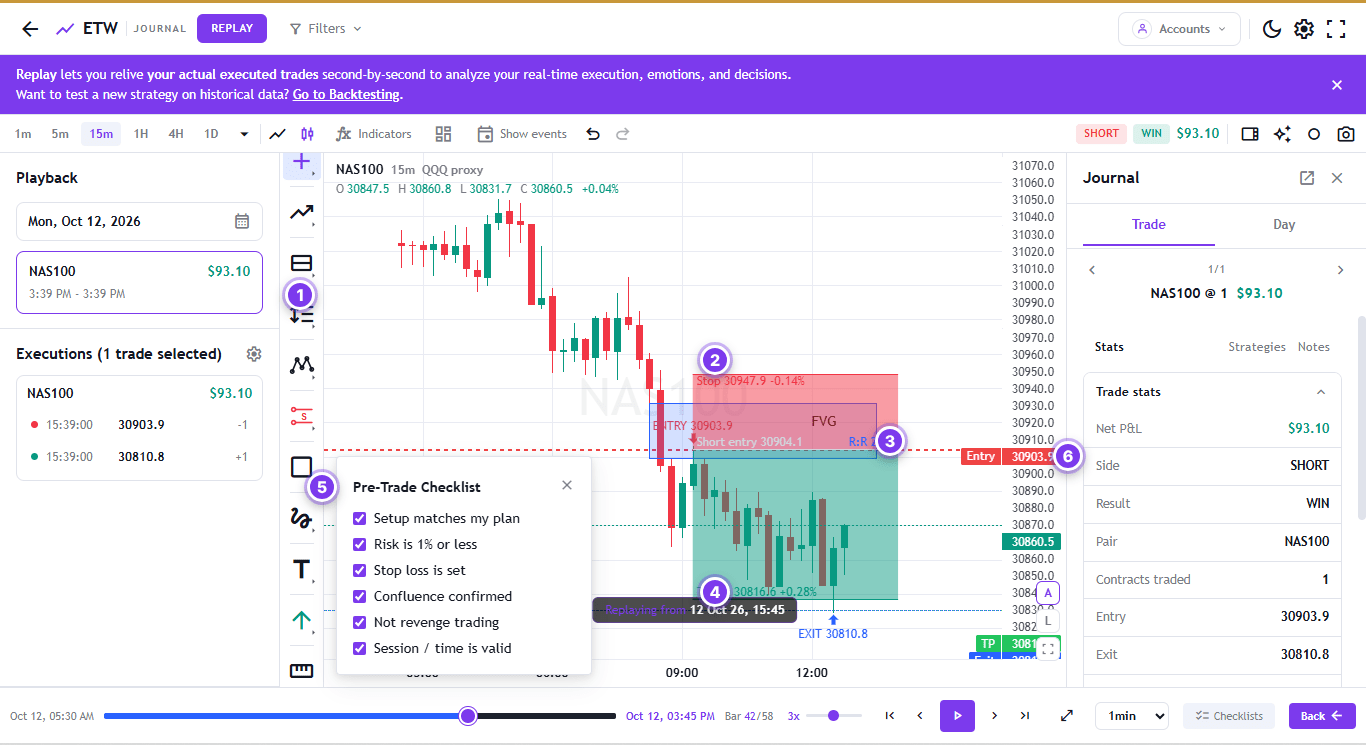
Now compare that plan with what actually happened. Did price reach the target? Did you exit early, or hold through a level you should have respected? This is often where you find profit left on the table.
Step 6: Review the Trade in the Journal Panel
Scroll down the journal panel to finish the review:
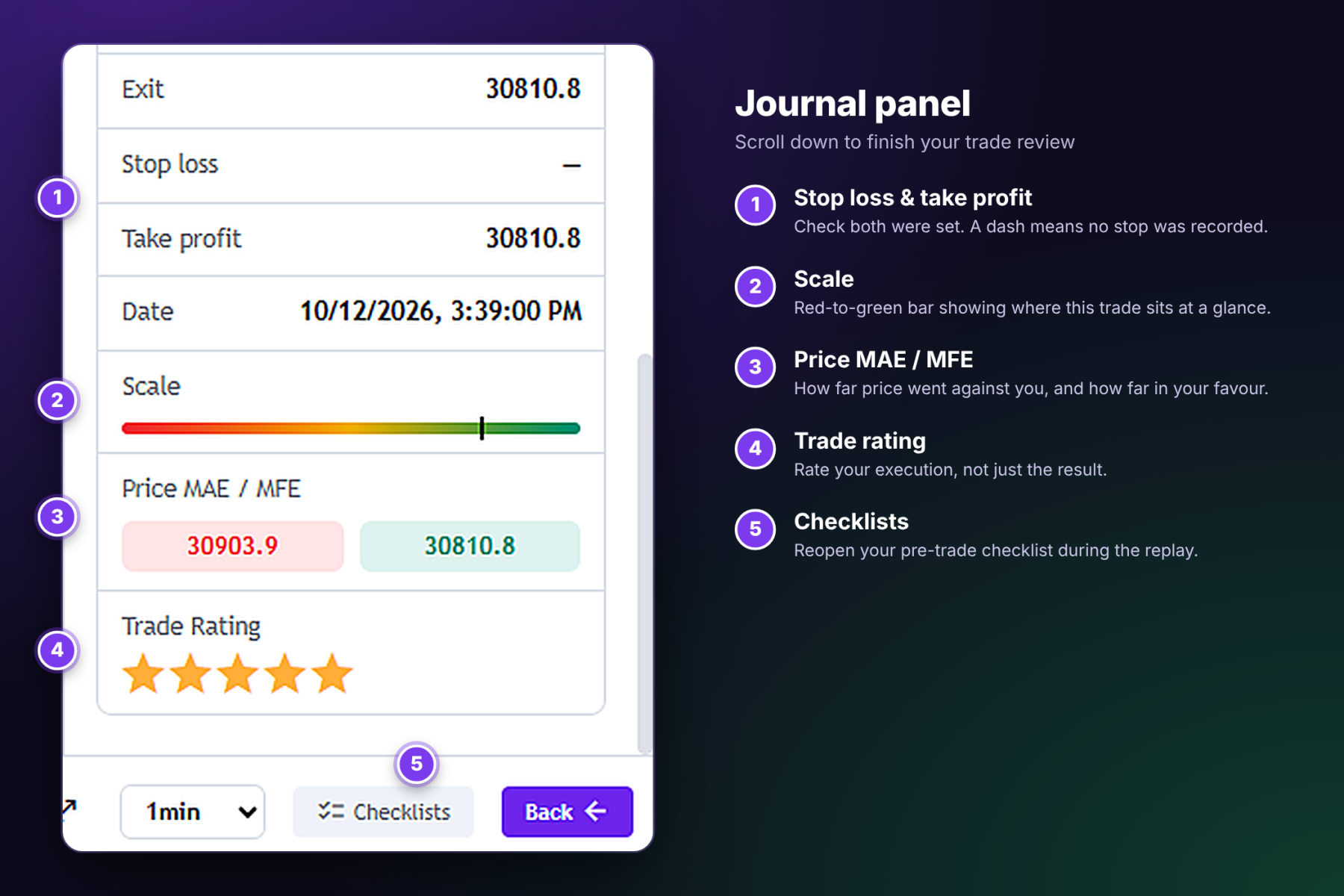
- Stop loss and take profit: check they were set. A dash (–) means no stop was recorded. That's worth a note even on a winner.
- Scale: a colour scale from red to green that shows where this trade sits at a glance.
- Price MAE / MFE: the maximum adverse excursion (how far price went against you) and maximum favourable excursion (how far it went in your favour). Together they show whether your stop was too tight and whether you exited too early.
- Trade Rating: give the trade a star rating based on how well you executed it, not just on the result.
Add what you learned in the Notes tab, and tag the setup under Strategies so it counts toward your playbook. See how to link trades to your playbook.
Day Replay and Scenario Replay
Day Replay plays back your whole session: every trade, in order, on one chart. It's the best way to spot patterns that only show up across a day, such as overtrading after a loss, or taking a weaker setup after a big win.
Scenario Replay lets you build what-if scenarios for practice. What if you'd held to the target? What if you'd waited for confirmation? Use it to rehearse better decisions before you face the same setup live.
A Simple Weekly Replay Routine
- Replay your biggest loss of the week.
- Replay your best trade of the week.
- Replay one full day where you broke a rule.
- For each, write one sentence: what would I do differently?
- Carry the lesson into next week's session prep.
Pair this with the weekly review in How to Journal with ETW Journal. If you trade prop firm accounts, check how each replayed trade affected your rules in Prop Firm Sync.
Frequently Asked Questions
What is trade replay in trading?
Trade replay rebuilds the chart around a trade you've already taken and plays it back bar by bar, so you can review your entry, exit and decisions as they happened, rather than looking at a finished chart.
What's the difference between Trade Replay and Backtesting?
Replay uses your real, executed trades to review what you did. Backtesting uses historical data to test a strategy before you trade it live.
Can I replay a whole trading day?
Yes. Choose Day Replay and select the day to watch every trade from that session in order.
Can I control the replay speed?
Yes. Use the speed slider to play faster or slower, step one bar at a time, set the step size, or drag the timeline to jump anywhere.
Which plan includes Trade Replay?
Trade Replay is part of the Pro plan, along with MT5 / MT4 direct connect, ETW AI and Mentor mode.
Ready to see what you really did? Open Replay, click Select Trade, and replay your last losing trade before your next session.