 ETW

Last updated: October 12, 2026
If you trade prop firm challenges, you're probably juggling more than charts. You're tracking how close you are to the profit target, how much drawdown you have left, whether today's loss is about to break the daily limit, how many trading days you still need, and how much you've spent on fees compared with what you've been paid out. Most traders keep this in a spreadsheet, or in their head. Both fail at the worst possible moment.
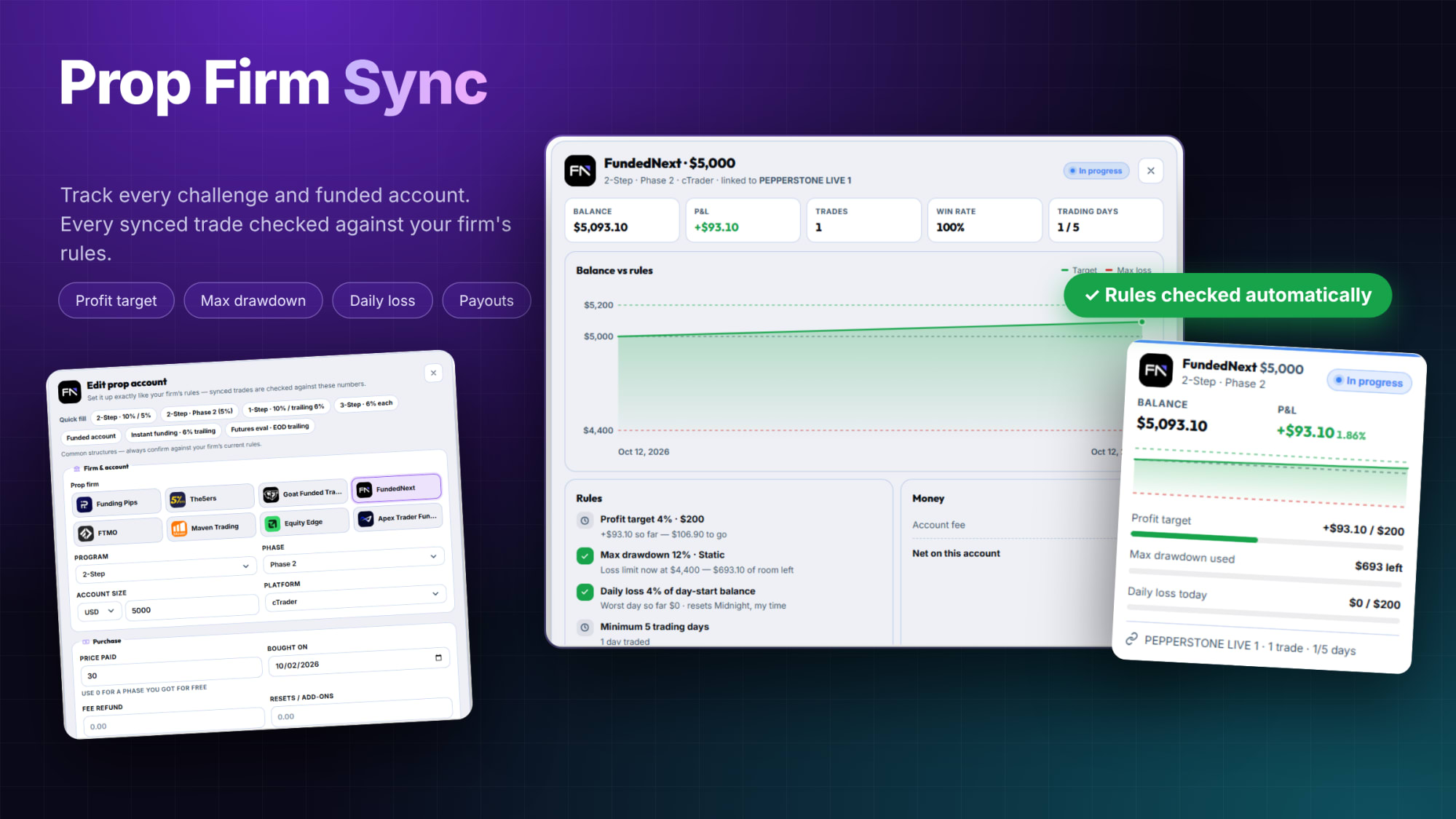
Prop Firm Sync is ETW Journal's built-in prop firm tracker. It keeps every challenge and funded account in one place (what you paid, the rules, payouts, passes and fails) and links each one to your journal account. Every trade that syncs from MT5 or cTrader is then checked against your firm's rules automatically.
The short version: connect your trading account, add your prop account with the exact same rules as your firm, link the two, and let ETW Journal track your profit target, max drawdown, daily loss, trading days and money spent for you.
What Is Prop Firm Sync?
Prop Firm Sync is a dashboard for everything prop-firm related, separate from your normal trading stats. At the top you'll see your net result, pass rate and number of live accounts at a glance, plus two quick actions: Add prop account and Log payout.
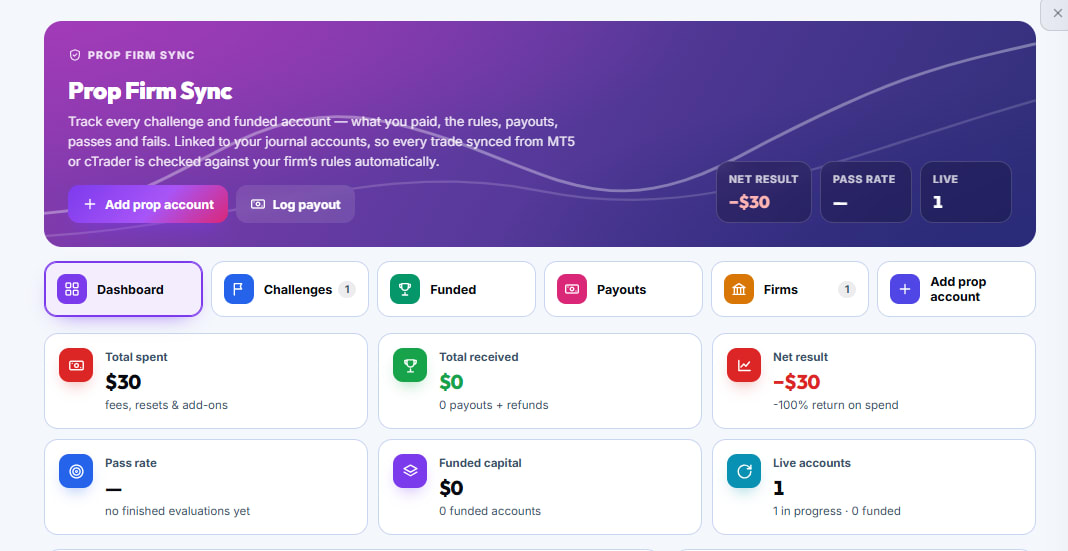
Below that, the feature is split into tabs so you can find any account fast:
- Dashboard: the overview of all your prop firm spending, results and live accounts.
- Challenges: every evaluation you're running or have run.
- Funded: accounts you've passed and are now trading with the firm's capital.
- Payouts: every payout and refund you've received.
- Firms: your results grouped by prop firm.
Step 1: Connect Your Trading Account First
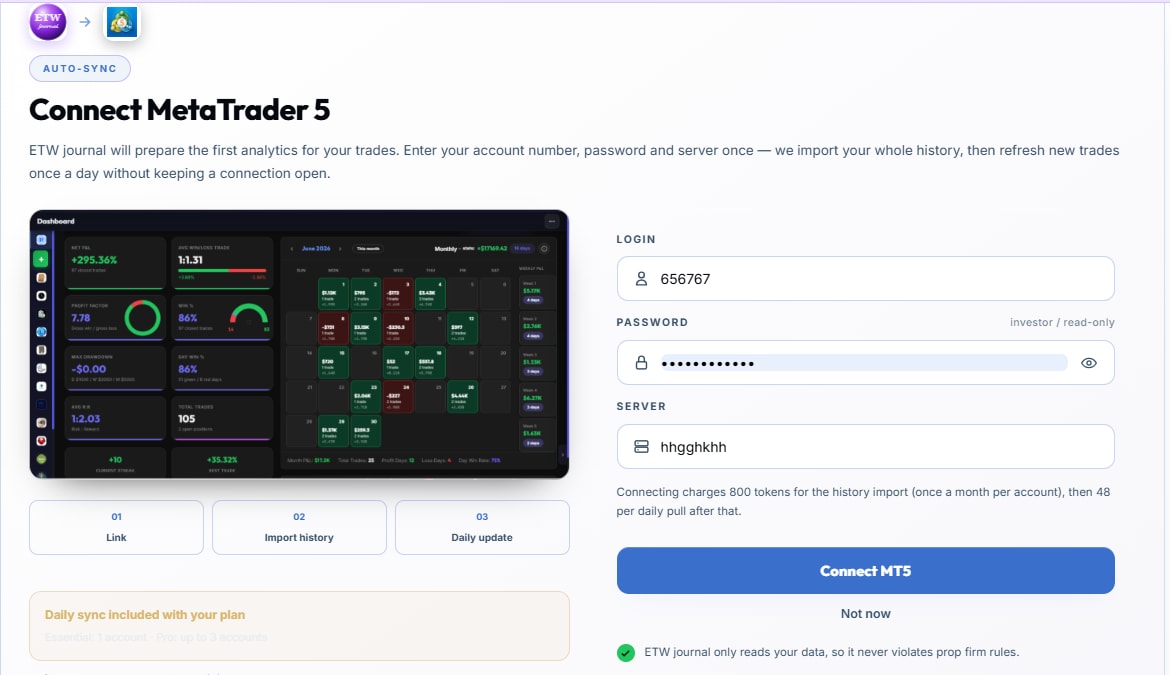
Prop Firm Sync checks synced trades, so the first thing it needs is a trading account to read from. If you haven't connected one yet, go to your connections and link your platform. For MetaTrader 5, enter your login, your investor (read-only) password and your server. ETW Journal imports your whole history, then refreshes new trades once a day without keeping a connection open.
Because the connection uses your investor password, ETW Journal can only read your data. It can't place trades or move funds, so it doesn't break prop firm rules.
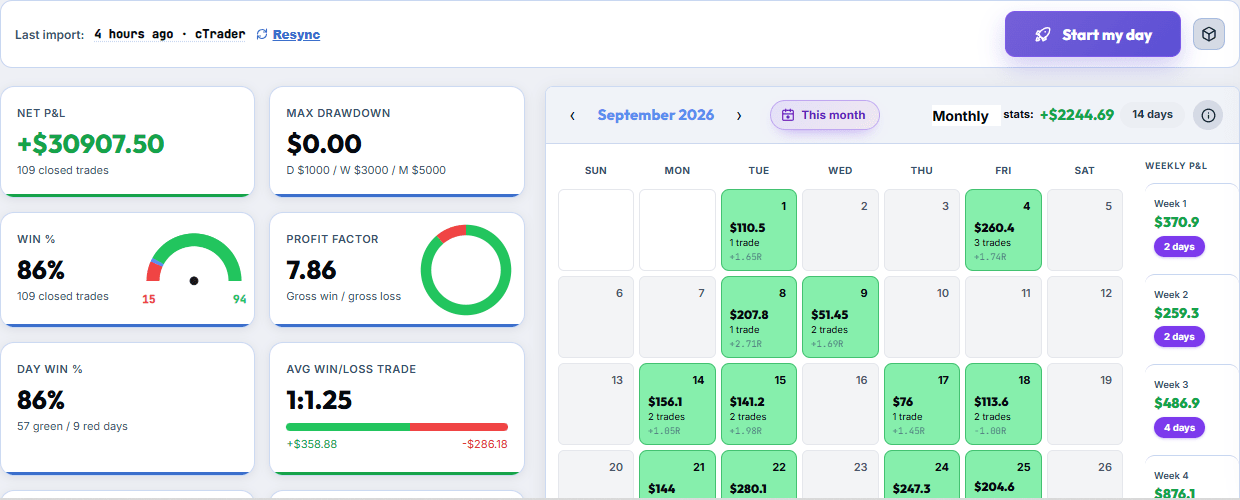
Once you're connected, your dashboard shows when the last import happened and from which platform. Click Resync any time you want to pull the latest trades straight away.
Step 2: Add Your Prop Account
Open Prop Firm Sync and click Add prop account. The form asks you to set the account up exactly like your firm's rules, because those are the numbers every synced trade is checked against.
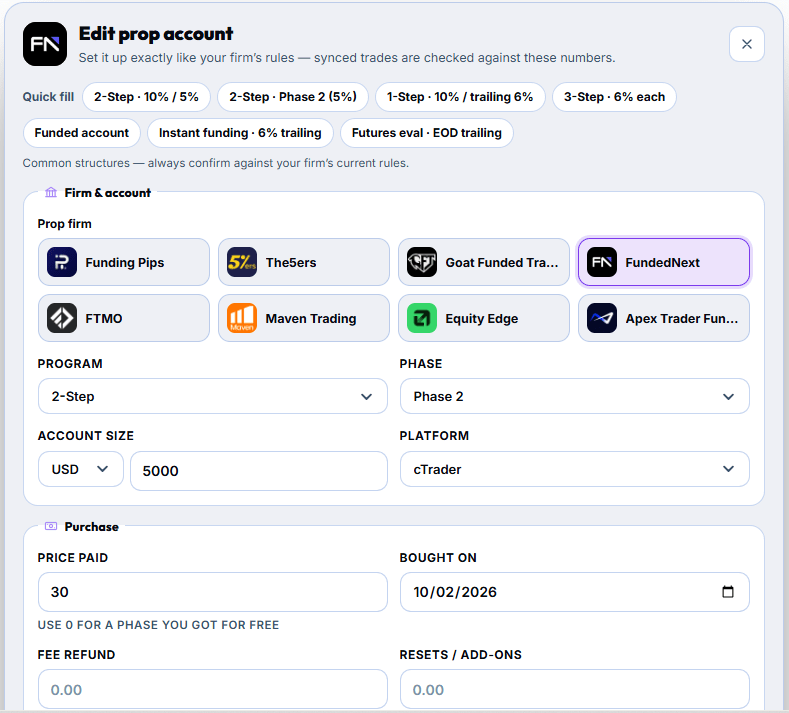
Use Quick fill to save time
At the top of the form, Quick fill loads common prop firm structures in one click:
- 2-Step · 10% / 5%
- 2-Step · Phase 2 (5%)
- 1-Step · 10% / trailing 6%
- 3-Step · 6% each
- Funded account
- Instant funding · 6% trailing
- Futures eval · EOD trailing
Quick fill is a starting point, not gospel. Prop firms change their rules often, so always check the profit target, drawdown type and daily loss limit against your firm's current rules before you save.
Fill in the firm and account details
- Prop firm: pick your firm, for example Funding Pips, The5ers, Goat Funded Trader, FundedNext, FTMO, Maven Trading, Equity Edge or Apex Trader Funding.
- Program and phase: e.g. 2-Step, Phase 2.
- Account size and currency: e.g. USD 5,000.
- Platform: the platform the account trades on, e.g. cTrader.
Record what you paid
The Purchase section is what makes your profit and loss on prop firms honest. Enter the price paid (use 0 for a phase you got for free), the date you bought it, any fee refund, and any resets or add-ons. These feed straight into your total spent and net result.
Finally, link the prop account to the journal account its trades sync into. From then on, every trade on that account counts toward its rules.
Step 3: Watch Your Live Accounts on the Dashboard
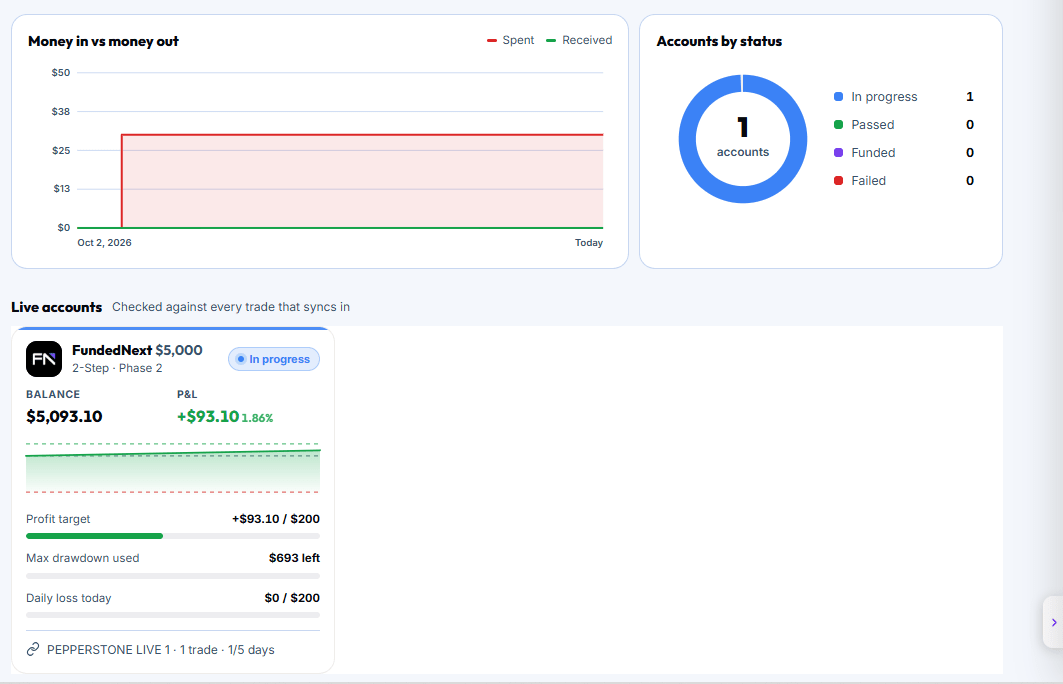
Back on the Prop Firm Sync dashboard, each active account appears under Live accounts, which are checked against every trade that syncs in. Each card shows:
- Balance and P&L, in dollars and percent.
- Profit target progress, e.g. +$93.10 of $200.
- Max drawdown used, shown as how much room you have left.
- Daily loss today against the daily limit.
- The linked journal account, number of trades and trading days completed.
Above the live accounts, two charts give you the big picture. Money in vs money out plots what you've spent against what you've received over time, and Accounts by status shows how many accounts are in progress, passed, funded or failed.
Step 4: Open an Account to See Every Rule Checked
Click any live account to open its full view. The top row shows balance, P&L, trades, win rate and trading days (e.g. 1 of 5 required).
The Balance vs rules chart draws your balance between two lines: the green target and the red max loss. You can see at a glance how far you are from passing and how far from failing.
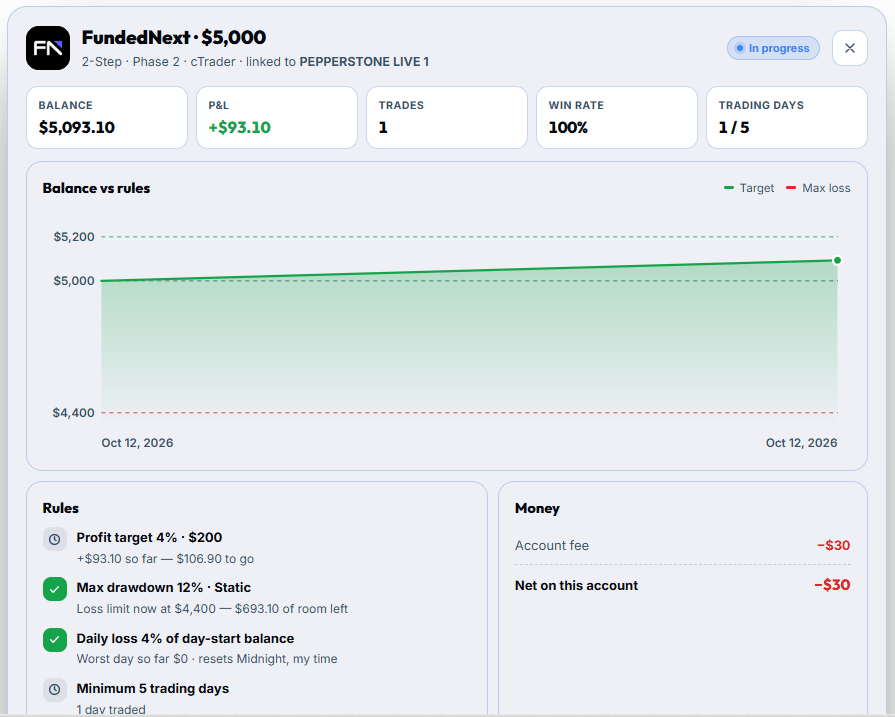
Underneath, the Rules panel checks each rule one by one:
| Rule | What ETW Journal shows | Example |
|---|---|---|
| Profit target | How much you've made and how much is left to go | 4% · $200: +$93.10 so far, $106.90 to go |
| Max drawdown | Your current loss limit and the room left above it | 12% static: limit at $4,400, $693.10 of room left |
| Daily loss | Your worst day so far and when the limit resets | 4% of day-start balance: worst day $0, resets at midnight your time |
| Minimum trading days | Days traded against days required | 5 days: 1 day traded |
A green tick means the rule is currently safe. The Money panel beside it shows the account fee and your net on this account, so you always know whether a challenge has paid for itself yet.
Step 5: Log Payouts and Track Your Real Return
When a funded account pays you, click Log payout. Payouts and refunds are added to total received, and the dashboard updates:
- Total spent: fees, resets and add-ons.
- Total received: payouts plus refunds.
- Net result: received minus spent, with your return on spend.
- Pass rate: passed evaluations out of finished ones.
- Funded capital: the total size of your funded accounts.
- Live accounts: how many are in progress and how many are funded.
This is the number most prop traders never calculate: are prop firms actually making you money once every fee and reset is counted? Prop Firm Sync answers it for you.
Tips to Get the Most From Prop Firm Sync
- Match the rules exactly. Static vs trailing drawdown and "day-start balance" vs "equity" make a big difference. Copy your firm's wording.
- Log every cost. Include resets and add-ons, or your net result will look better than it is.
- Check the daily loss card before you trade. Make it part of your session prep, especially after a losing trade.
- Tag and journal prop trades like any other. Your playbooks and tags still apply. See how to link imported trades to your playbook.
- Review weekly. Add Prop Firm Sync to the weekly review from How to Journal with ETW Journal.
Frequently Asked Questions
Does connecting my account break prop firm rules?
No. ETW Journal connects with read-only access (your investor password for MT5). It reads your trade history but never places trades or moves funds.
Which prop firms does Prop Firm Sync support?
The form includes popular firms such as Funding Pips, The5ers, Goat Funded Trader, FundedNext, FTMO, Maven Trading, Equity Edge and Apex Trader Funding. The rules are set by you, so you can match any firm's structure using Quick fill and the rule fields.
Can I track several prop accounts at once?
Yes. Each challenge or funded account gets its own card under Live accounts, linked to its own journal account, and all of them roll up into the dashboard totals.
How often are my rules checked?
Every time trades sync from your linked account. You can press Resync on your dashboard to pull new trades straight away.
What should I enter if a phase was free?
Enter 0 as the price paid. Only the phases you actually paid for should count toward your total spent.
Running a challenge right now? Open Prop Firm Sync, click Add prop account, and let ETW Journal watch your rules while you focus on the next trade.