 ETW

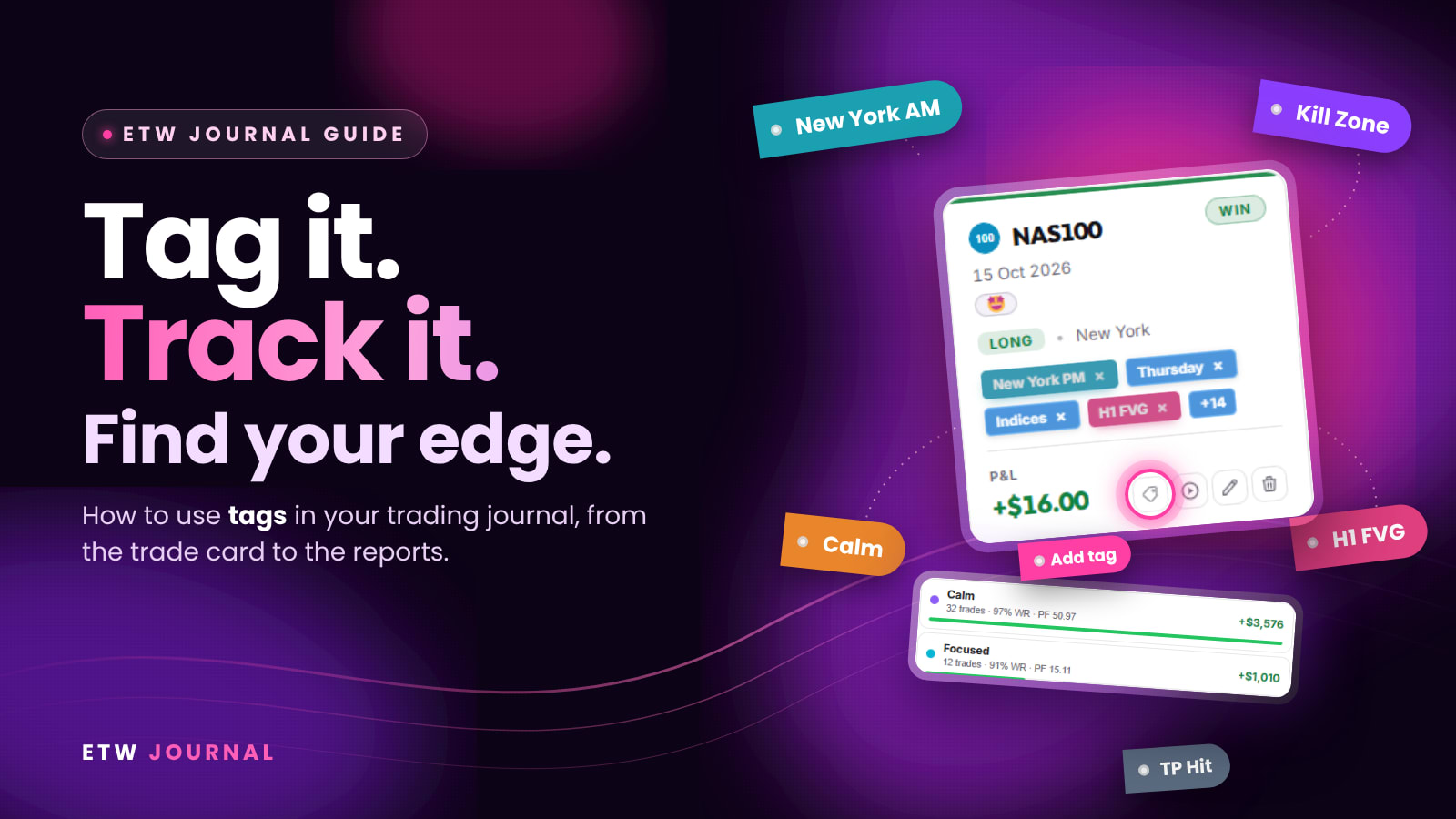
Your trade history already tells you which setups, sessions and habits make you money. The problem is that a list of trades can't answer questions like "Do I trade better when I'm calm?" or "Is my H1 FVG entry actually worth it?" Tags fix that. A tag is a label you stick on a trade: the session, the setup, the risk you took, how you felt, whether you followed your plan. Once your trades are tagged, ETW Journal can group them and show you, in numbers, what is working and what is costing you.
This guide walks you through the full routine: where your trades live, how to add tags from the trade card, how to set up your own tag categories, and how to read your tag performance in Reports.
Step 1: Find your trades in the Journal
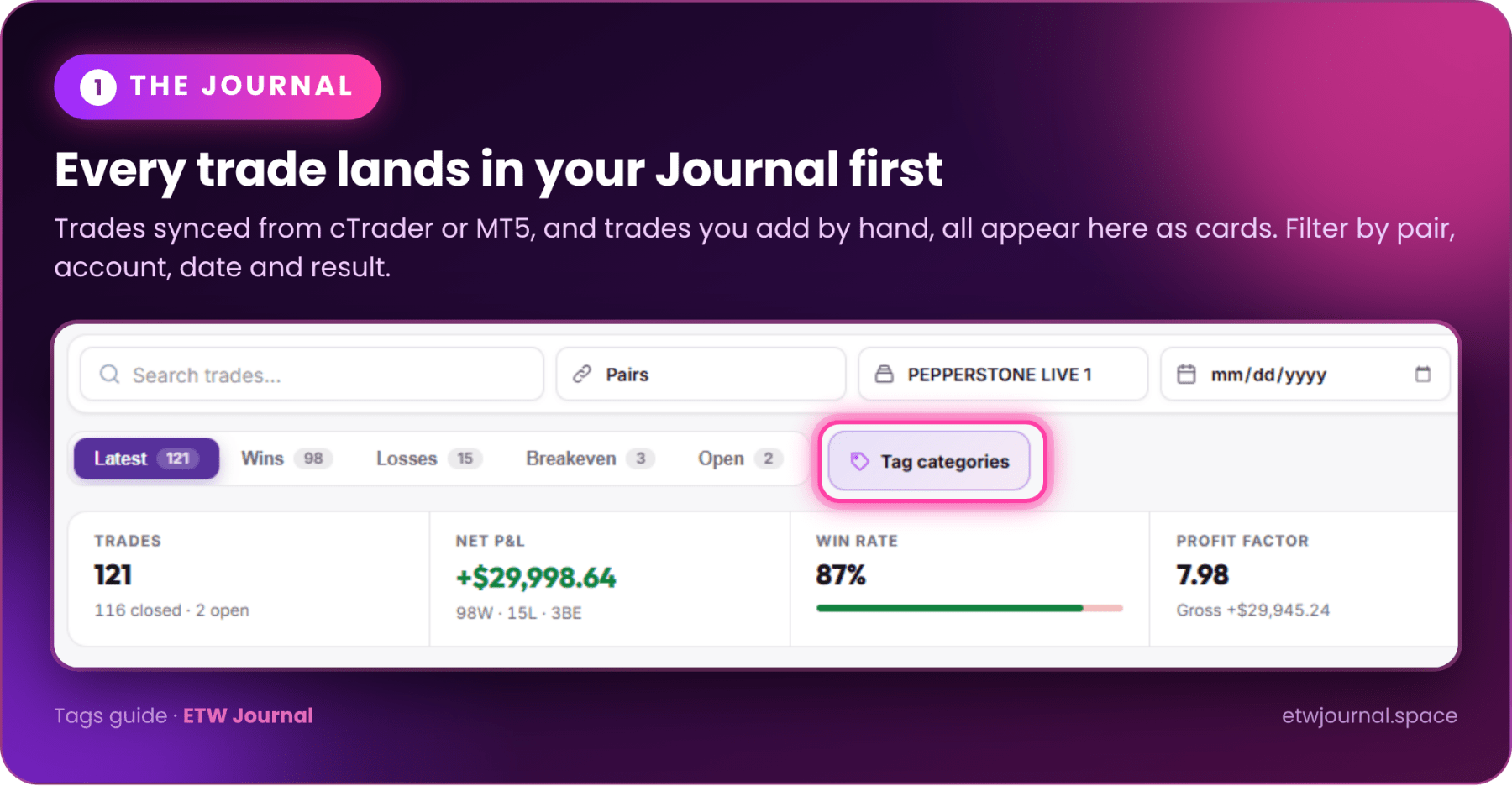
Every trade in ETW Journal is stored in the Journal section, whether it got there automatically or you added it yourself:
- Synced trades: if you connected cTrader or MT5, your executed trades are imported for you and appear in the Journal.
- Manual trades: trades you add by hand (for example from another platform or a prop firm dashboard) are saved to the same Journal.
The Journal is where all tagging happens. At the top you can search trades, filter by pair, account and date, and switch between Latest, Wins, Losses, Breakeven and Open. The summary bar shows your trade count, net P&L, win rate and profit factor for whatever you have filtered. Next to the tabs is the Tag categories button, which you will use in step 3.
Step 2: Add tags from the trade card
Each trade in the Journal is shown as a card with the symbol, date, direction, session, P&L and the tags already on it. To tag a trade:
- Open the Journal and find the trade. Use the filters if you are working through a specific day or account.
- Click the Add tag button, the tag icon at the bottom of the card, next to the replay, edit and delete icons.
- Pick the tags that describe the trade from your categories: session, entry model, timeframe, risk, emotion, outcome and so on.
- Save. The tags appear on the card as coloured chips. When there are more than fit, you will see a counter such as +14.
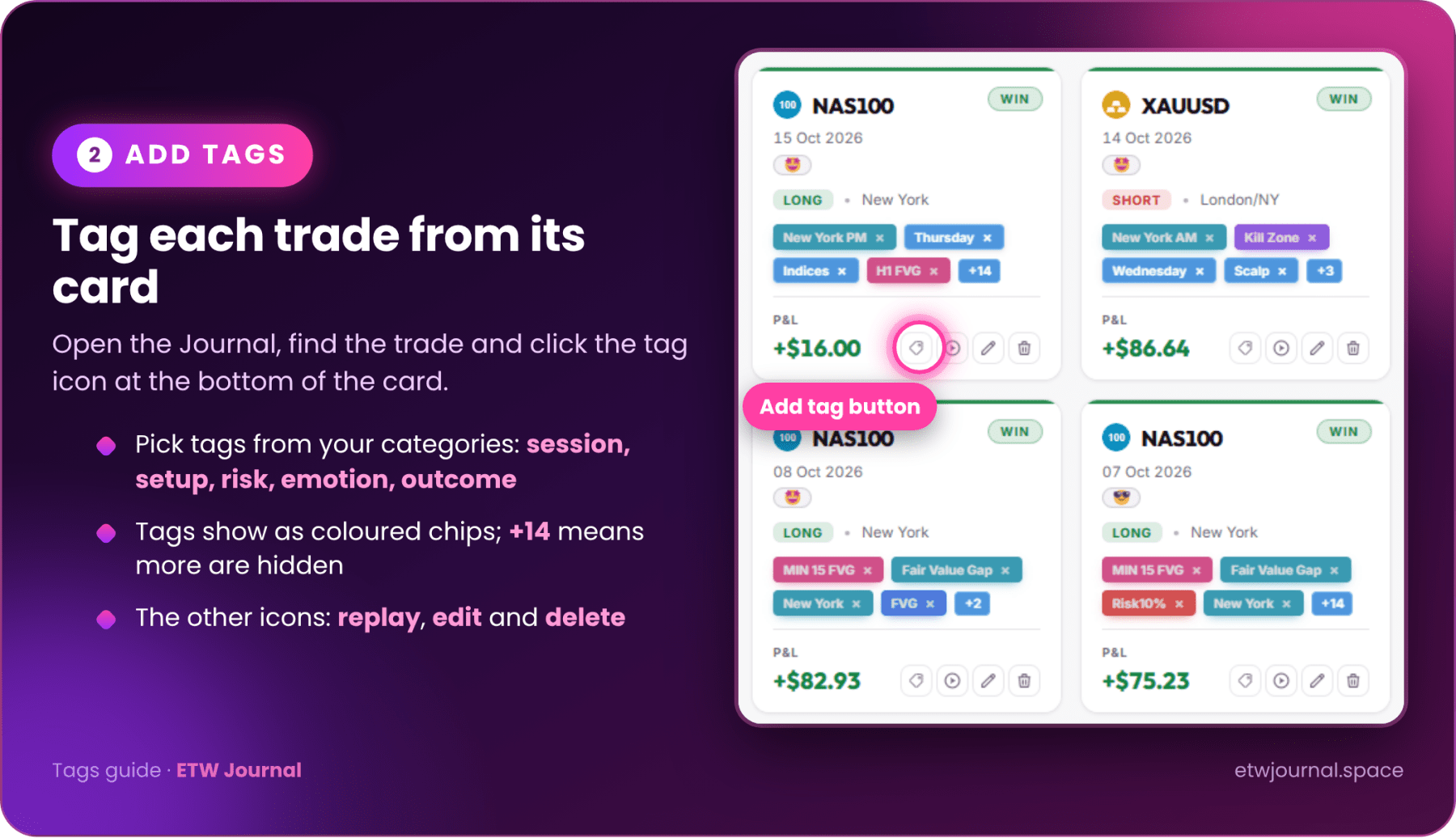
You can remove a tag straight from the card by clicking the small × on its chip, and add more at any time. Many traders tag right after the trade closes while the details are fresh, then add review tags (like "Followed plan" or "Ignored plan") during their end-of-day review.
Tag every trade, not just the interesting ones. Reports can only compare what you have tagged. If you only tag your losses, every tag will look like a losing tag.
Step 3: Build your tag categories
Tags work best when they are organised into categories. A category is a group of related tags, such as "Trading Session" (London, New York AM, New York PM, Asia) or "Emotions" (Calm, Focused, Distracted). Click Tag categories in the Journal to open the set-up panel. Every trade's tag picker uses this set-up.
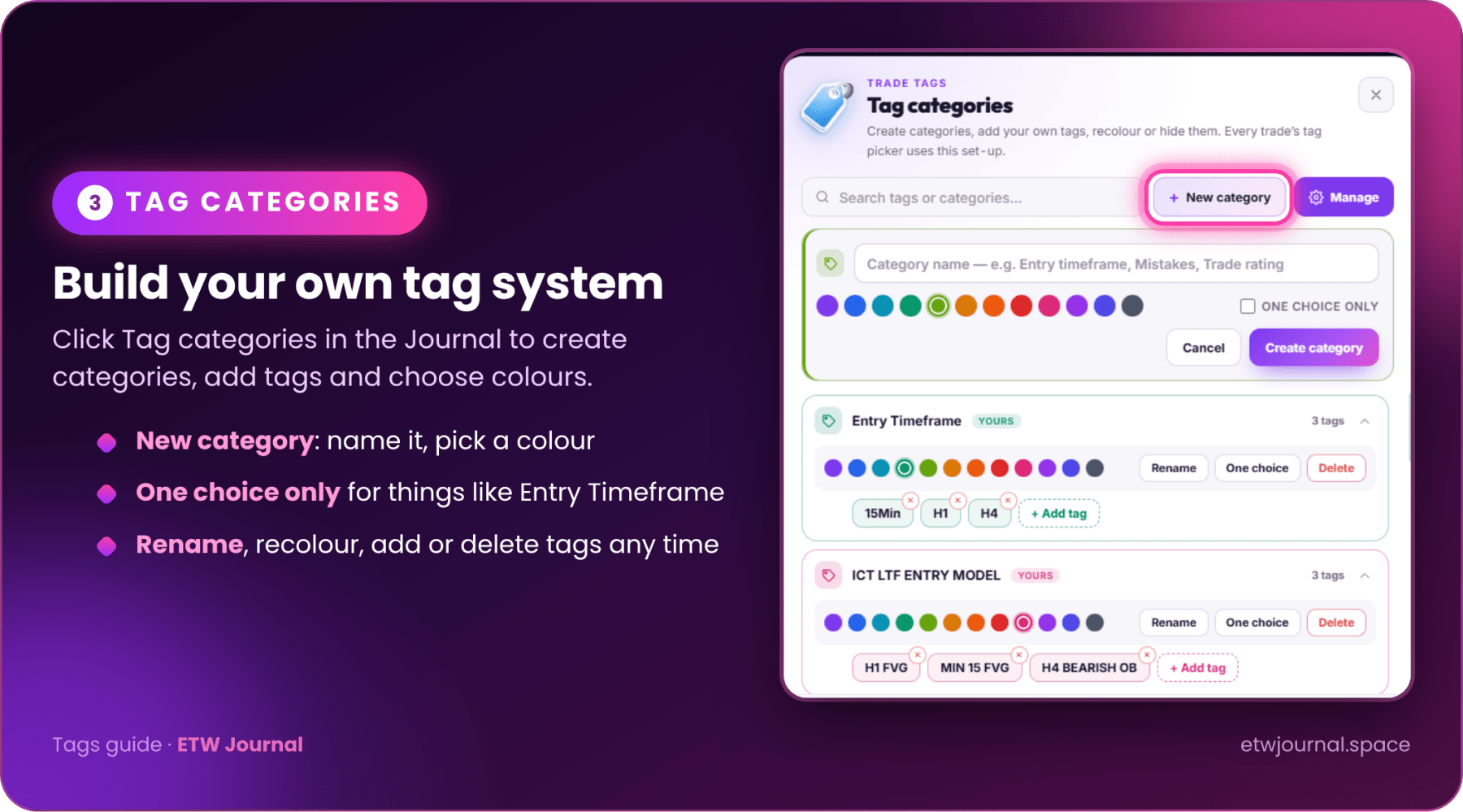
From this panel you can:
- Create a category: click New category, type a name (for example Entry Timeframe, Mistakes or Trade rating), pick a colour and click Create category.
- Add tags: use + Add tag inside any category, for example 15Min, H1 and H4 under Entry Timeframe.
- Use "One choice only": turn it on for categories where a trade can only have one answer, like entry timeframe or session. It keeps your stats clean because a trade can't be counted twice in the same category.
- Rename, recolour or delete: each category has Rename, One choice and Delete controls, and you can remove a tag with its small ×. Use Manage to tidy up or hide what you no longer use.
- Search: find any tag or category quickly with the search box at the top.
A tag set-up that works
Start small and make every category answer a question you actually want answered. A good starting set:
- Trading Session: Asia, London, New York AM, New York PM, Kill Zone.
- Strategies / Entry model: your setups, for example H1 FVG, MIN 15 FVG, H4 Bearish OB, IFVG.
- Entry Timeframe (one choice): 15Min, H1, H4.
- Risk Management: the risk you used, for example Risk10%, Risk12%.
- Emotions: Calm, Focused, Confident, Distracted, Uncertain.
- Execution: Followed plan, Ignored plan, Journaled.
- Outcome: TP Hit, SL Hit, Manual close.
Keep names consistent. "NY AM", "New York AM" and "NYAM" will be counted as three different tags. Pick one name and stick to it.
Step 4: Review tag performance in Reports
Tagging is the input; Reports is where you get the answers. Once you have a few weeks of tagged trades, open the Reports section to see how each tag performs. There are three tools to use.
Category tracker
Choose a tag category from the row at the top (Entry Timeframe, Trading Session, Strategies, Risk Management and so on). The number next to each category is how many tagged trades it has. The tracker then shows:
- Tagged trades and the share of the period they cover.
- Options used: how many of the tags in that category you have actually used.
- Best option and weakest option, with their net P&L and win rate.
- Equity by option: an equity curve for every tag in the category. Tap an option to show or hide its line.
- A ranked list and a full table with trades, win rate, profit factor, average per trade, average win, average loss and max drawdown for each option.
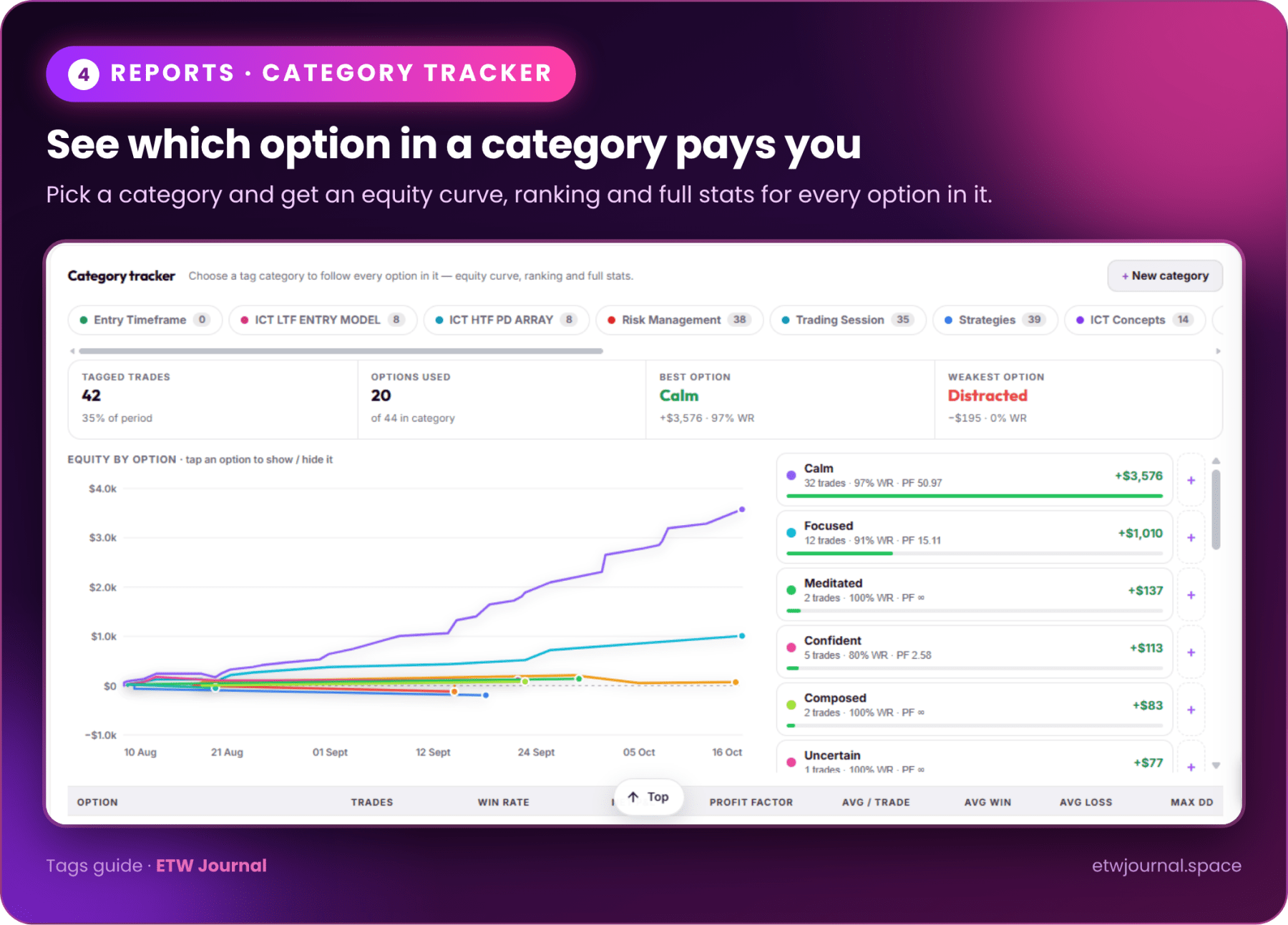
In the example above the emotions category tells a clear story: trades tagged Calm produced most of the profit, while Distracted trades lost money with a 0% win rate. That is a rule you can act on straight away: if you are distracted, do not trade.
Best & worst pairs
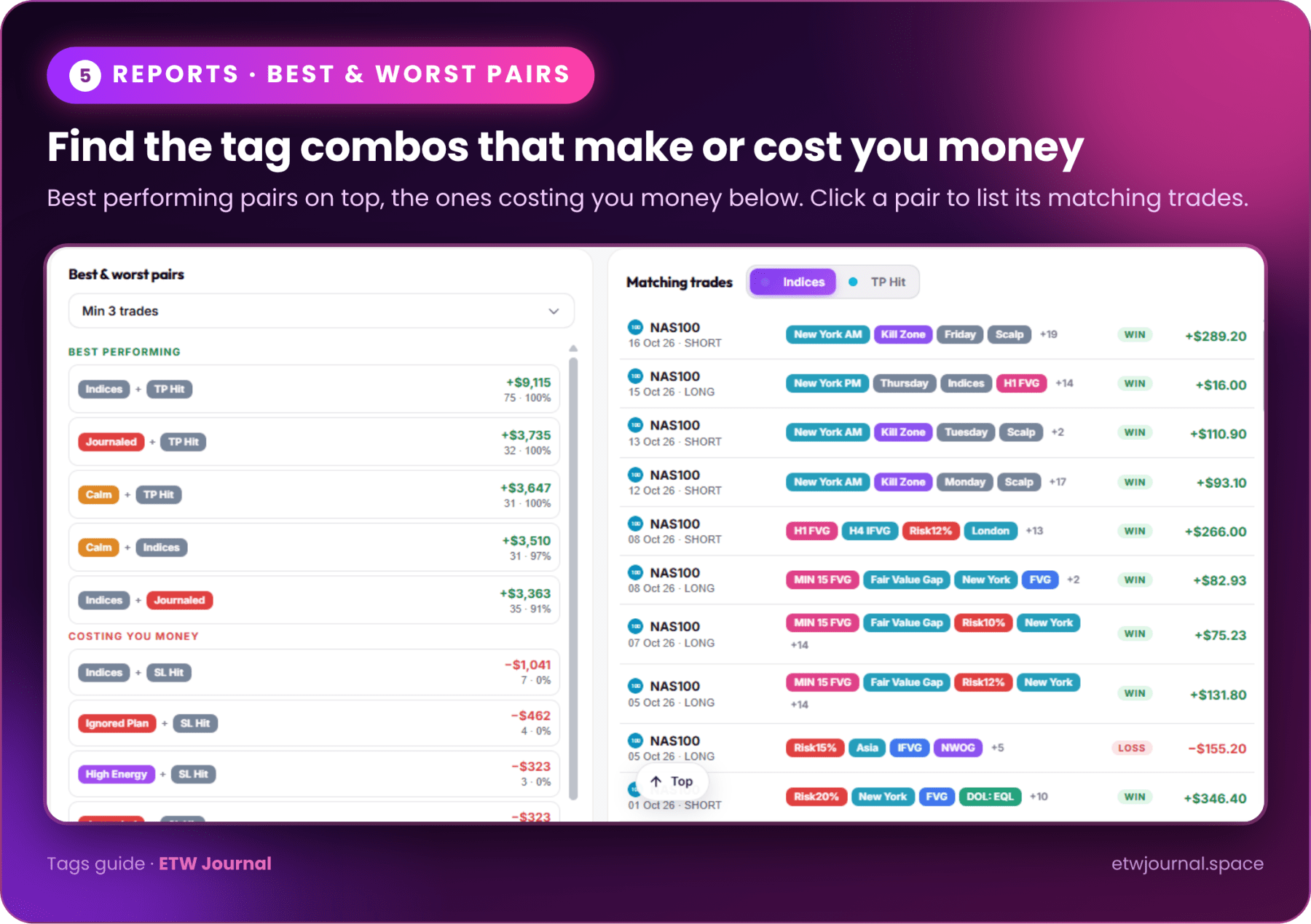
Single tags are useful; pairs of tags are where the real insights hide. Best & worst pairs looks at every combination of two tags and ranks them. Set a minimum number of trades (for example Min 3 trades) so a single lucky trade can't top the list.
- Best performing shows the pairs that make you the most, for example Indices + TP Hit or Calm + Indices.
- Costing you money shows the pairs that lose, for example Ignored Plan + SL Hit or High Energy + SL Hit.
- Click a pair to see its matching trades on the right, with all their tags and P&L, so you can open and review them one by one.
Combinations
When you want to test your own idea, build a combination. Click + Add combination, give it a name and add the tags you want. Each combination has three ways to match trades:
- All: the trade must have every tag you added.
- Any: the trade needs at least one of the tags.
- Exclude: the trade must not have this tag.
Each combination gets its own line on the equity curve. Tick Compare with all trades to see it against your whole account, and use the table underneath to compare trades, win rate, net P&L, profit factor, averages and max drawdown side by side.
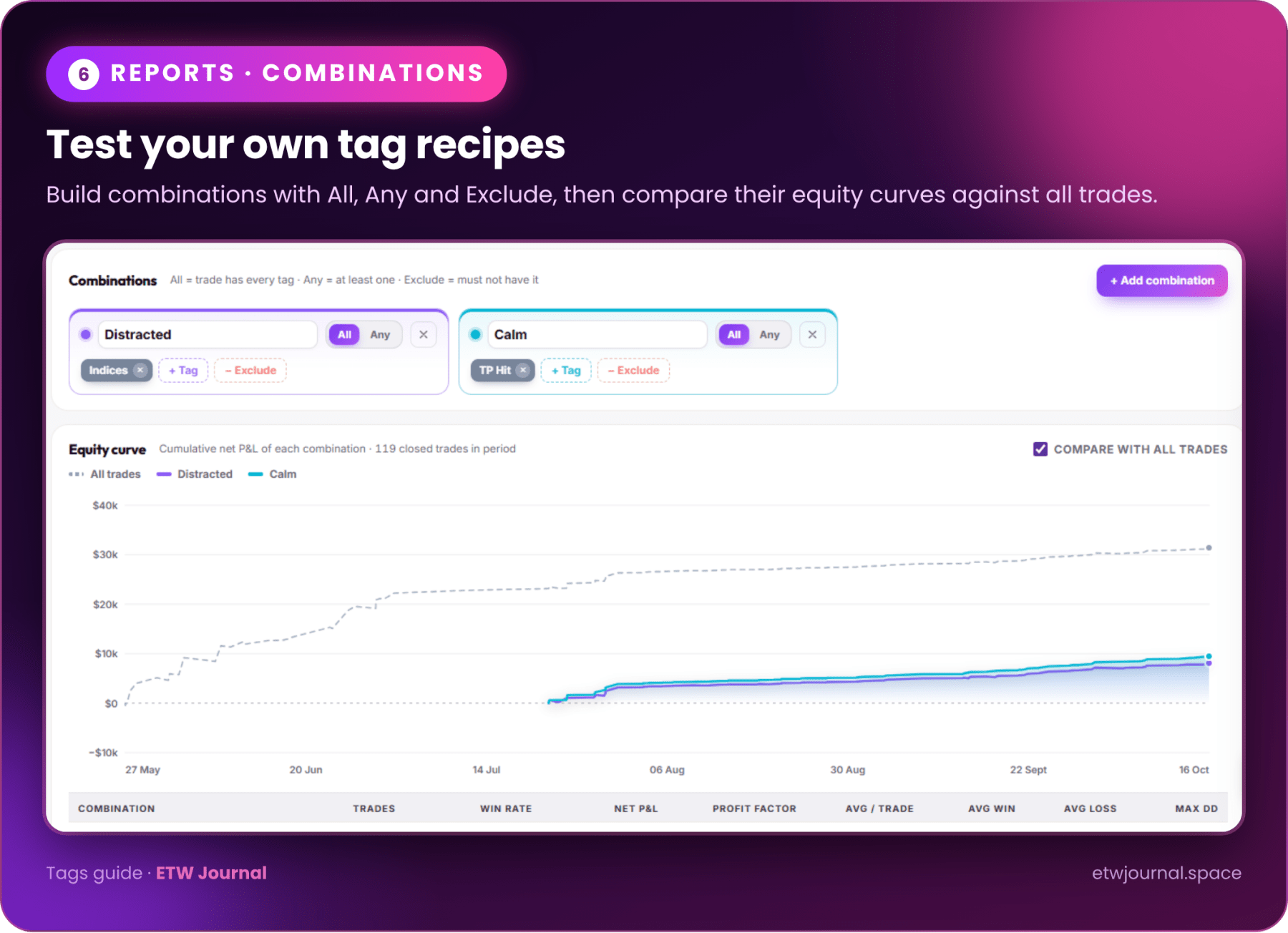
For example, you might compare "New York AM + H1 FVG" against "London + H1 FVG" to find out which session your best setup really works in, or exclude "Ignored plan" to see what your results look like when you trade by the rules.
A simple weekly tagging routine
- After each trade: open the Journal, click Add tag on the card, and add the session, setup, timeframe, risk and outcome.
- At the end of the day: add your emotion and execution tags (Calm, Distracted, Followed plan, Ignored plan) while you still remember.
- Once a week: open Reports. Check the Category tracker for your emotions and strategies, look at Best & worst pairs, and update one or two combinations that test your current ideas.
- Act on it: write one rule for next week based on what you found, for example "Only trade H1 FVG in New York AM" or "No trading when tagged Distracted".
Common tagging mistakes: creating too many categories at once, using different names for the same thing, only tagging some trades, and drawing conclusions from three or four trades. Use the minimum-trades filter and give each tag time to build a sample.
Start tagging today
Tags turn your journal from a record of what happened into a tool that tells you what to do next. Open the Journal in ETW Journal, set up a few tag categories, tag this week's trades, and check Reports on Friday. You will be surprised how quickly the patterns show up.