 ETW


If you've journaled in Notion, you've probably built something you're proud of: a database with months or years of trades, your setups, your emotions and a screenshot of almost every chart. The problem is that Notion was never built for trading. It can't show you your win rate by session, replay a trade candle by candle or tell you which setup actually pays.
Moving to a real trading journal used to mean leaving all of that history behind. Not anymore. With Notion Sync, you connect your Notion workspace once and ETW Journal brings every trade across, with its numbers, its notes and its screenshots.
The short version: open Brokers, pick Notion, click Connect Notion, select your trading journal in Notion and pick your database. ETW Journal matches your columns automatically and imports every trade, including the screenshots and the write-up on each page.
What Notion Sync brings across
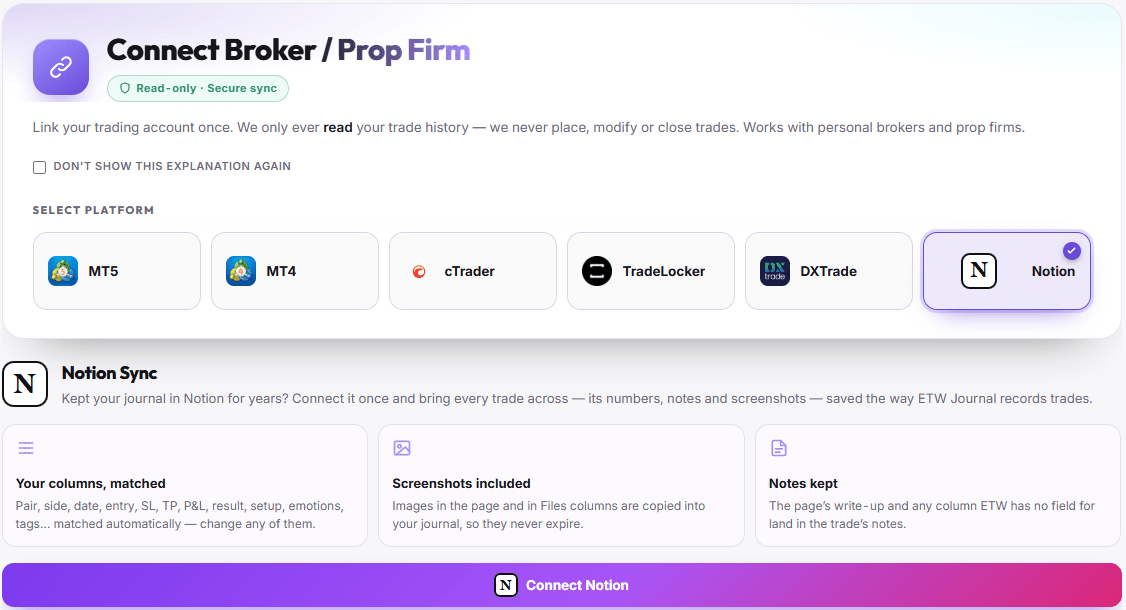
Your columns, matched. Pair, side, date, entry, SL, TP, P&L, result, setup, emotions, tags and more are matched to ETW Journal's fields automatically. If a match isn't right, you can change it.
Screenshots included. Images inside each trade's page and in Files columns are copied into your ETW journal, so they never expire.
Notes kept. The write-up on each Notion page lands in the trade's notes, along with any column ETW Journal doesn't have a field for. Nothing gets dropped.
Your Notion stays as it is. ETW Journal reads your journal to copy your trades across. Your Notion database isn't deleted or moved.
How to import your Notion journal
Step 1: Open Brokers and choose Notion
In ETW Journal, open Brokers from the left menu. Under Select platform, click the Notion card. You'll see a short overview of what Notion Sync imports.
Step 2: Click Connect Notion
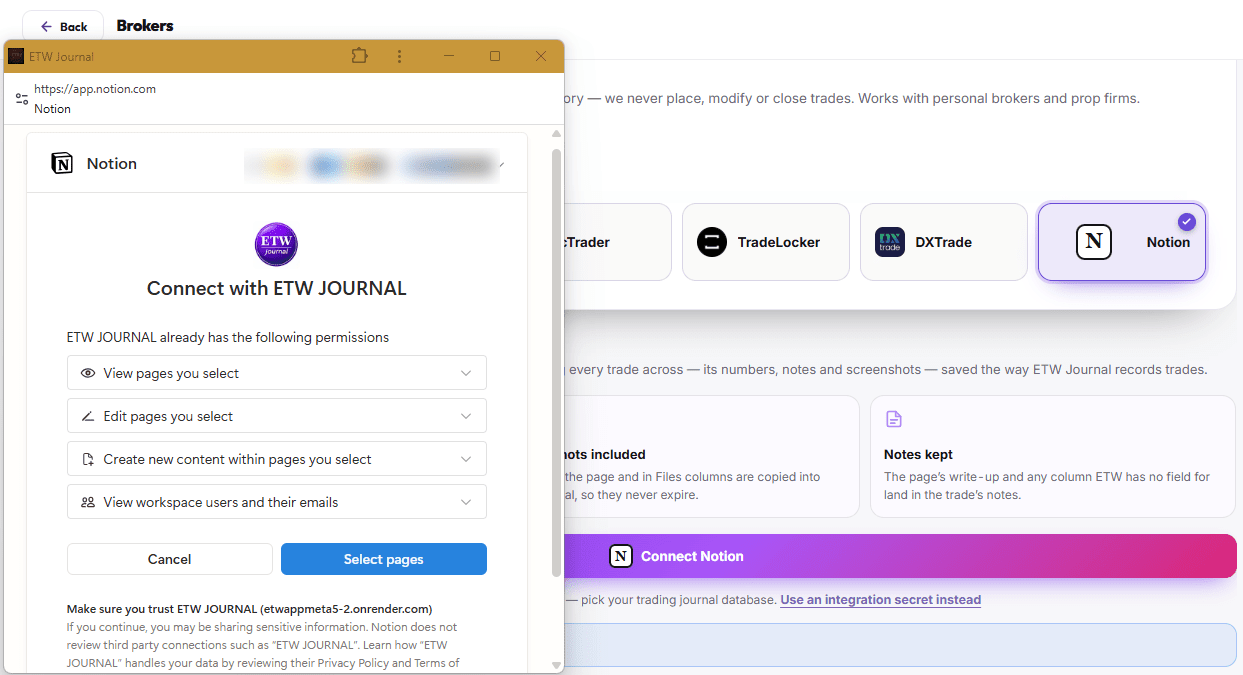
Click the Connect Notion button. A Notion window opens asking you to connect with ETW Journal. Check that the workspace shown at the top right is the one your trading journal lives in. If it isn't, switch it from that menu.
Step 3: Select your trading journal
Click Select pages and tick the page or database that holds your trades. Only the pages you select are shared with ETW Journal, so the rest of your workspace stays private. Then confirm to give access.
Step 4: Pick your database and check the columns
Back in ETW Journal, pick your trading journal database. ETW Journal matches your columns to its own fields automatically. Take a quick look, change any match that isn't right, then start the import.
That's it. Your trades, notes and screenshots land in your Journal, ready to tag, review and analyse.
Prefer not to use the Notion window? Below the Connect Notion button there's a link to Use an integration secret instead. Create an internal integration in Notion, connect it to your journal database, then paste its secret into ETW Journal.
Where your Notion data ends up
| What you have in Notion | What happens in ETW Journal |
|---|---|
| Trade columns like pair, side, date, entry, SL, TP, P&L and result | Matched to the same fields automatically |
| Setup, emotions and tags | Matched automatically, and you can change any match |
| Screenshots in the page or in a Files column | Copied into your journal so they never expire |
| The write-up on each trade's page | Saved in the trade's notes |
| Columns ETW Journal has no field for | Added to the trade's notes so nothing is lost |
What to do after importing
Tag what's missing. Add sessions, setups and mistakes to older trades so your reports have something to work with. Here is how tags work.
Link trades to your playbook. Give your imported trades the right strategy tag so your playbook stats include your full history. See the step-by-step routine.
Review your history properly. With years of trades in one place, your calendars, reports and ETW Score finally have enough data to show real patterns. Try the 11-step weekly review.
Sync new trades automatically. Connect MT5, cTrader or your prop firm account so new trades come in on their own. Set up MT5 EA Sync.
Frequently asked questions
Will anything change in my Notion workspace?
No. ETW Journal copies your trades across and leaves your Notion database where it is. You can keep it as an archive or stop using it, it's up to you.
What if my columns have different names?
That's fine. Matching is automatic and you can change any match before importing. Any column without a matching field ends up in the trade's notes, so you don't lose it.
Will my screenshots still work if I delete them from Notion later?
Yes. The images are copied into your ETW journal, so they don't depend on Notion anymore.
I have years of trades. Do I need to import them in batches?
No. Connect once, pick your database and ETW Journal brings every trade in it across.
Trading carries a real risk of loss. ETW Journal is a journaling and analytics tool: it doesn't place trades or guarantee results. It helps you see your trading clearly so you can make better decisions.