 ETW

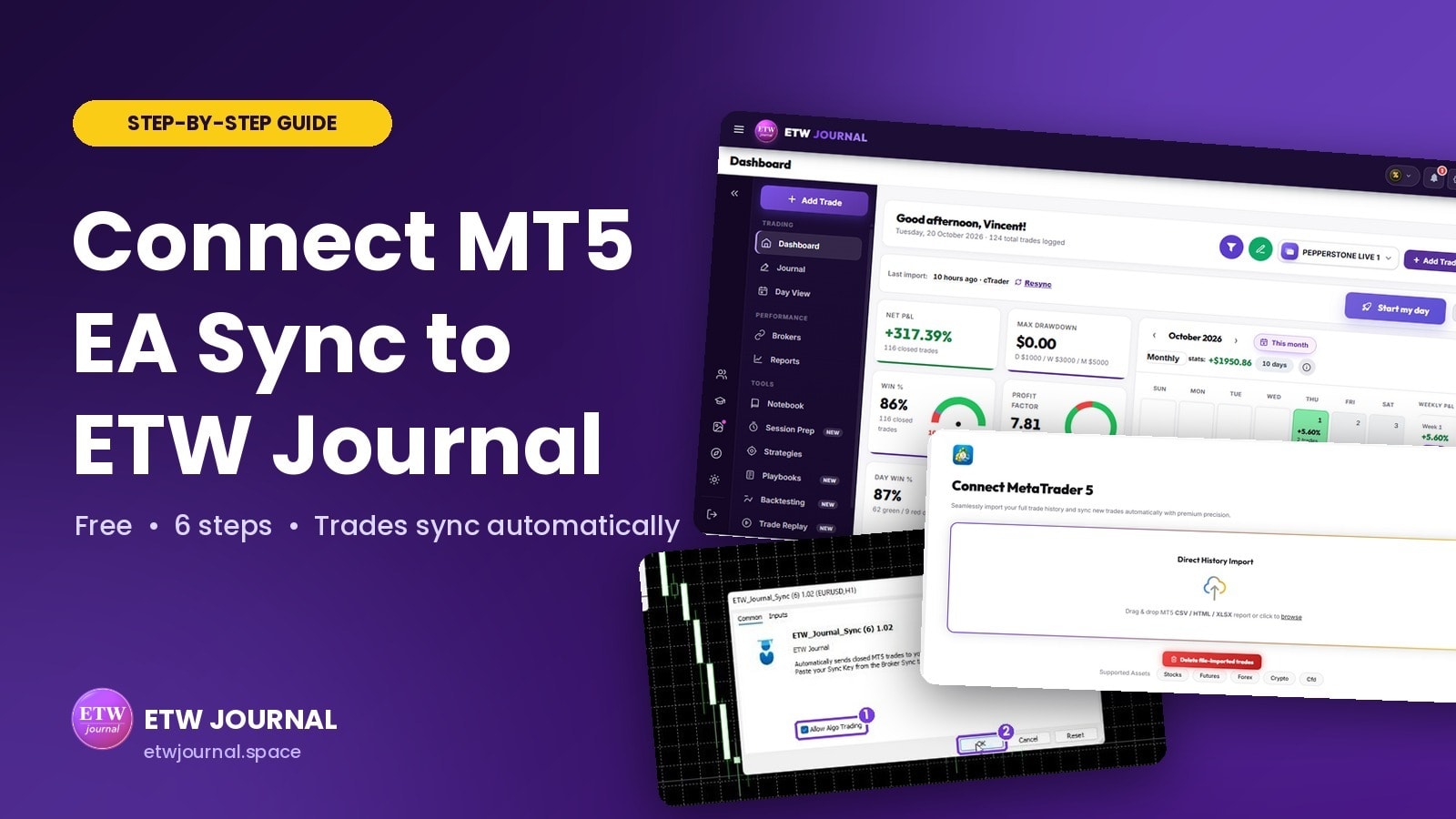
If you trade on MetaTrader 5, you don't need to type your trades into ETW Journal by hand or export a report every week. Our free EA Sync is a small Expert Advisor that runs inside your MT5 terminal and sends every closed trade straight to your journal, automatically.
The setup takes about five minutes and you only do it once. This guide walks you through every click on both sides, ETW Journal and MT5, with screenshots and a full video walkthrough.
The short version: download your EA from Brokers → MT5, copy it into MQL5 → Experts, compile it in MetaEditor, allow ETW Journal's web address in Tools → Options → Expert Advisors, then drag the EA onto any chart with Algo Trading switched on. Your trade history loads first, then new trades sync on their own.
Watch the full walkthrough
Prefer to follow along on video? Here's the complete setup from start to finish. The written steps below match the video, so you can pause and use whichever is easier.
What EA Sync does (and what it doesn't)
- Syncs closed trades automatically. As soon as a position closes in MT5, it appears in your ETW Journal. Open positions sync once you close them.
- Imports your recent history. When the EA starts, it imports your last 120 days of trade history, so your journal isn't empty on day one.
- Only reads your data. The EA never places, modifies or closes a trade. It only reads your history, so it doesn't break prop firm rules.
- Free on every plan. EA Sync is available to all ETW Journal members, including the Essential plan.
Before you start
Make sure you have these three things ready:
- The MetaTrader 5 desktop app (Windows or Mac), logged into the trading account you want to journal.
- A stable internet connection.
- Your ETW Journal account, logged in, with the correct trading profile selected.
Desktop only: Expert Advisors only run on the MT5 desktop app. The MT5 phone app and the web terminal can't run the EA, and you won't find the menus used in this guide there.
Step 1: Get your free EA and sync key
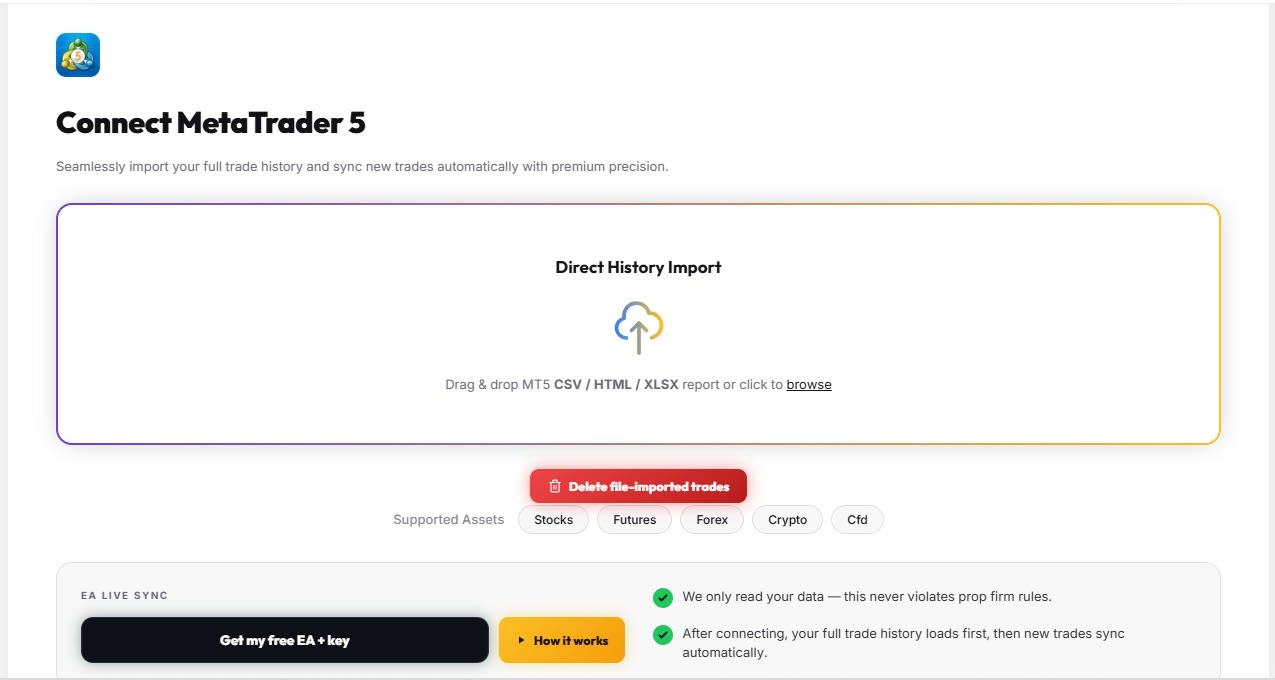
In ETW Journal, open Brokers from the left menu and choose the MT5 tab. Scroll down to the EA Live Sync card and click Get my free EA + key.
This downloads a file called ETW_Journal_Sync.mq5 to your Downloads folder. Your personal sync key is already written inside the file, so there's nothing to copy and paste.
Tip: switch to the right account or profile in ETW Journal before you download. The EA links to whichever profile is active when you click the button, so trades from this MT5 account will land in that profile.
Step 2: Copy the EA into MT5's Experts folder
Open MetaTrader 5 and go to File → Open Data Folder (or press Ctrl+Shift+D).
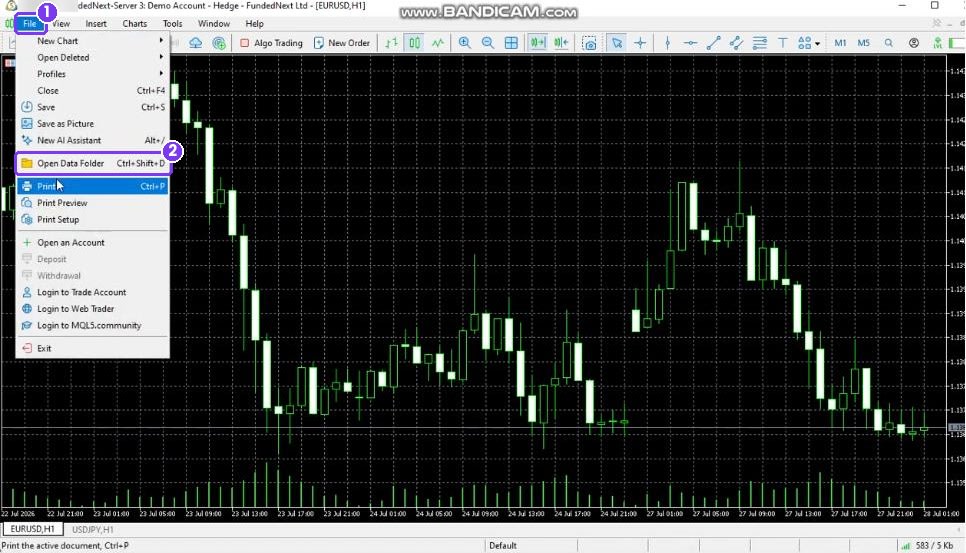
A file explorer window opens on your MT5 data folder. Double-click the MQL5 folder.
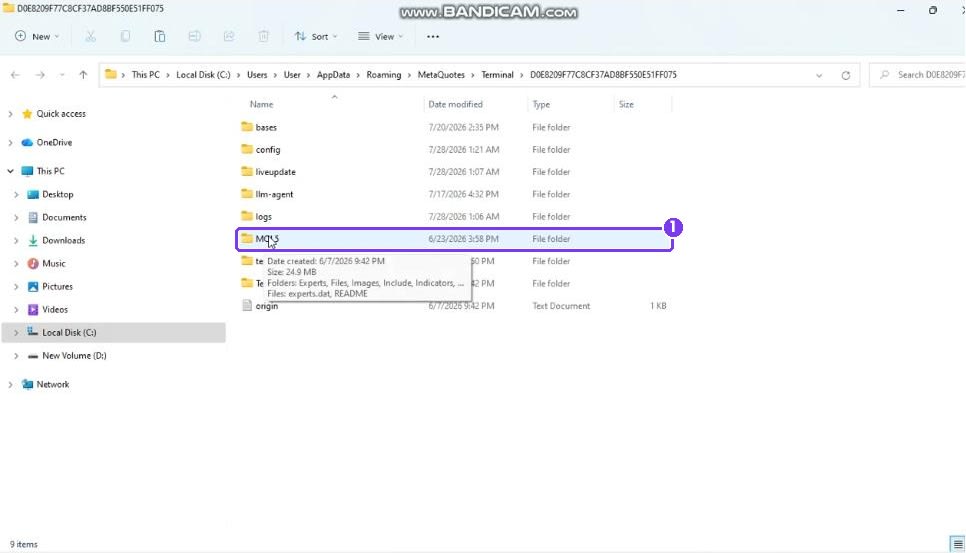
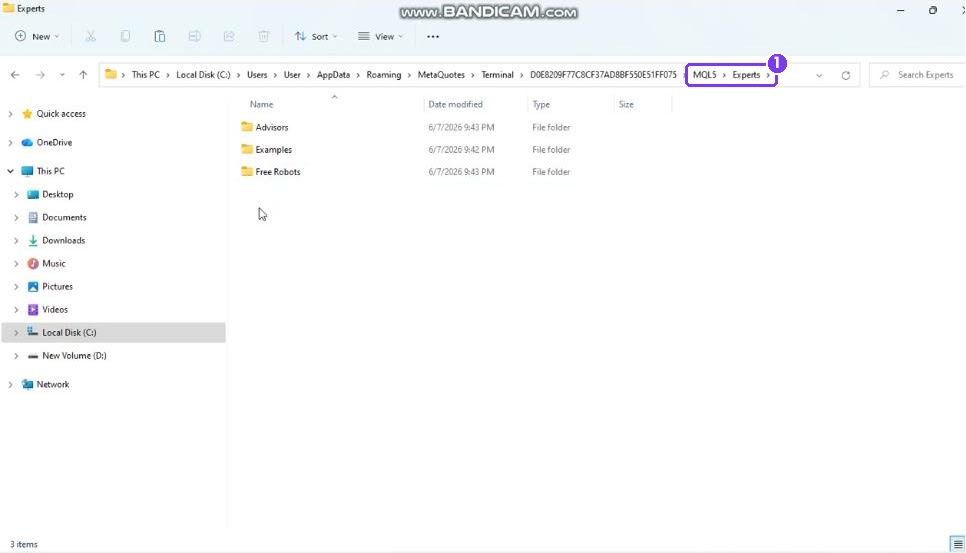
Now open the Experts folder and paste ETW_Journal_Sync.mq5 from your Downloads into it. You can paste it straight into Experts; it doesn't need to go inside Advisors or any other subfolder.
Step 3: Compile the EA in MetaEditor
Back in MT5, press F4 to open MetaEditor. In the Navigator on the left, open Experts and double-click ETW_Journal_Sync to open it.
Click Compile in the toolbar (or press F7). In the Errors tab at the bottom you should see 0 errors. That means the EA is ready to use.
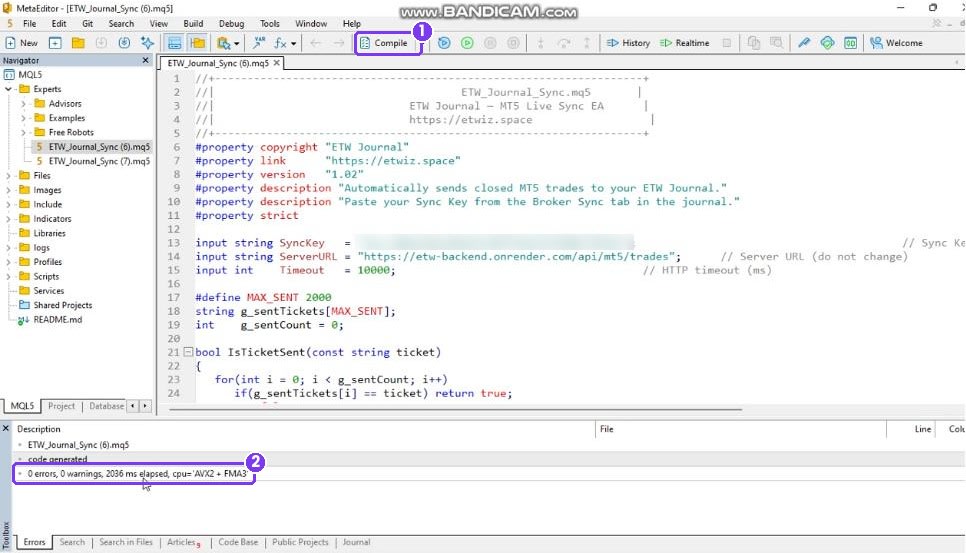
Use Compile, never Debug. Always press Compile (F7), not Debug (F5). And treat your sync key like a password: don't share the .mq5 file or screenshots of line 13 with anyone.
Step 4: Allow ETW Journal's web address
This step is required. Without it, MT5 blocks the EA from sending your trades to the journal.
In MT5, open Tools → Options (or press Ctrl+O).
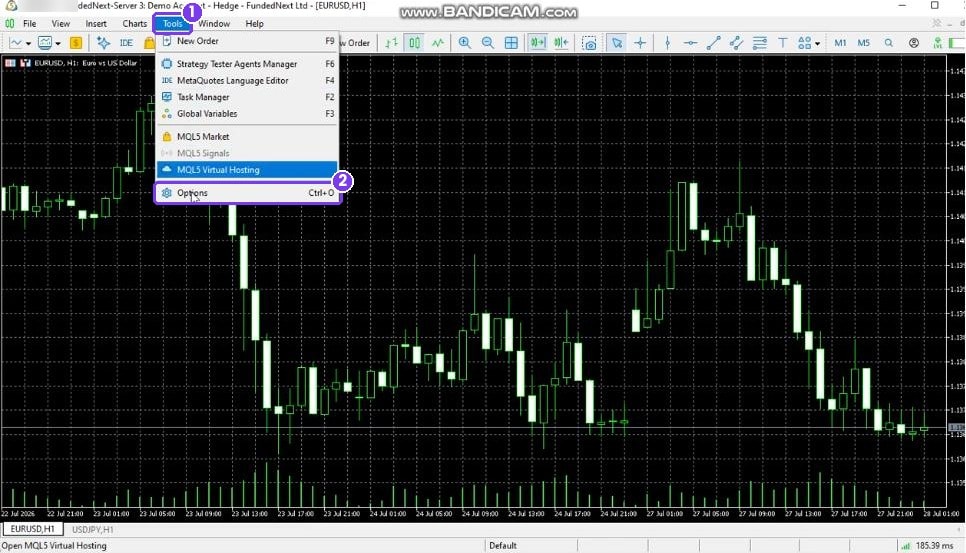
Go to the Expert Advisors tab and tick Allow WebRequest for listed URL. Then click add new URL, paste this exact address and press Enter:
https://etw-backend.onrender.com/api/mt5/trades
Click OK to save.
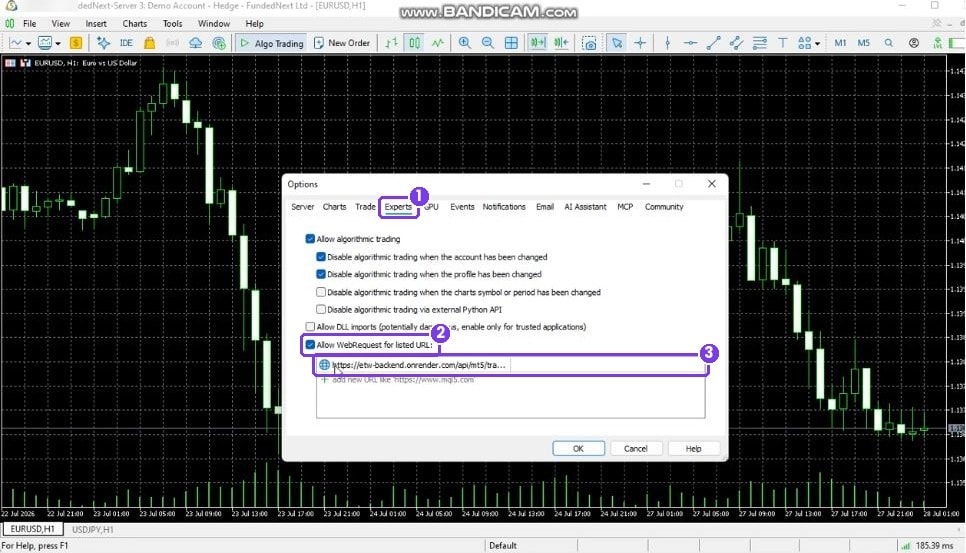
Copy the URL exactly as shown, with no spaces before or after it. A single typo here is the most common reason the sync doesn't work.
Step 5: Turn on Algo Trading and attach the EA
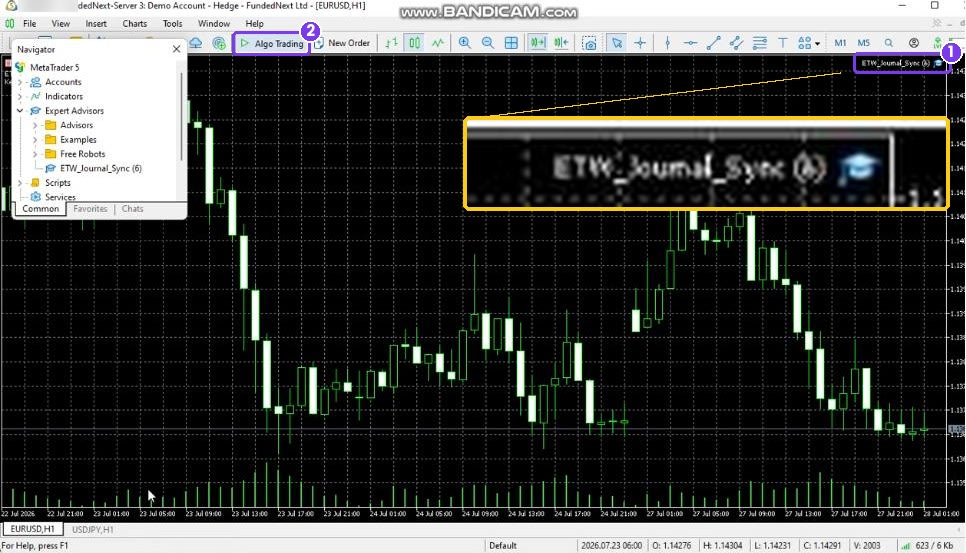
Click the Algo Trading button in the top toolbar so it turns green. Then open the Navigator (Ctrl+N), expand Expert Advisors and find ETW_Journal_Sync.
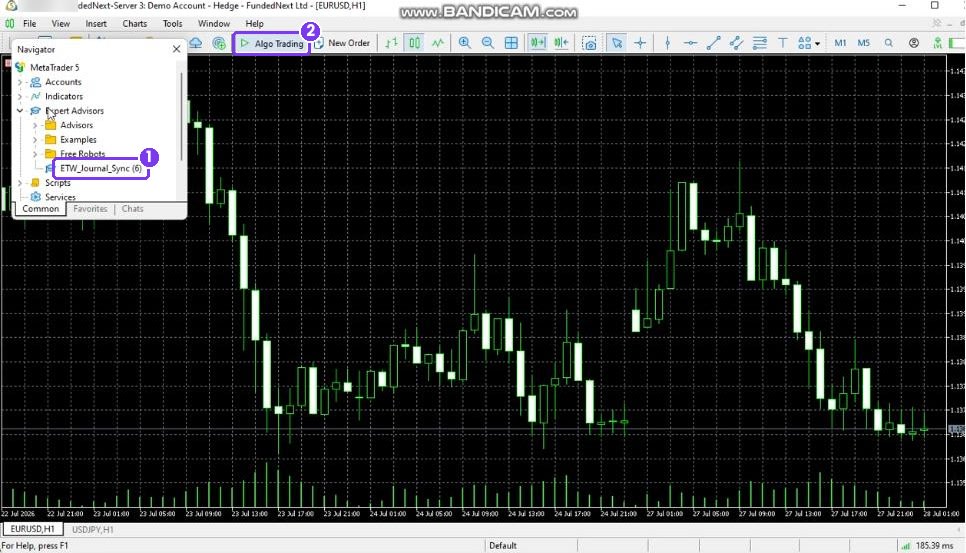
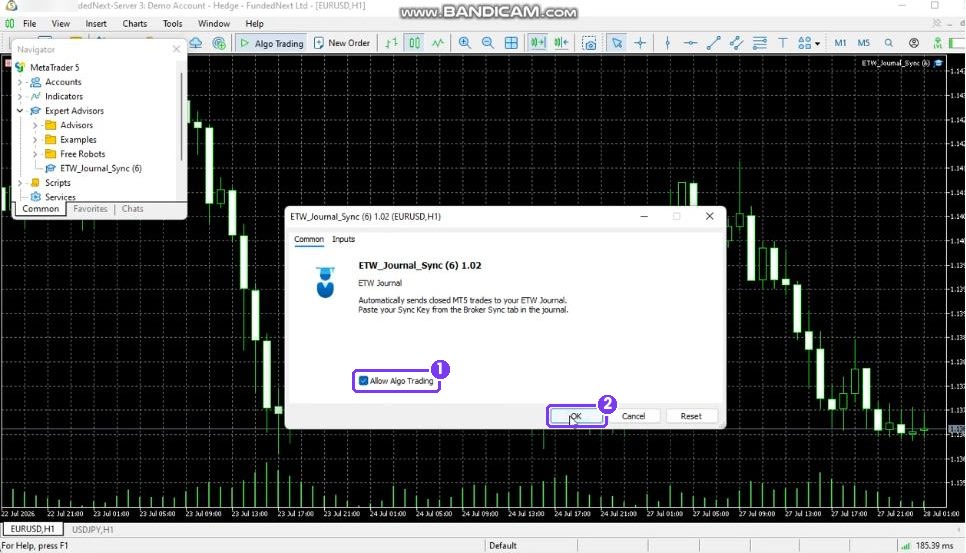
Drag ETW_Journal_Sync onto any chart. It doesn't matter which symbol or timeframe. In the window that pops up, make sure Allow Algo Trading is ticked, then click OK.
Look at the top-right corner of the chart. You'll see ETW_Journal_Sync with the EA icon next to it. That means it's running. If you see a red ✗ or a sad face instead, Algo Trading is switched off.
Step 6: Confirm your trades are syncing
In MT5, open View → Toolbox (Ctrl+T) and click the Experts tab. Within a few seconds you'll see importing trade history… followed by lines like ETW Sync ✓ Trade #… for each trade that was sent.
Now refresh ETW Journal. Your trades appear on the Dashboard, calendar and Journal, with your stats calculated automatically.
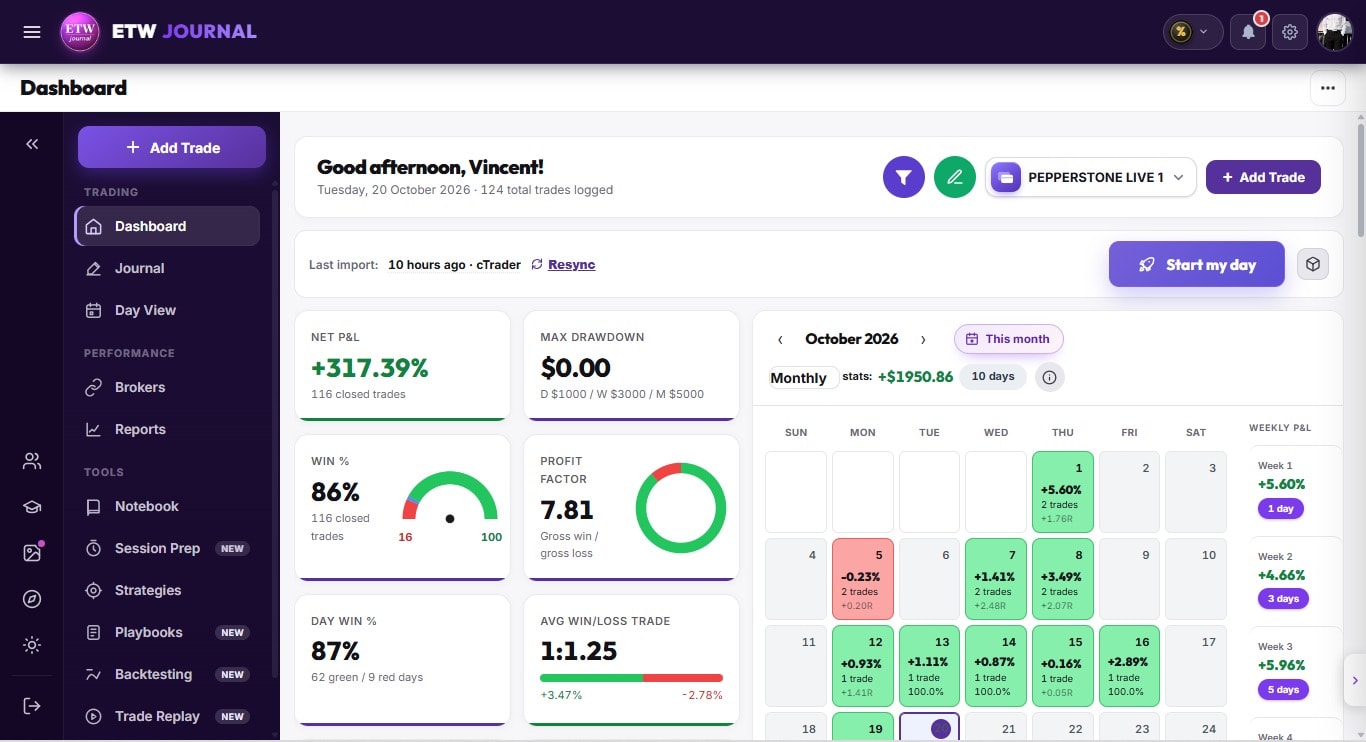
Keep MT5 open to keep syncing. The EA only runs while your MT5 terminal is open and connected. If you close MT5, nothing is lost: trades closed while it was off will sync the next time the EA starts.
Troubleshooting
Most problems come from one of four things. Find what you're seeing in the table below.
| What you see | What to do |
|---|---|
| Error 4060 or 5203 in the Experts log | The WebRequest URL isn't added correctly. Redo Step 4 with the exact URL and no spaces. If the URL is correct, the server may have been waking up: wait about 60 seconds and try again. |
| Nothing in the log, or a ✗ on the chart | Algo Trading is off, or the EA isn't on a chart. Turn Algo Trading green and drag the EA onto the chart again. |
| New trades sync but old ones don't | Remove the EA from the chart and drag it back on. This re-runs the history import. |
| You can't find these menus | You're on the MT5 mobile app or web terminal. Use the MT5 desktop app. |
Good to know
- Only closed trades sync. Open positions appear in your journal once you close them.
- History goes back 120 days. Need older trades? Use Direct History Import on the same Brokers → MT5 page and upload an MT5 CSV, HTML or XLSX report.
- One EA per MT5 account. If you trade several accounts, switch to the matching profile in ETW Journal, download a fresh EA for it and attach it in that account's terminal.
- Prop firm safe. The EA only reads your history. It never opens, changes or closes a position.
What to do once your trades are in
Syncing is just the start. The real value comes from what you do with the data. Tag each trade with its setup and mistakes, link it to a playbook, and set aside time every week to review your stats. If you're not sure where to begin, our guide on how to review your trading week in ETW Journal walks you through a complete weekly routine.
Got stuck, or have a question about EA Sync? Message us on X at @ETvtrades_Group and we'll help you get connected.
Trading carries a real risk of loss. ETW Journal is a journaling and analytics tool: it doesn't place trades or guarantee results. It helps you see your trading clearly so you can make better decisions.