 ETW

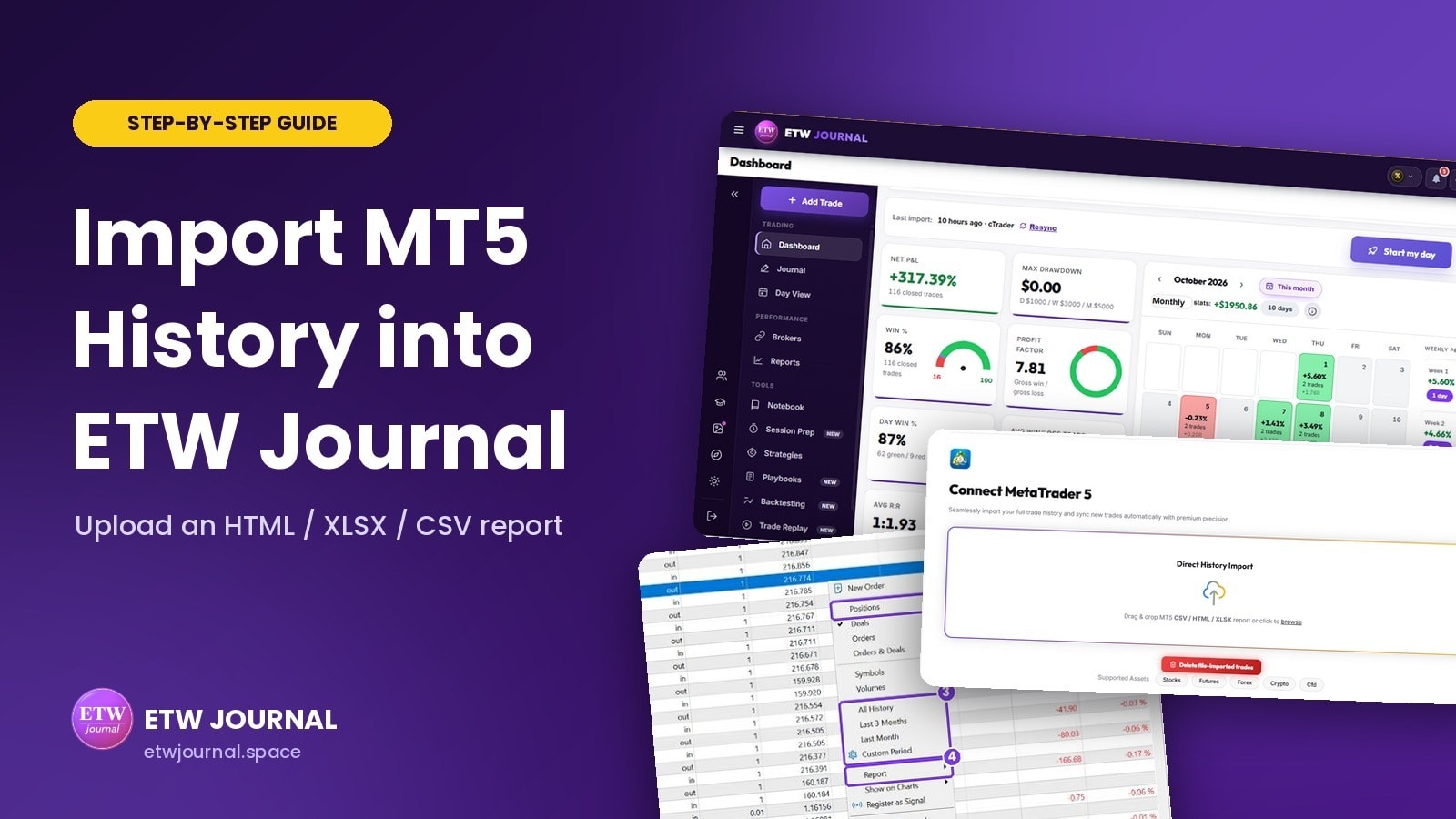
Want your full MetaTrader 5 trade history in ETW Journal without installing anything? Direct History Import lets you export a trading report from MT5 and drop it straight into your journal. In a couple of minutes, months of closed trades show up on your Dashboard, calendar and reports.
This guide shows you exactly how to export the right report from MT5 and import it into ETW Journal, with screenshots for every step.
The short version: in MT5, open the History tab, right-click and choose Positions and All History, then right-click again and pick Report → HTML (or Open XML for Excel). In ETW Journal, go to Brokers → MT5 and drag the file onto Direct History Import. Done.
File import or EA Sync: which should you use?
ETW Journal gives MT5 traders two ways to get trades in. They work well together.
| Direct History Import | EA Sync | |
|---|---|---|
| How it works | You export a report from MT5 and upload it | A small EA in MT5 sends each closed trade automatically |
| Best for | Old history, one-off imports, closed or expired accounts | Ongoing, hands-free journaling |
| History | Whatever period you export, even years | Last 120 days on first start, then live |
| Setup | None, just a file | One-time, about five minutes |
A popular combination: import your full history once with a file, then set up EA Sync so new trades arrive by themselves. Duplicates are skipped automatically, so the two never double-count.
Before you start
- The MetaTrader 5 desktop app (Windows or Mac), logged into the account you want to import. The MT5 phone app and web terminal can't export these reports.
- Your ETW Journal account, logged in.
Step 1: Open the History tab in MT5
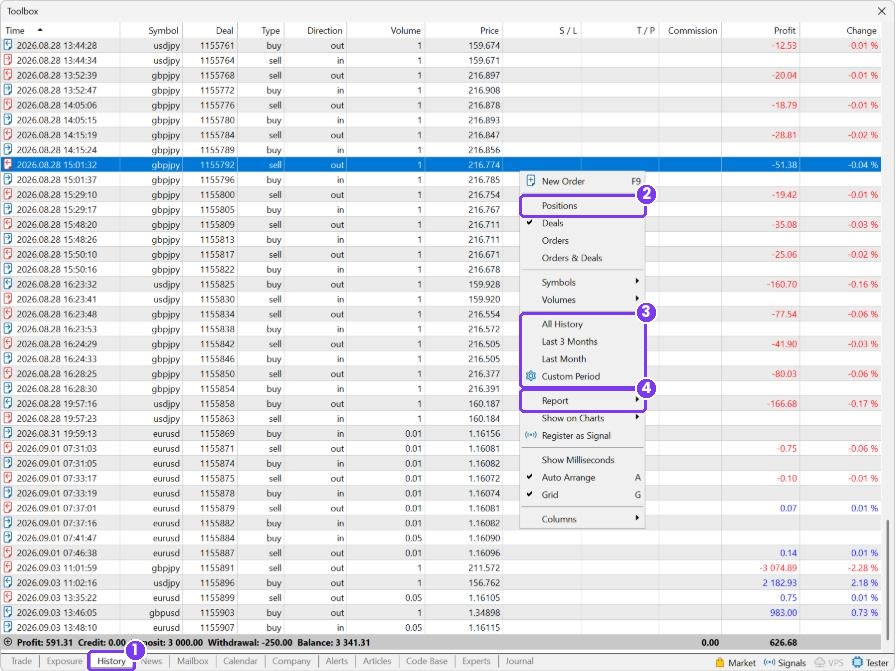
In MetaTrader 5, open the Toolbox with View → Toolbox (or press Ctrl+T) and click the History tab at the bottom. This is where MT5 keeps every closed trade on your account.
Step 2: Show positions and choose your period
Right-click anywhere inside the History list. In the menu:
- Choose Positions. This groups each trade's entry and exit into one row, which is what ETW Journal reads.
- Choose a period: All History for everything, or Last 3 Months, Last Month or Custom Period for a specific range.
Tip: the report only contains the period that's showing in the History tab. If older trades are missing after you import, come back here, pick All History and export again.
Step 3: Save the report as HTML or Excel
Right-click in the History list again, hover over Report and choose one of these:
- HTML: saves a web page report (.html). This is the most reliable option.
- Open XML: saves an Excel report (.xlsx).
Pick a folder you'll find easily, like your Desktop, and click Save. MT5 may open the report afterwards so you can check it.
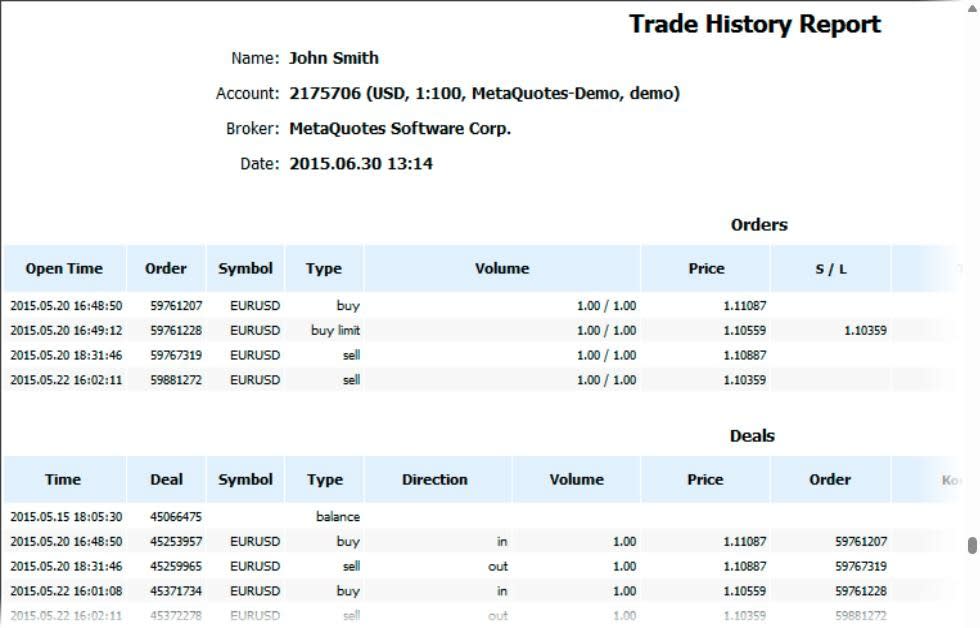
Use English for the export. ETW Journal reads the report's Positions section by name. If your MT5 runs in another language, switch it to English with View → Languages → English, restart MT5 and export again.
Step 4: Open Brokers → MT5 in ETW Journal
In ETW Journal, first check that the right account/profile is selected at the top of the app. Imported trades go into whichever account is active.
Then click Brokers in the left menu and choose MT5 under Select Platform.
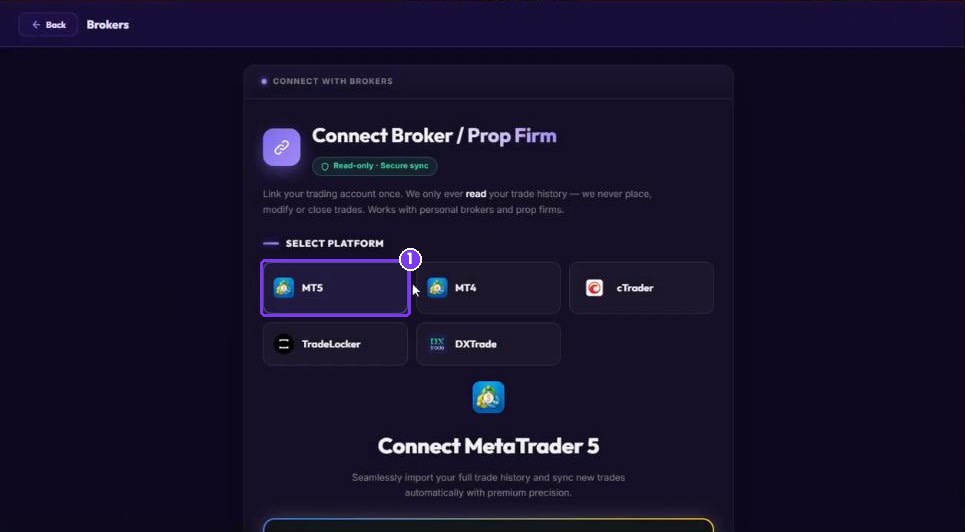
Step 5: Drop your report into Direct History Import
On the Connect MetaTrader 5 page, drag your report file onto the Direct History Import box, or click browse and select it. ETW Journal accepts MT5 HTML, XLSX and CSV reports.
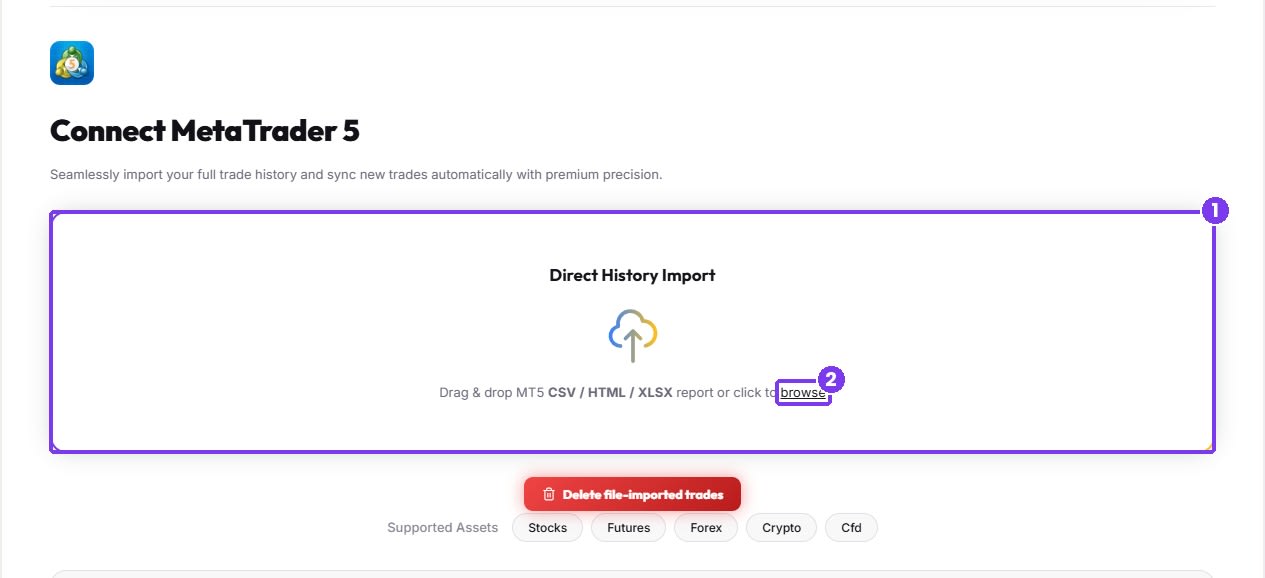
ETW Journal reads the file in your browser, finds the closed positions and saves them to your journal. When it's finished you'll see a message like Imported 48 of 52 parsed (4 duplicate).
Step 6: Check your trades
Open your Dashboard. Your imported trades now feed your net P&L, win rate, profit factor and calendar, and you'll find each one in the Journal, ready to tag and review.
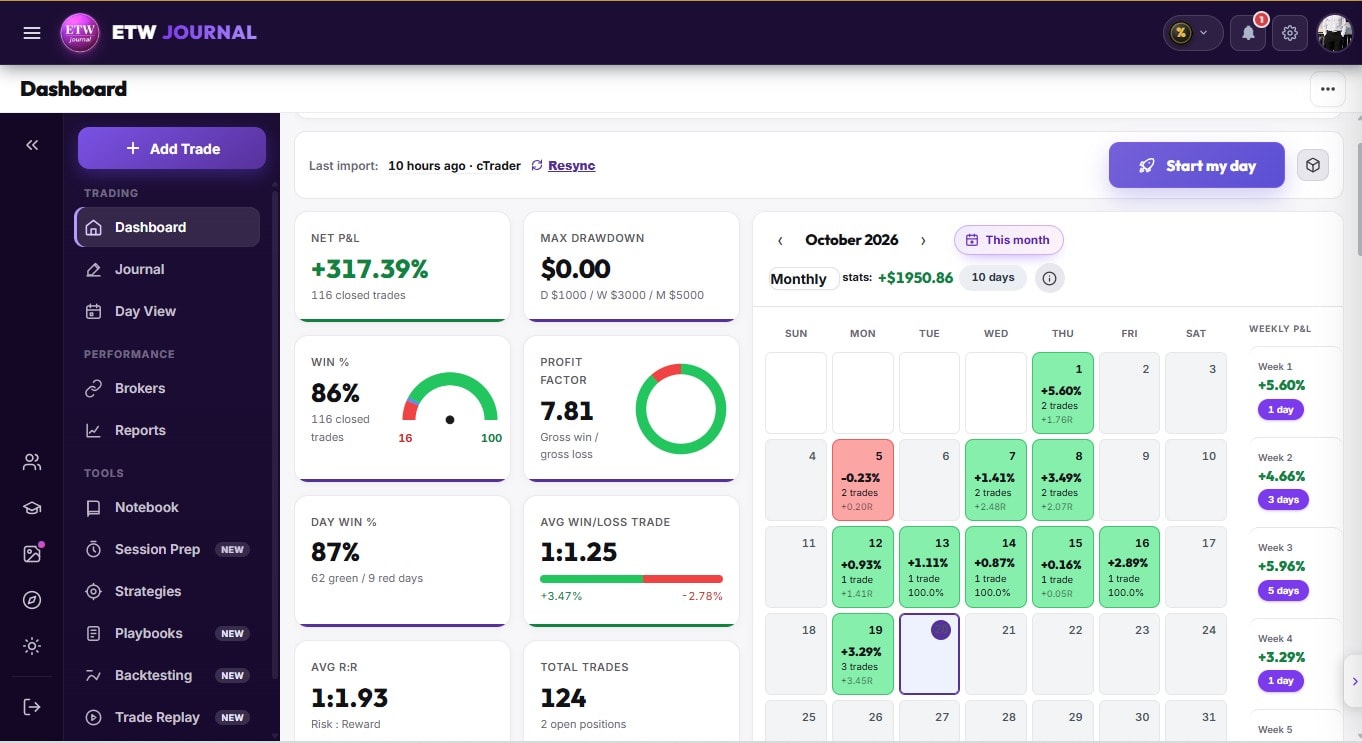
Re-importing and duplicates
You can import the same account as often as you like. ETW Journal checks every trade against what's already in the active account, including trades that came in through EA Sync, and skips anything it already has. Those show up as duplicate in the import message and are never added twice.
That makes it easy to top up: export a fresh report every week or month and drop it in. Only the new trades get added.
Made a mistake? Undo an import
Imported into the wrong account, or picked the wrong file? Click Delete file-imported trades under the Direct History Import box. It removes the trades that came from file imports in the active account. Trades synced by the EA or added by hand stay untouched. Then switch to the correct account and import again.
Deleted trades can't be brought back, and any tags or notes you added to them go too. Check you're in the right account before you click it.
Troubleshooting
| What you see | What to do |
|---|---|
| No closed positions found | The file isn't an MT5 report with a Positions section. Export again from the History tab with Report → HTML, and make sure MT5 is set to English. |
| Older trades are missing | The History tab was showing a shorter period when you exported. Choose All History (or a Custom Period) and export again. Existing trades will be skipped as duplicates. |
| Lots of duplicates | That's normal if those trades are already in your journal, for example from EA Sync or an earlier import. Nothing is added twice. |
| Trades landed in the wrong account | Use Delete file-imported trades, switch to the right account and import again. |
| You can't find the Report option | You're on the MT5 phone app or web terminal. Use the MT5 desktop app. |
Good to know
- Only closed trades are imported. Open positions aren't included until they're closed and you import again.
- Your file stays on your device. The report is read in your browser and only the trade details are saved to your journal.
- Works for prop firm accounts too. Export the report from the MT5 terminal your prop firm gave you, exactly the same way.
Next step: make it automatic
File import is perfect for bringing your history in. To keep your journal up to date without exporting every week, set up our free EA Sync. It takes about five minutes: How to connect MT5 to ETW Journal with the free EA Sync.
Questions about importing? Message us on X at @ETvtrades_Group and we'll help.
Trading carries a real risk of loss. ETW Journal is a journaling and analytics tool: it doesn't place trades or guarantee results. It helps you see your trading clearly so you can make better decisions.