 ETW

Last updated: October 12, 2026
Every strategy looks good in a screenshot. The real question is how it performs across dozens of setups you didn't cherry-pick. That's what backtesting answers. And the cheapest place to find out a strategy doesn't work is on historical data, not in your live account.
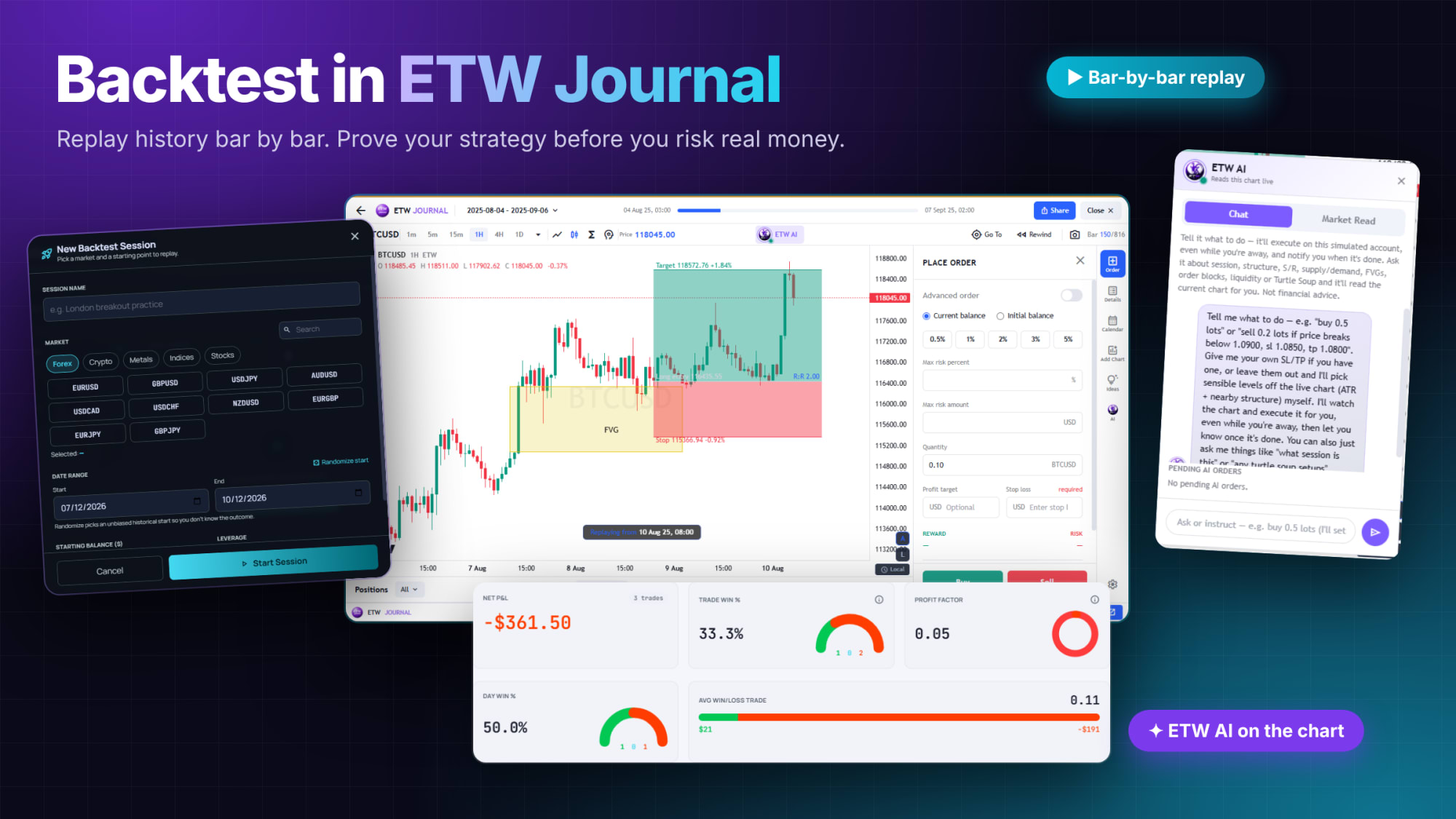
ETW Journal Backtesting lets you replay historical price bar by bar, place simulated trades with real risk rules, and then analyse the results with the same kind of dashboards you use for your live journal. This guide walks you through the full workflow, step by step.
The short version: create a session (pick a market, a date range and a starting balance), replay the chart bar by bar, place trades with a stop loss on every one, then review your results on the Backtesting Dashboard and Day View.
What Is Backtesting (and How Is It Different From Replay)?
Backtesting means testing a trading strategy on historical data before you risk real money. You trade the past as if it were live: you only see the bars up to the current moment, decide whether to enter, and let the replay reveal what happened next.
- Backtesting tests a strategy on history, using a simulated account.
- Trade Replay reviews trades you've already taken on your real account. See how to use Trade Replay.
Step 1: Create a New Backtest Session
Open Backtesting and click New Session. The setup form asks for everything the simulation needs:
- Session name: name it after the strategy you're testing, e.g. London breakout practice or Fair Value Gaps.
- Market: choose a category (Forex, Crypto, Metals, Indices or Stocks).
- Pair: pick the symbol, e.g. EURUSD, GBPUSD or BTCUSD.
- Search: or type a symbol to find it quickly.
- Randomize start: picks an unbiased historical start date, so you don't know the outcome in advance.
- Date range: or set the start and end dates yourself.
- Starting balance and leverage: match these to the account you plan to trade, e.g. your prop firm account size.
- Start Session: launches the replay.
Why randomize? If you pick a date you remember, hindsight leaks into every decision. A random start keeps the test honest.
Step 2: Use the Sessions Hub
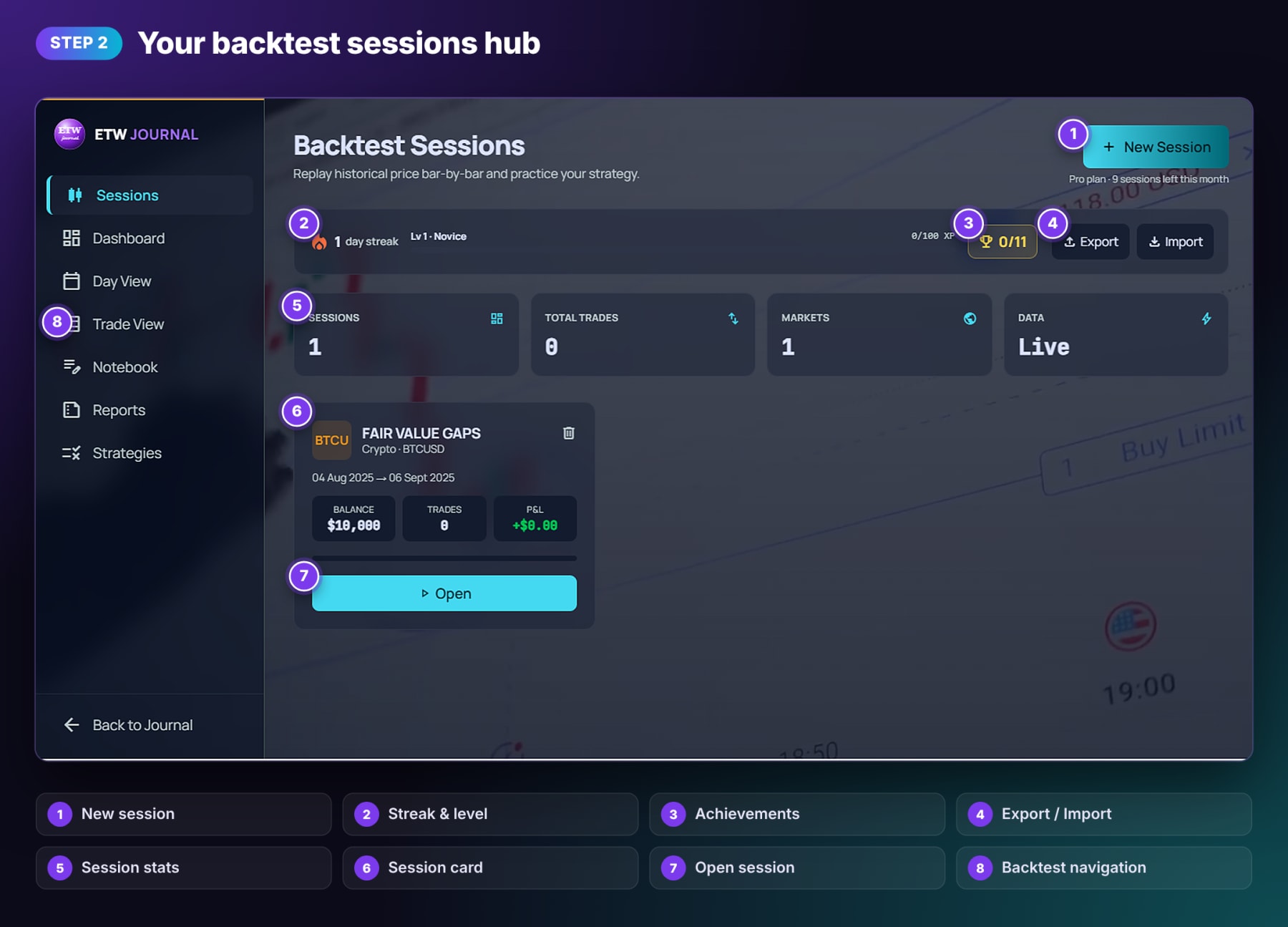
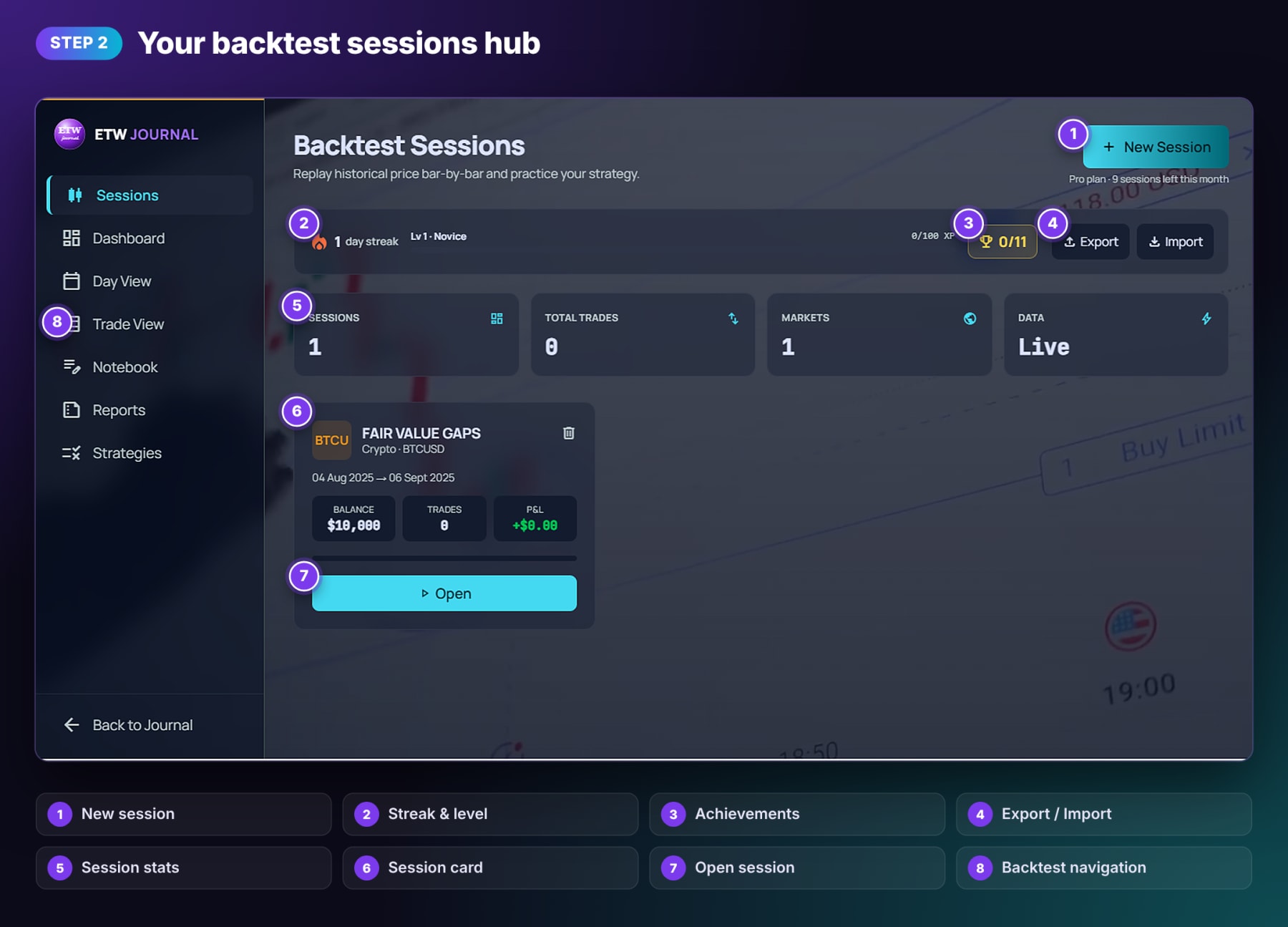
Every backtest you create lives on the Backtest Sessions page. From here you can:
- Start a new session and see how many sessions you have left this month.
- Track your streak, level and XP, and unlock achievements as you practise.
- Export or import sessions.
- See your totals at a glance: sessions, total trades, markets and data source.
- Open any session card to see its market, dates, balance, trades and P&L, then click Open to continue where you left off.
The sidebar takes you to the rest of the backtesting tools: Dashboard, Day View, Trade View, Notebook, Reports and Strategies.
Step 3: Trade the Chart, Bar by Bar
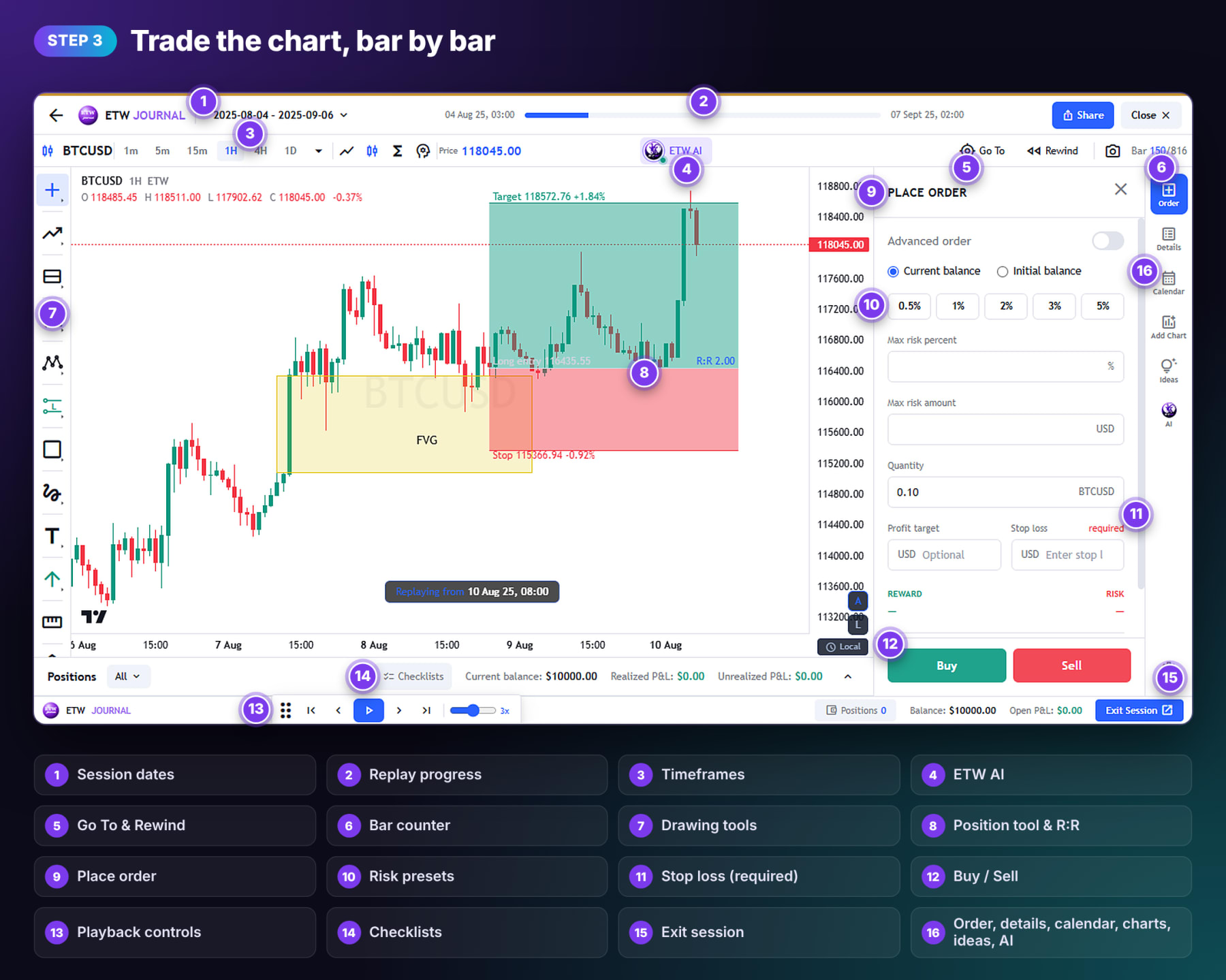
Opening a session takes you into the backtesting workspace. The numbers below match the markers in the screenshot.
Move through time
- Session dates and replay progress (1, 2) show where you are in the test.
- Timeframes (3) switch between 1m, 5m, 15m, 1H, 4H and 1D. Mark your higher-timeframe levels first, then drop down to time entries.
- Go To and Rewind (5) jump to a date or step back. The bar counter (6) tracks your position, e.g. bar 150 of 816.
- Playback controls (13) play, pause and step one bar at a time, with adjustable speed.
Mark up and plan the trade
Use the drawing tools (7) to mark your setup. In the example, the trader marked an FVG on BTCUSD and drew a long position (8) above it: target, stop and a 2.00 R:R calculated automatically.
Place the order with real risk rules
The Place Order panel (9) works like a real trading ticket:
- Risk presets (10): risk 0.5%, 1%, 2%, 3% or 5% of your current or initial balance, or enter a max risk percent or amount.
- Quantity: your position size.
- Profit target: optional.
- Stop loss (11): required. You can't place a trade without one, which is exactly the habit you want to build.
- Buy / Sell (12) places the trade.
Use Checklists (14) to confirm each entry meets your rules, watch your positions, balance and P&L along the bottom, and click Exit Session (15) when you're done. The right-hand rail (16) opens the order ticket, trade details, calendar, extra charts, ideas and ETW AI.
Step 4: Ask ETW AI About the Chart
Click ETW AI on the toolbar to open an assistant that reads the backtest chart live. Ask it about the session, structure, support and resistance, supply and demand, FVGs, order blocks or liquidity, and it reads the current chart for you. Switch to Market Read for its take on the current chart.
You can also tell it what to do, for example: "sell 0.2 lots if price breaks below 1.0900, sl 1.0850, tp 1.0800". Give it your own stop and target, or let it suggest levels from the chart. It watches the chart, executes on your simulated account, even while you're away, and lists anything waiting under Pending AI orders.
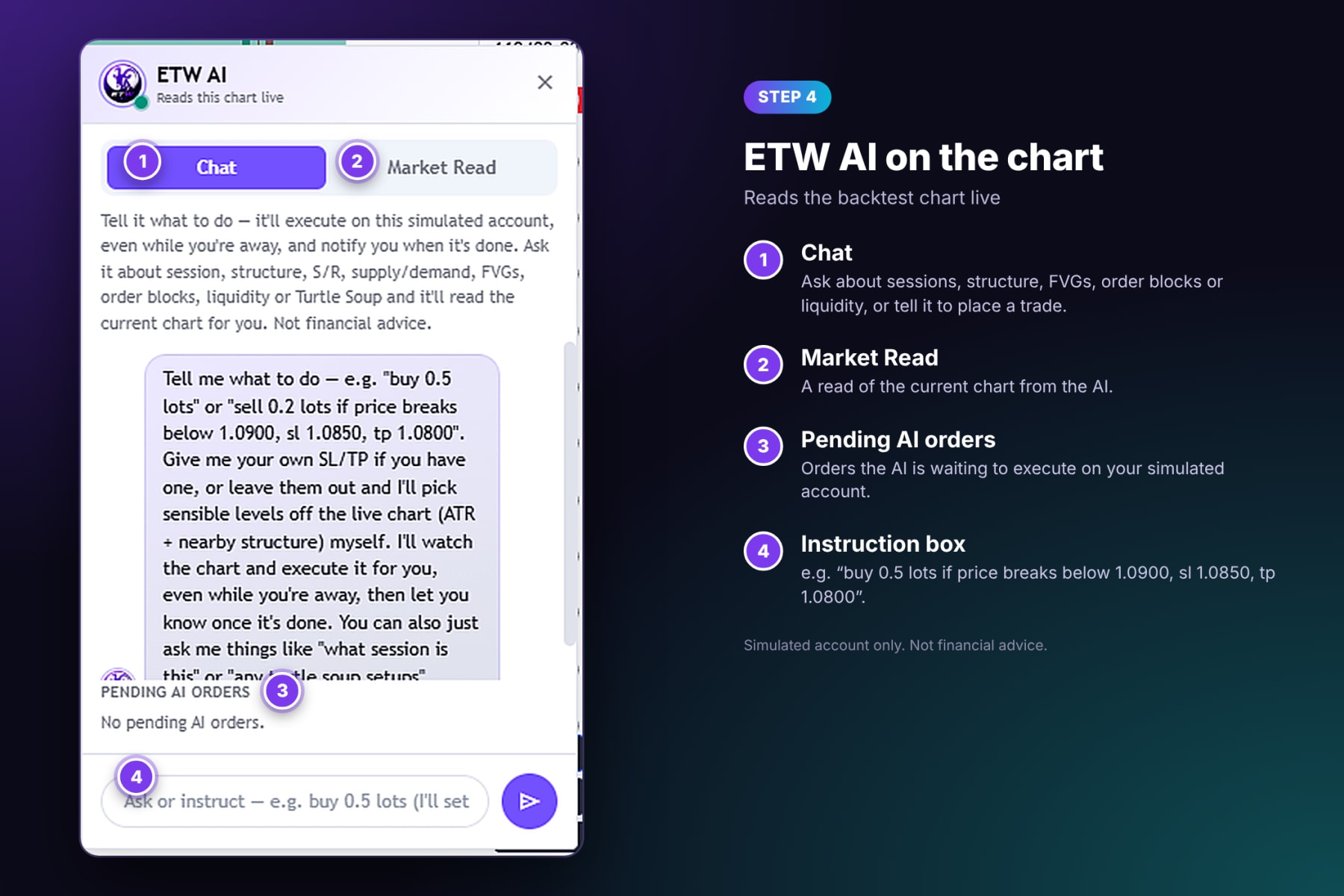
Use AI as a sparring partner, not a crutch. The goal of a backtest is to test your rules. Let the AI explain the chart, then make the decision yourself. ETW AI is not financial advice.
Step 5: Analyse Your Results on the Dashboard
Open Dashboard to see performance across all your backtest sessions. Filter by currency, date range or a single session, then read the key stats:
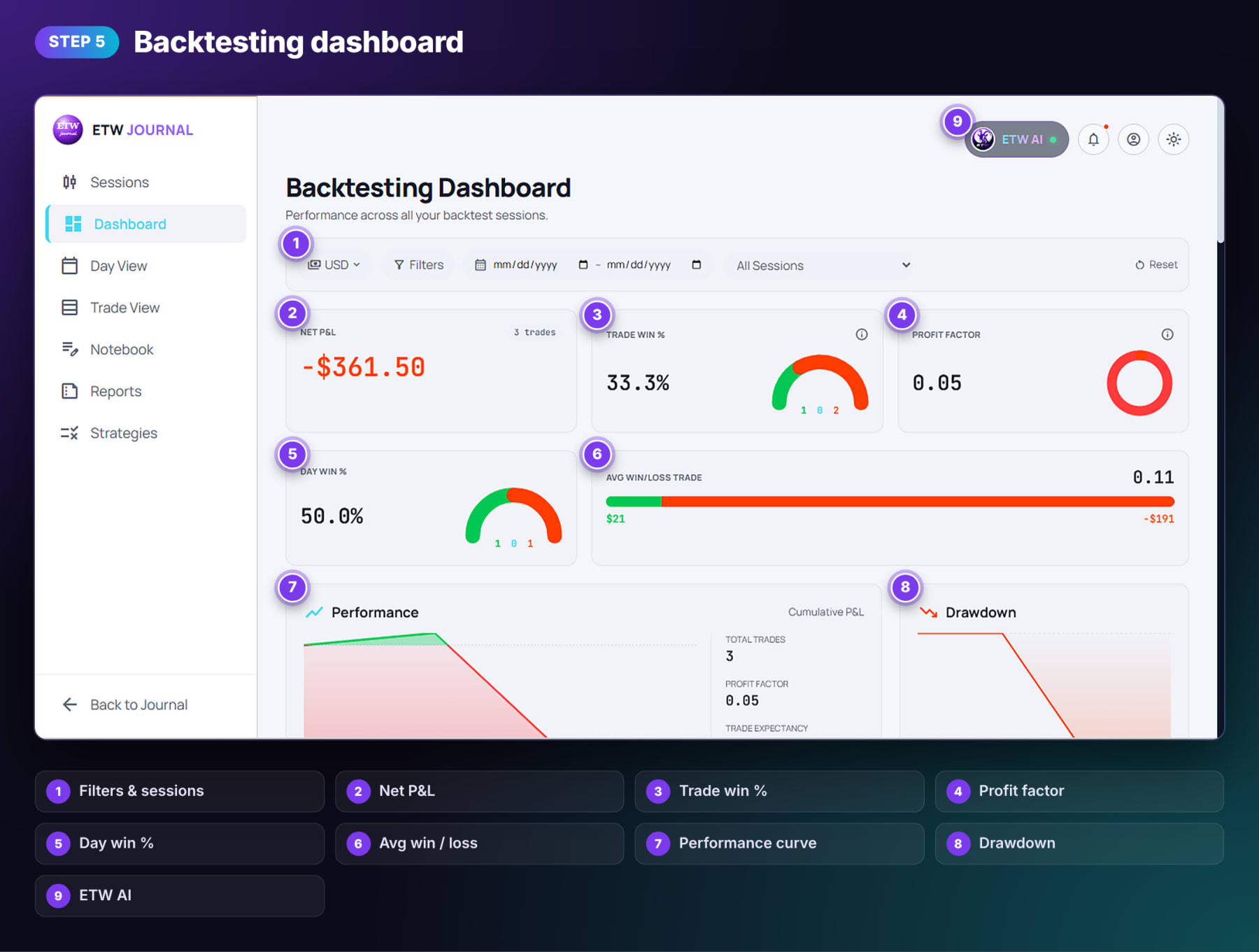
| Stat | What it tells you |
|---|---|
| Net P&L | Total profit or loss, and how many trades it came from. |
| Trade win % | Share of winning trades, with wins, break-evens and losses. |
| Profit factor | Gross profit divided by gross loss. Above 1 means the strategy made money. |
| Day win % | Share of trading days that finished green. |
| Avg win / loss | Your average winner against your average loser. |
| Performance and Drawdown | Your cumulative P&L curve and how deep it fell from its peak. |
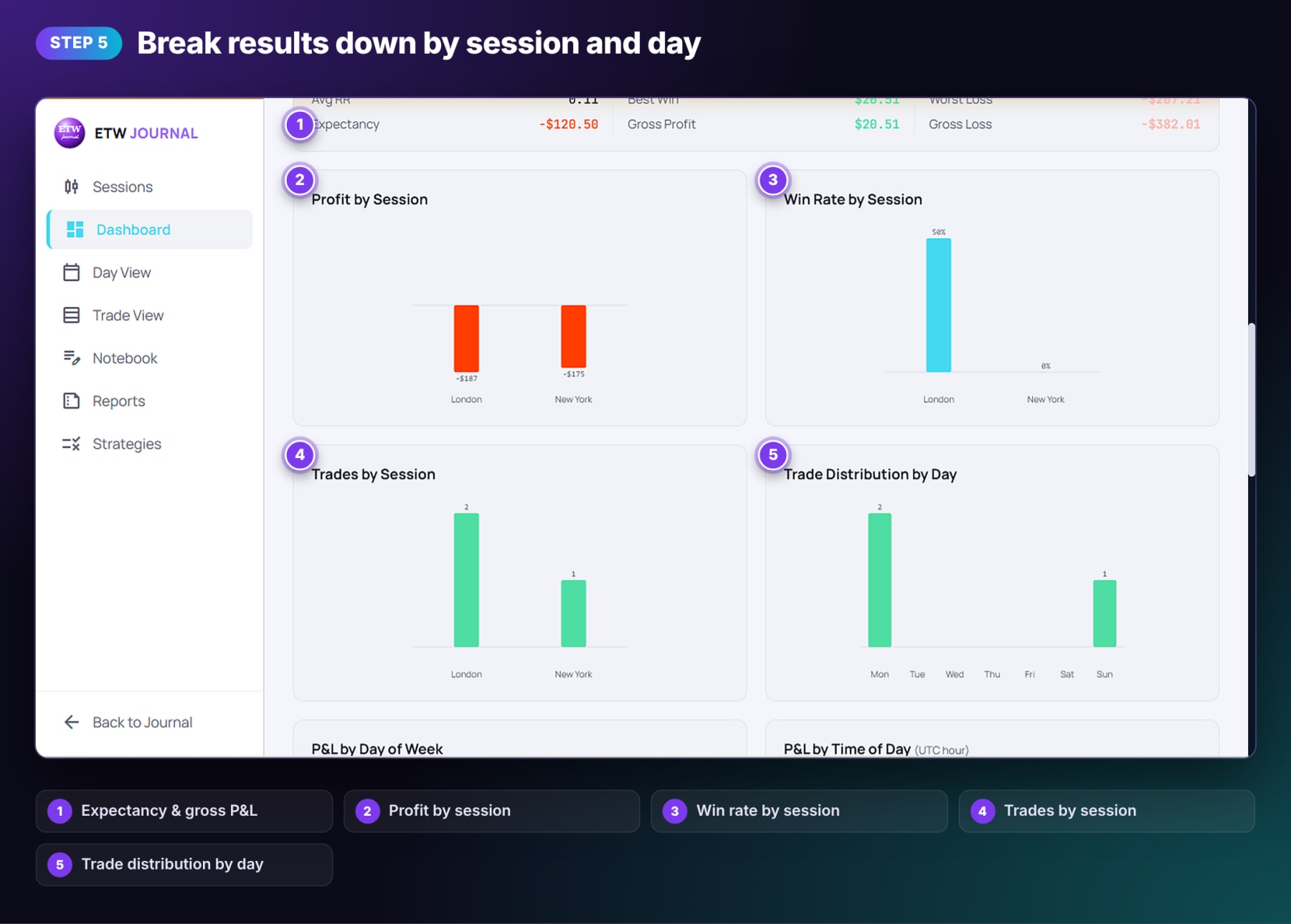
Scroll down for breakdowns: expectancy, gross profit and loss, best win and worst loss, plus profit by session, win rate by session, trades by session, trade distribution by day, and P&L by day of week and time of day. These show when your strategy works, not just whether it does.
Read small samples carefully. In the example, three trades produced a 33.3% win rate and a 0.05 profit factor. That's a warning sign, not a verdict. Aim for at least 30 to 50 trades per strategy before you trust the numbers.
Step 6: Review Every Trading Day
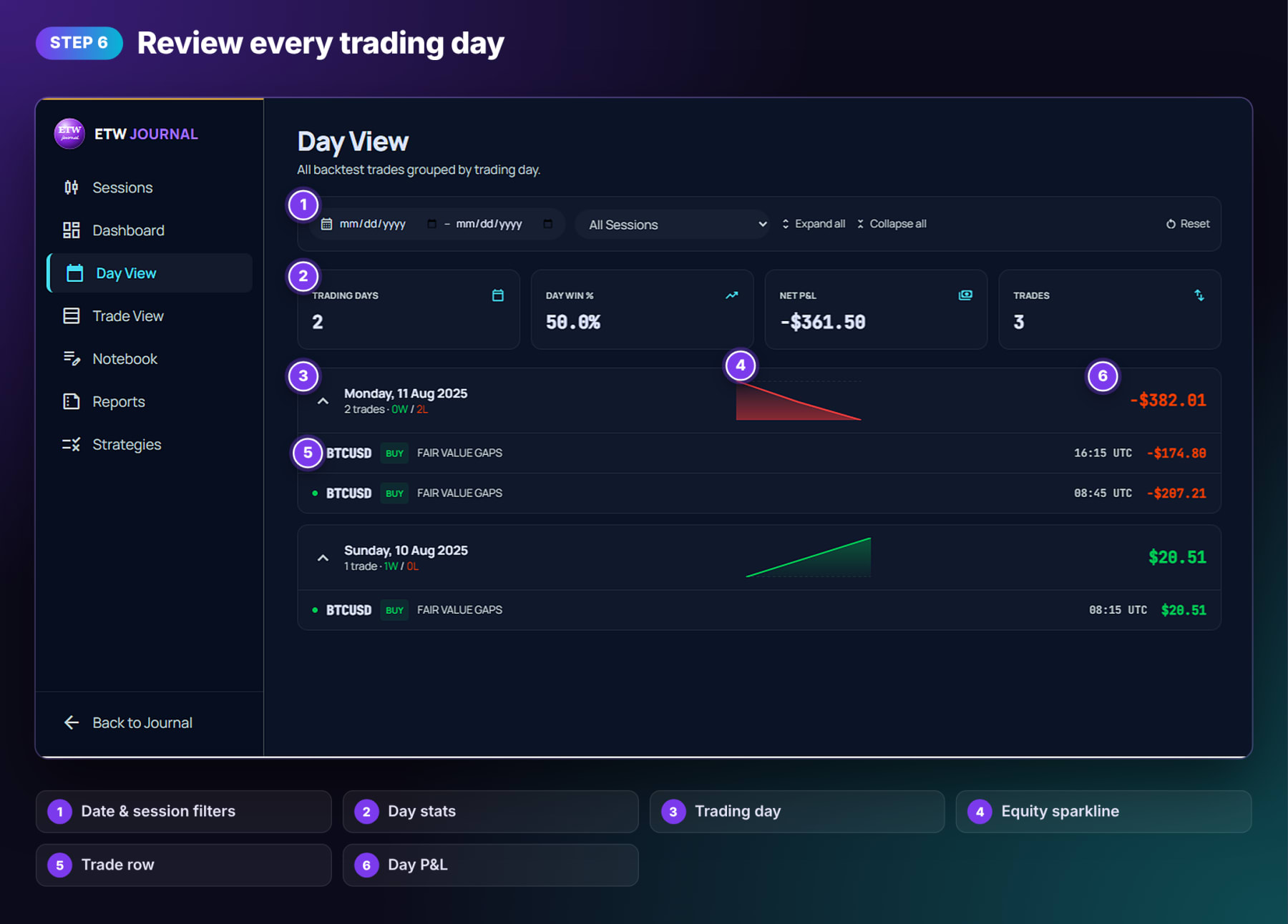
Day View groups all your backtest trades by trading day. The summary shows trading days, day win %, net P&L and total trades. Each day then lists its trades (symbol, side, strategy, time and P&L) with a small equity curve, so you can spot days where you overtraded or kept taking the same losing setup.
Use Trade View to inspect individual trades and the Notebook to record what you learned in each session.
Backtesting Best Practices
- Write your rules first. Entry, stop, target and risk per trade, before you press play.
- Randomize the start so you can't trade from memory.
- Never skip ahead. Make each decision with only the bars you can see.
- Keep risk constant, e.g. 1% per trade, so results are comparable.
- Get a real sample. 30 to 50 trades minimum, across different market conditions.
- Compare with live results. Once a strategy passes, trade it live and track it in a playbook. See how to link trades to your playbook.
Practising for a prop firm challenge? Set your starting balance to the challenge size and risk to its rules, then track the real account in Prop Firm Sync.
Frequently Asked Questions
What markets can I backtest in ETW Journal?
Forex, crypto, metals, indices and stocks, including pairs like EURUSD, GBPUSD, USDJPY and BTCUSD. Use the search box to find a symbol.
How many backtest sessions do I get?
Essential includes 3 backtesting sessions and Pro includes 10. The Sessions page shows how many you have left this month.
Do I need a stop loss on every backtest trade?
Yes. The order ticket requires a stop loss, which keeps your test realistic and your risk consistent.
Can ETW AI place backtest trades for me?
Yes. Tell it what to do in plain language and it executes on your simulated account, even while you're away. It only works on the backtest account, and it isn't financial advice.
What's the difference between Backtesting and Trade Replay?
Backtesting tests a strategy on historical data with a simulated account. Trade Replay reviews trades you've already taken on your real account.
Got a strategy you've never properly tested? Open Backtesting, click New Session, hit Randomize start, and take your first 10 trades today.