 ETW

Last updated: October 13, 2026
If you trade prop firm challenges, you already know the numbers that matter aren't only in your trades. There's the fee you paid, the reset you bought after a bad week, the profit target, the drawdown limit, the daily loss rule, the minimum trading days, and eventually (hopefully) the payouts. Until now that lived in a spreadsheet, a notes app, or your head.
Prop Firm Sync brings all of it into ETW Journal. Track every challenge and funded account in one place, including what you paid, the rules, payouts, passes and fails. Because each prop account is linked to one of your journal accounts, every trade synced from MT5 or cTrader is checked against your firm's rules automatically.
The short version: add your prop account, enter the firm's rules and what you paid, link it to the journal account your trades sync into, and ETW Journal does the rest: live progress toward the target, room left before max loss, and a running net result across every firm you've paid.
What Prop Firm Sync Tracks
- Your challenges: every evaluation, its phase, and whether it's in progress, passed or failed.
- Your funded accounts: live funded capital and how each account is doing.
- Your money: fees, resets and add-ons on one side, payouts and refunds on the other.
- Your rules: profit target, max drawdown, daily loss and minimum trading days, checked against your synced trades.
Step 1: Add Your Prop Account
Open Prop Firm Sync and click Add prop account. The form is built so you can set the account up exactly like your firm's rules, because those are the numbers your synced trades get checked against.
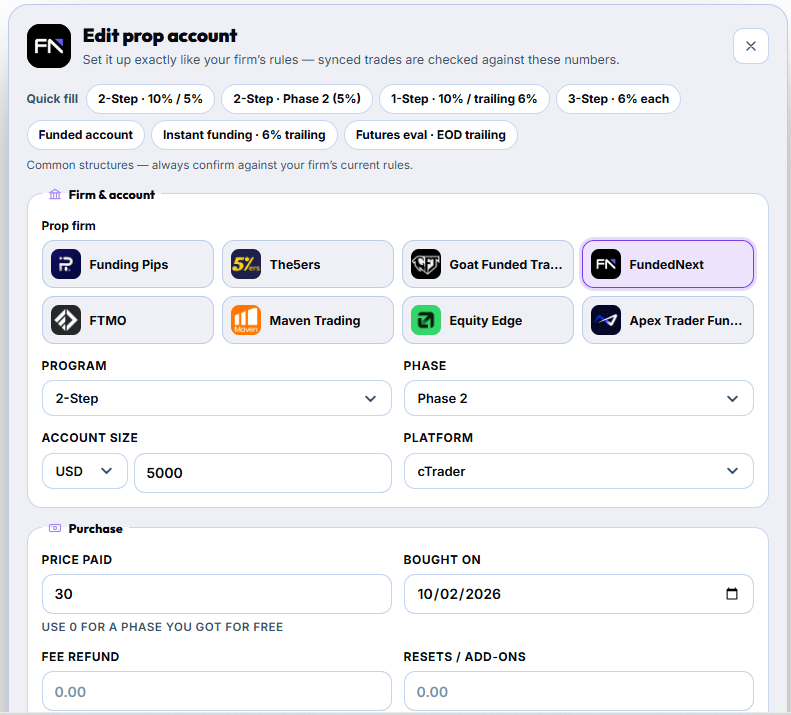
Firm & account
- Prop firm: choose from firms like Funding Pips, The5ers, Goat Funded Trader, FundedNext, FTMO, Maven Trading, Equity Edge and Apex Trader Funding.
- Program and phase: for example 2-Step, Phase 2.
- Account size: the currency and starting balance (e.g. USD 5,000).
- Platform: the platform the account runs on, such as cTrader or MT5.
Quick fill presets
Most firms use one of a handful of structures, so the top of the form has one-click presets: 2-Step · 10% / 5%, 2-Step · Phase 2 (5%), 1-Step · 10% / trailing 6%, 3-Step · 6% each, Funded account, Instant funding · 6% trailing and Futures eval · EOD trailing. Pick the closest one and adjust anything that differs.
Presets are common structures, not your firm's official rules. Always confirm every number against your firm's current rules before you rely on the checks. Firms change their programs often.
Purchase
Enter the price paid and the date you bought it. If a later phase came free with your challenge, use 0 so it isn't counted twice. There are also fields for a fee refund (many firms refund the fee with your first payout) and for any resets or add-ons you buy along the way. These are what power your net result on the dashboard.
Step 2: Let Your Trades Sync and Watch the Rules
Once the prop account is linked to a journal account, trades synced from MT5 or cTrader flow in and the account card fills itself in. Click any prop account to open its detail view.
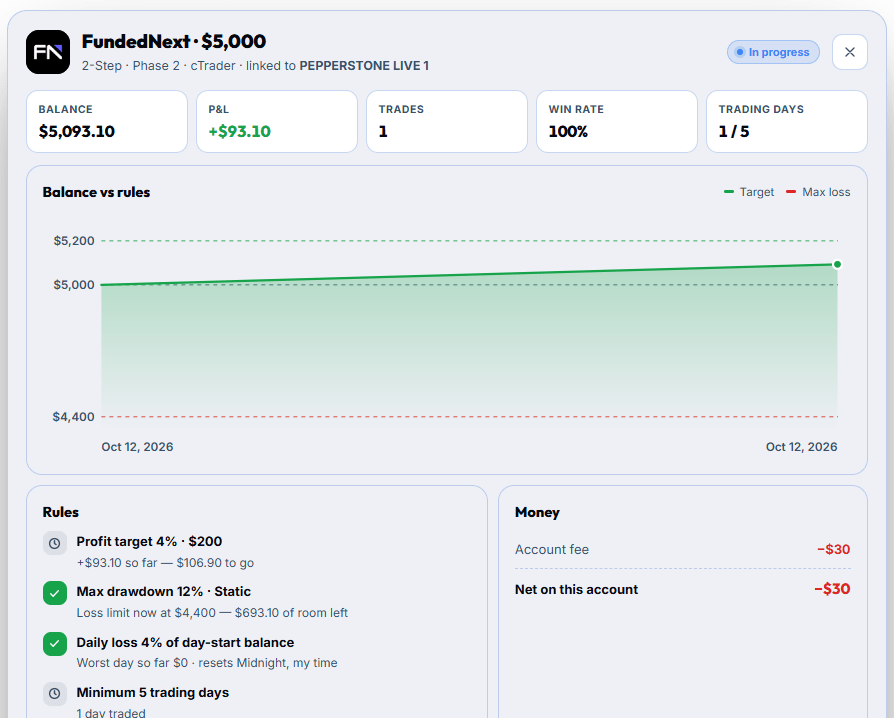
At the top you get the account's balance, P&L, trades, win rate and trading days against the minimum required. Below that, the Balance vs rules chart plots your balance between two lines: the green profit target and the red max loss level. One glance tells you how close you are to passing, and how much room you have before you fail.
The rules checklist
Every rule is checked against your synced trades and turns green once it's satisfied or still safe. Using the FundedNext $5,000 Phase 2 example above:
| Rule | Example | What ETW Journal shows |
|---|---|---|
| Profit target | 4% · $200 | Progress so far and how much is left: +$93.10 so far, $106.90 to go. |
| Max drawdown | 12% · Static | Where your loss limit sits now and how much room is left: limit at $4,400, $693.10 of room left. |
| Daily loss | 4% of day-start balance | Your worst day so far and when the daily limit resets (e.g. midnight, your time). |
| Minimum trading days | 5 days | How many days you've traded toward the minimum: 1 / 5. |
The Money panel on the right keeps the account honest: the account fee, any resets or refunds, and the net result on that account. A challenge can be up on the chart while still being down on your wallet. This panel makes sure you see both.
Static vs trailing drawdown matters. A static limit stays fixed at the starting balance minus the percentage. A trailing limit moves up as your balance grows. Set the type that matches your firm, or the "room left" number won't reflect your real risk.
Step 3: See the Whole Picture on the Dashboard
The Prop Firm Sync dashboard rolls up every prop account you've added. The header shows your net result, pass rate and number of live accounts, with quick buttons to Add prop account or Log payout.
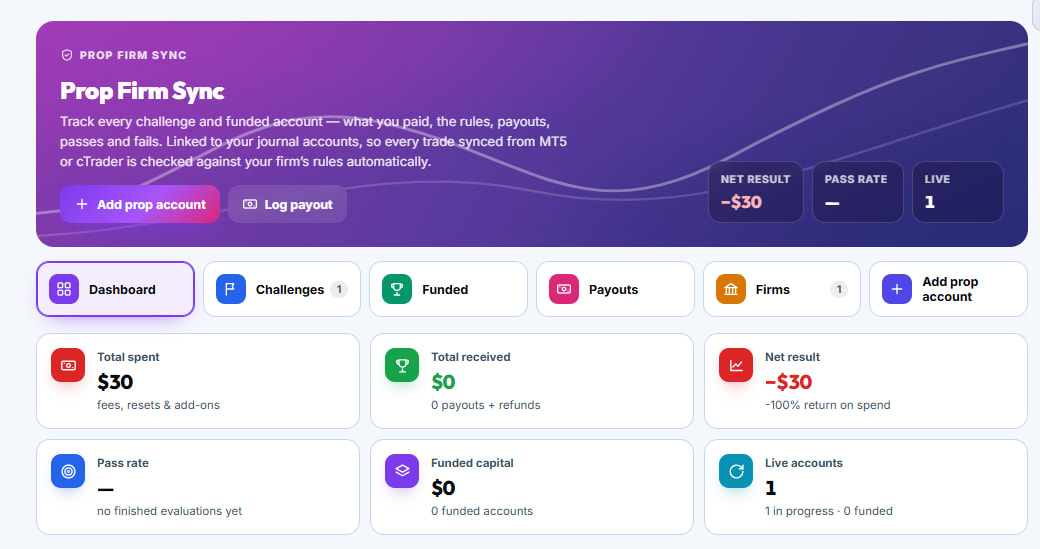
Use the tabs to move between Dashboard, Challenges, Funded, Payouts and Firms. The tiles answer the questions every prop trader should be asking:
| Tile | What it means |
|---|---|
| Total spent | Everything you've paid: fees, resets and add-ons. |
| Total received | Payouts plus fee refunds. |
| Net result | Received minus spent, with your return on spend. |
| Pass rate | The share of finished evaluations you passed. It shows a dash until you've finished one. |
| Funded capital | The combined size of your funded accounts. |
| Live accounts | How many accounts are active, split into in progress and funded. |
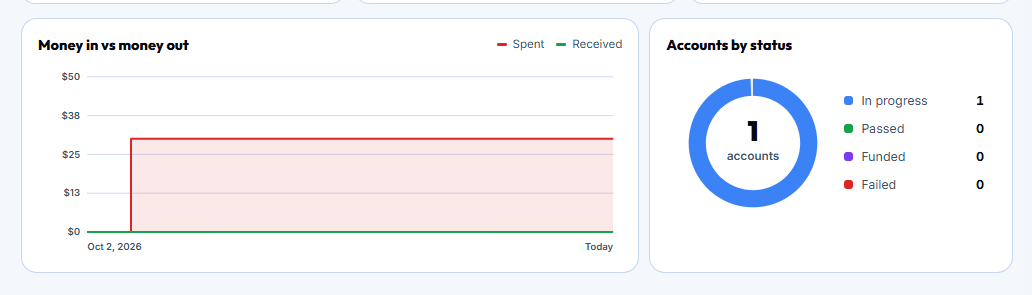
Below the tiles, Money in vs money out charts what you've spent against what you've received over time, and Accounts by status breaks your accounts into in progress, passed, funded and failed.
Step 4: Log Payouts as They Land
When a payout hits, click Log payout to record it. Total received, net result and the money chart update straight away, so you always know whether prop trading is actually paying you, not just whether you're passing.
Why This Matters
Most prop traders know their win rate. Far fewer know their net result across every challenge they've ever bought. Prop Firm Sync puts that number front and centre, next to your pass rate, so you can judge your prop trading like a business:
- Spending more on resets than you're earning? That's a sign to slow down, not buy another attempt.
- Close to max loss? The room-left number tells you exactly how much risk you can still take today.
Frequently Asked Questions
Which platforms does Prop Firm Sync work with?
Prop accounts link to your journal accounts, and trades synced from MT5 or cTrader are checked against your firm's rules automatically.
What if a phase was free?
Enter 0 as the price paid for that phase so your total spent stays accurate.
My firm refunded the fee. Where does that go?
Use the Fee refund field on the prop account. It counts toward total received.
Does this replace my firm's dashboard?
No. Your firm's own dashboard is always the final word on whether you passed or breached. Prop Firm Sync helps you see your progress, risk and costs in one place alongside your journal.
Ready to try it? Open Prop Firm Sync, click Add prop account, and set up your current challenge. Your next synced trade will be checked against its rules automatically.