 ETW

Last updated: October 13, 2026
Some of the worst losses in trading have nothing to do with your setup. You take a clean entry, then a CPI print or a central bank speaker hits the tape and price rips straight through your stop. The fix isn't a better strategy. It's knowing what's on the calendar before the session starts.
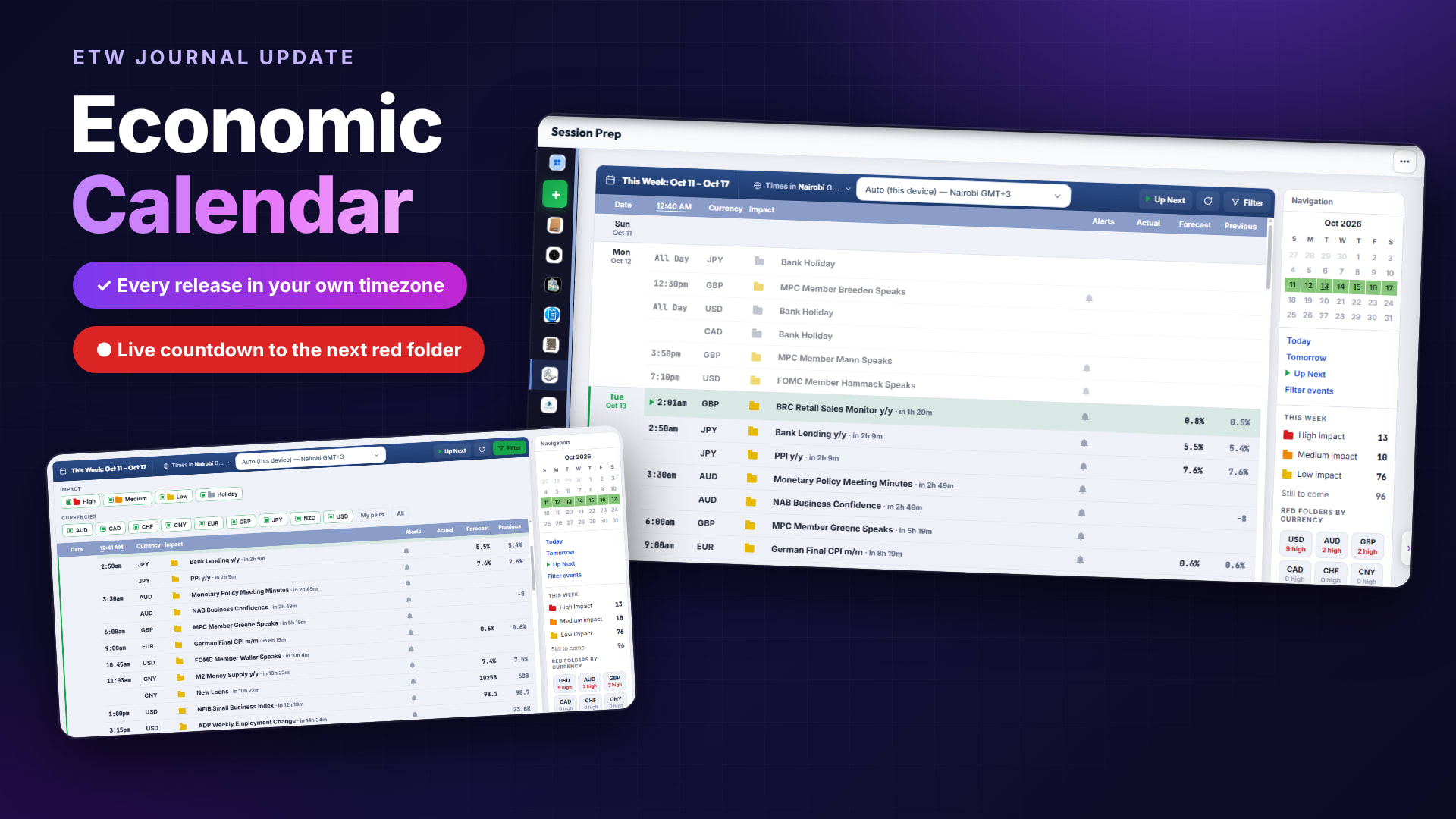
That's why Session Prep now has a built-in Economic Calendar. Every scheduled release for the week sits in the same place you plan your day, shown in your own timezone, with the impact, forecast and previous value right next to it.
The short version: open Session Prep, check what's coming up today, and look for the red folders on the currencies you trade. Use Filter to hide everything else and Up Next to jump straight to the next release.
A Week of News at a Glance
The calendar opens on the current week (for example This Week: Oct 11 – Oct 17) and lists every event day by day. Today is marked with a green line, events that have already passed fade out, and the next release is highlighted with a green arrow so you can't miss it.
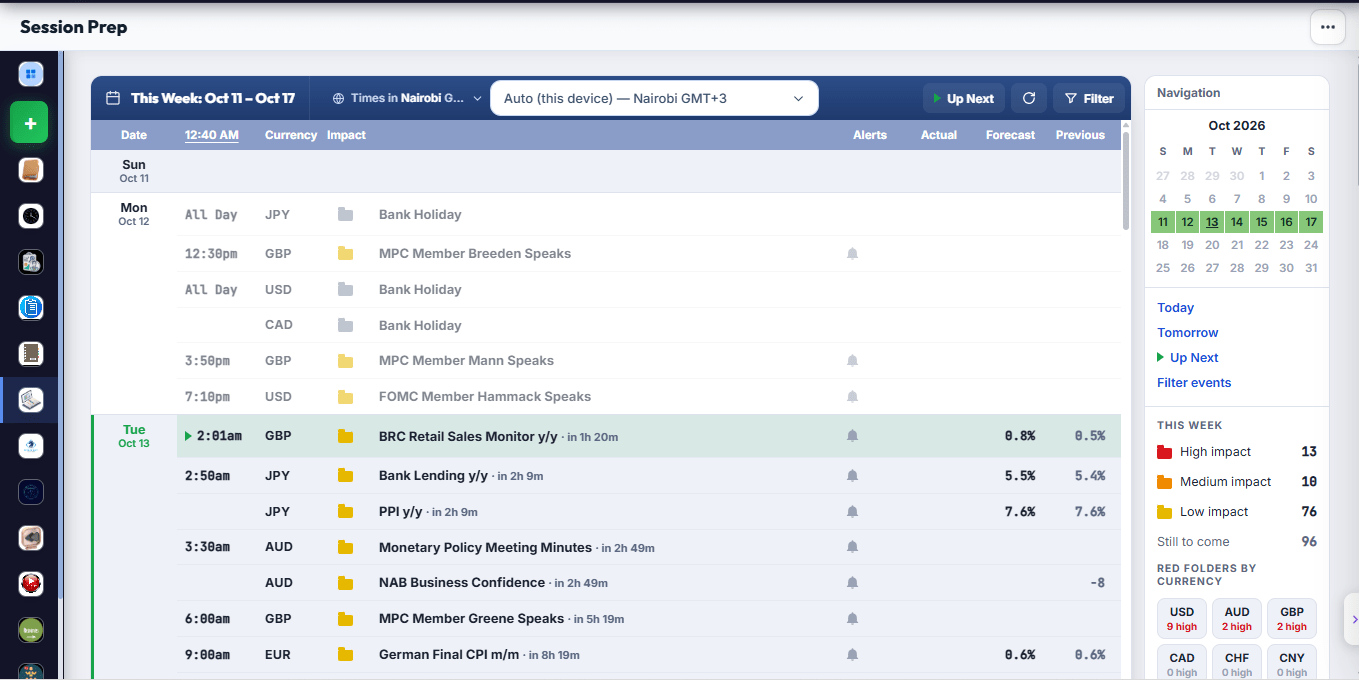
Each row tells you everything you need to decide whether to trade around it:
| Column | What it shows |
|---|---|
| Date | The day of the event. Today is highlighted so you always know where you are in the week. |
| Time | The release time in your timezone. The column header shows your current time, and all-day events (like bank holidays) say All Day. |
| Currency | The currency the release affects, such as USD, GBP or JPY. |
| Impact | A coloured folder: red for high, orange for medium, yellow for low, grey for holidays. |
| Event | The release name plus a live countdown, e.g. BRC Retail Sales Monitor y/y · in 1h 20m. |
| Alerts | A bell icon on each upcoming event. |
| Actual / Forecast / Previous | The released number, what the market expects, and the last reading. |
Always in Your Timezone
No more converting from New York or London time in your head. The calendar picks up your device's timezone automatically (for example Auto (this device) — Nairobi GMT+3) and shows every release in it. If you'd rather plan in another timezone, such as your broker's server time or the exchange's local time, change it from the timezone dropdown at the top.
Countdowns like in 2h 49m update as the session goes on, so a quick look tells you exactly how long you have before the next release.
Filter Down to What You Trade
A full week can have close to a hundred events. Most of them won't move your pairs. Click Filter to open the filter panel and show only what matters to you.
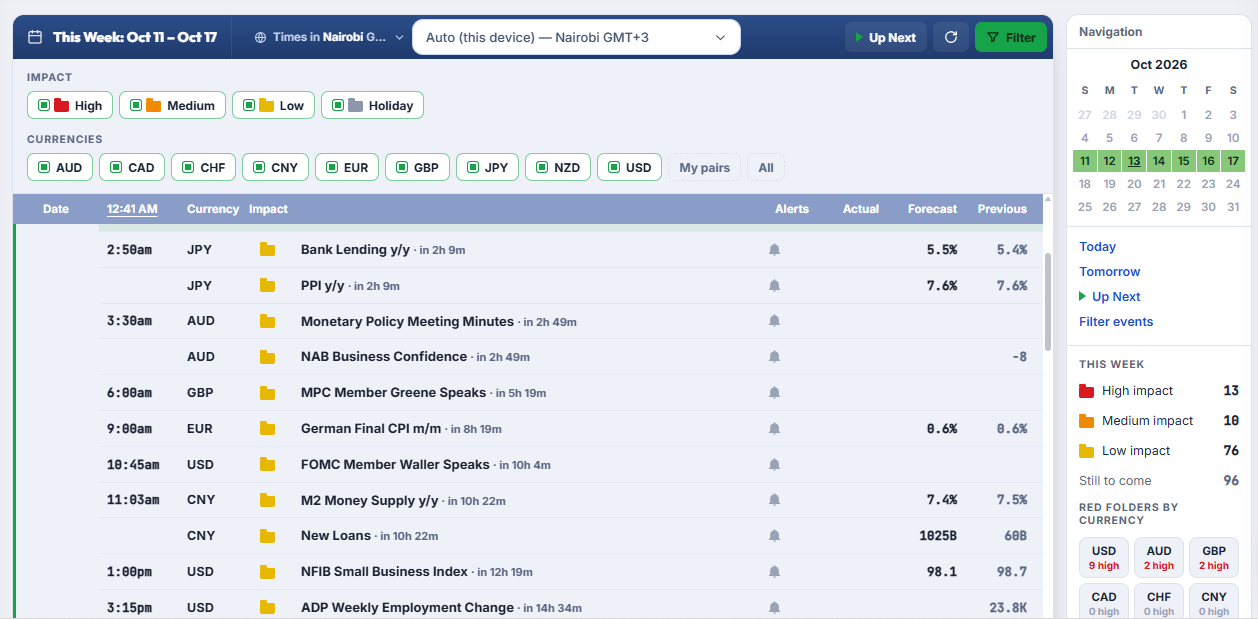
- Impact: toggle High, Medium, Low and Holiday on or off. Many traders keep only High and Medium switched on.
- Currencies: toggle AUD, CAD, CHF, CNY, EUR, GBP, JPY, NZD and USD individually.
- My pairs: show only the currencies you trade in one click.
- All: switch every currency back on.
The Navigation Panel
The panel on the right keeps you oriented and gives you a summary of the week before you even scroll.
- Mini calendar: the current week is highlighted in green. Pick a date to jump to it.
- Quick links: Today, Tomorrow, Up Next and Filter events.
- This week: how many high, medium and low impact events are on the calendar, and how many are still to come.
- Red folders by currency: the number of high impact events per currency. In the example above, USD has 9 high impact events this week, AUD and GBP have 2 each, and CAD, CHF and CNY have none.
The red folders by currency count is the fastest way to see which pairs are risky this week. If USD has 9 red folders, expect a busy week on every USD pair and size down or step aside around those releases.
How to Use It in Your Session Prep
- Start of the week: check the red folders by currency to see which days and pairs are most exposed.
- Before each session: click Today, then Filter to show only your pairs and high impact events.
- Mark your no-trade windows: note the times of red folder releases and decide how long you'll stay flat before and after them.
- During the session: use Up Next and the countdown to see how long you have before the next release.
- After the release: compare the actual number with the forecast and previous to understand why price moved the way it did, then add it to your journal notes.
Frequently Asked Questions
Where do I find the Economic Calendar?
It's in Session Prep, so you can review the news in the same place you plan your trading day.
Which timezone are the times shown in?
Your device's timezone by default. You can switch to another timezone from the dropdown at the top of the calendar.
Which currencies are covered?
AUD, CAD, CHF, CNY, EUR, GBP, JPY, NZD and USD. Use the currency filter or My pairs to narrow it down.
What do the folder colours mean?
Red is high impact, orange is medium, yellow is low and grey is a bank holiday.
Ready to try it? Open Session Prep, click Up Next, and see what's moving the market before your next session.