 ETW

Last updated: October 13, 2026
ETW Journal traders log in from all over the world, but until now every number in the app was shown in US dollars and every label was in English. If you think in shillings, euros or rupees, or you'd simply rather read the app in your own language, that meant translating in your head every time you reviewed a day.
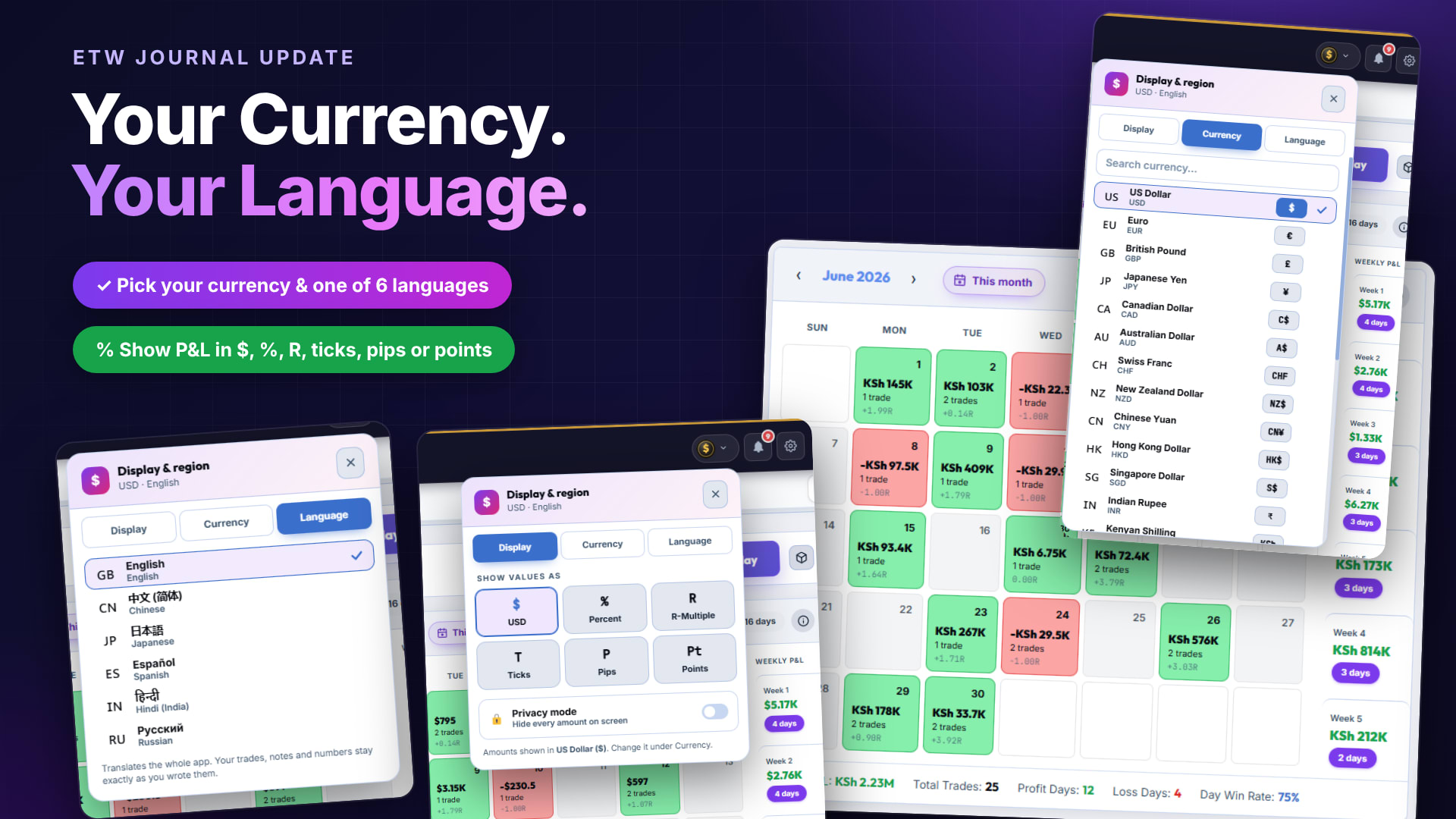
Not anymore. The new Display & region panel puts three things in one place: how your values are shown, which currency they're shown in, and which language the app speaks.
The short version: click the coin icon in the top bar to open Display & region. Use Display to choose how values are shown, Currency to pick your currency, and Language to translate the app.
Opening Display & Region
You'll find the new coin icon in the top bar, right next to your notifications and settings. Click it and the Display & region panel opens. Its header always shows your current setup at a glance, for example USD · English.
Display: Choose How Values Are Shown
The Display tab controls how amounts appear across your journal. Under Show values as, pick the unit that matches how you think about your trading:
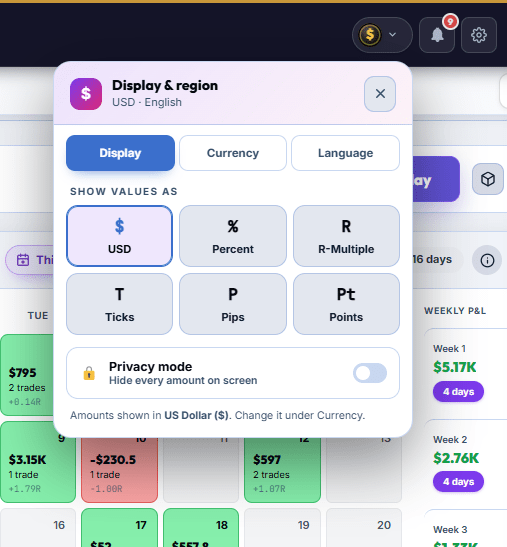
| Option | Best for |
|---|---|
| Currency (e.g. USD) | Seeing real money made or lost, in the currency you picked under Currency. |
| Percent | Judging performance relative to account size, which is handy for prop firm challenges. |
| R-Multiple | Measuring results in units of risk, so a good week looks the same whatever your position size. |
| Ticks | Futures traders who think in ticks. |
| Pips | Forex traders who count moves in pips. |
| Points | Index and other traders who measure moves in points. |
Privacy mode
Sharing your screen, recording a video or journaling in a coffee shop? Switch on Privacy mode to hide every amount on screen. Your trades are still there and still counted, but the numbers stay out of sight until you switch it off.
Currency: See Your P&L in Your Own Money
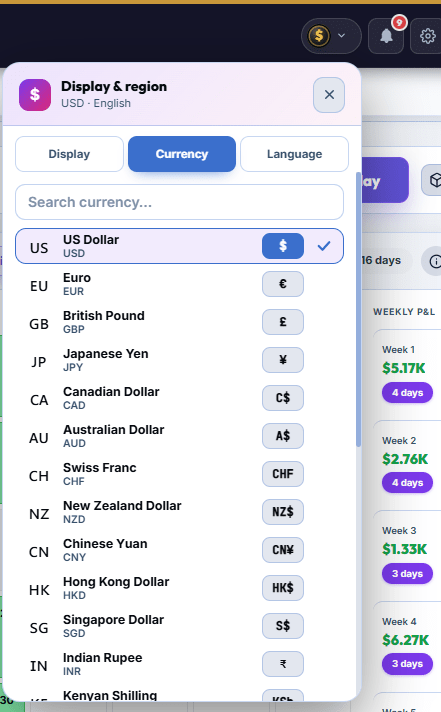
Open the Currency tab to choose the currency your amounts are shown in. The list includes the US Dollar, Euro, British Pound, Japanese Yen, Canadian Dollar, Australian Dollar, Swiss Franc, New Zealand Dollar, Chinese Yuan, Hong Kong Dollar, Singapore Dollar, Indian Rupee, Kenyan Shilling and more. Use the Search currency box to find yours quickly, then click it. A tick marks the one you're using.
Once you switch, your amounts follow. Here's the same monthly calendar shown in Kenyan Shillings: daily results, weekly P&L, monthly stats and the month summary at the bottom all display in KSh.
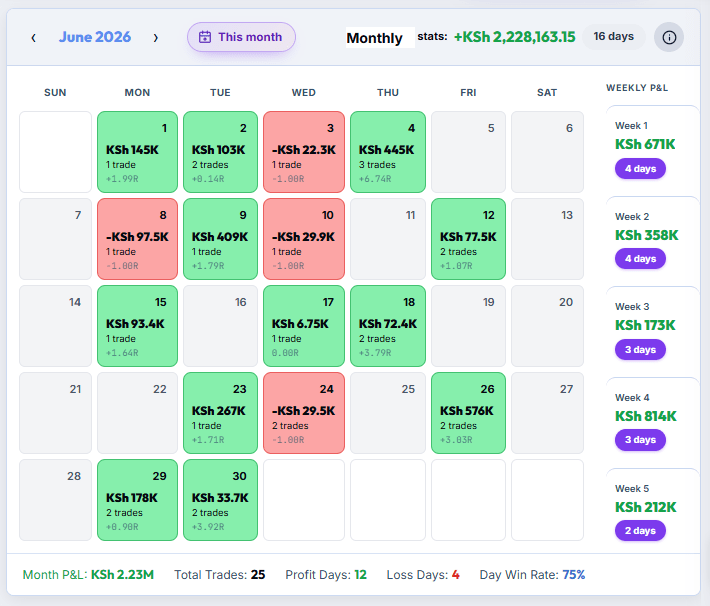
R-multiples, trade counts and win rates don't depend on currency, so they stay exactly the same whichever currency you pick. In the example above you can still see +1.99R, 25 total trades and a 75% day win rate.
Language: Use ETW Journal in Your Language
The Language tab translates the whole app. Choose from:
- English
- 中文 (简体): Chinese (Simplified)
- 日本語: Japanese
- Español: Spanish
- हिन्दी: Hindi (India)
- Русский: Russian
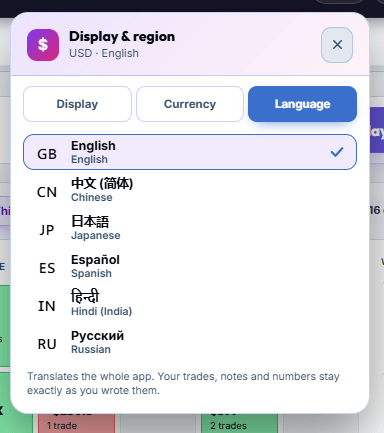
Only the app changes. Your trades, notes and numbers stay exactly as you wrote them, so nothing in your journal gets rewritten or lost when you switch languages.
Popular Setups
- Prop firm trader: Display set to Percent, so every day reads against the firm's targets and limits.
- Risk-first trader: Display set to R-Multiple, to judge execution without position size getting in the way.
- Local currency: Display set to your currency and Currency set to the one you live in (for example KSh), so your P&L means something in everyday terms.
- Content creator: Privacy mode on while recording or streaming.
Frequently Asked Questions
Does changing the currency change my trades?
No. It only changes how amounts are displayed. Your trades and their results stay as they were synced or logged.
Will switching language translate my notes?
No. The language setting translates the app itself. Your trades, notes and numbers stay exactly as you wrote them.
Can I hide my P&L without changing anything else?
Yes. Turn on Privacy mode in the Display tab to hide every amount on screen, then switch it off when you're done.
Which languages are available?
English, Chinese (Simplified), Japanese, Spanish, Hindi and Russian.
Ready to try it? Click the coin icon in the top bar, pick your currency and language, and see your journal the way you think about your trading.